The student list and profile
The student list
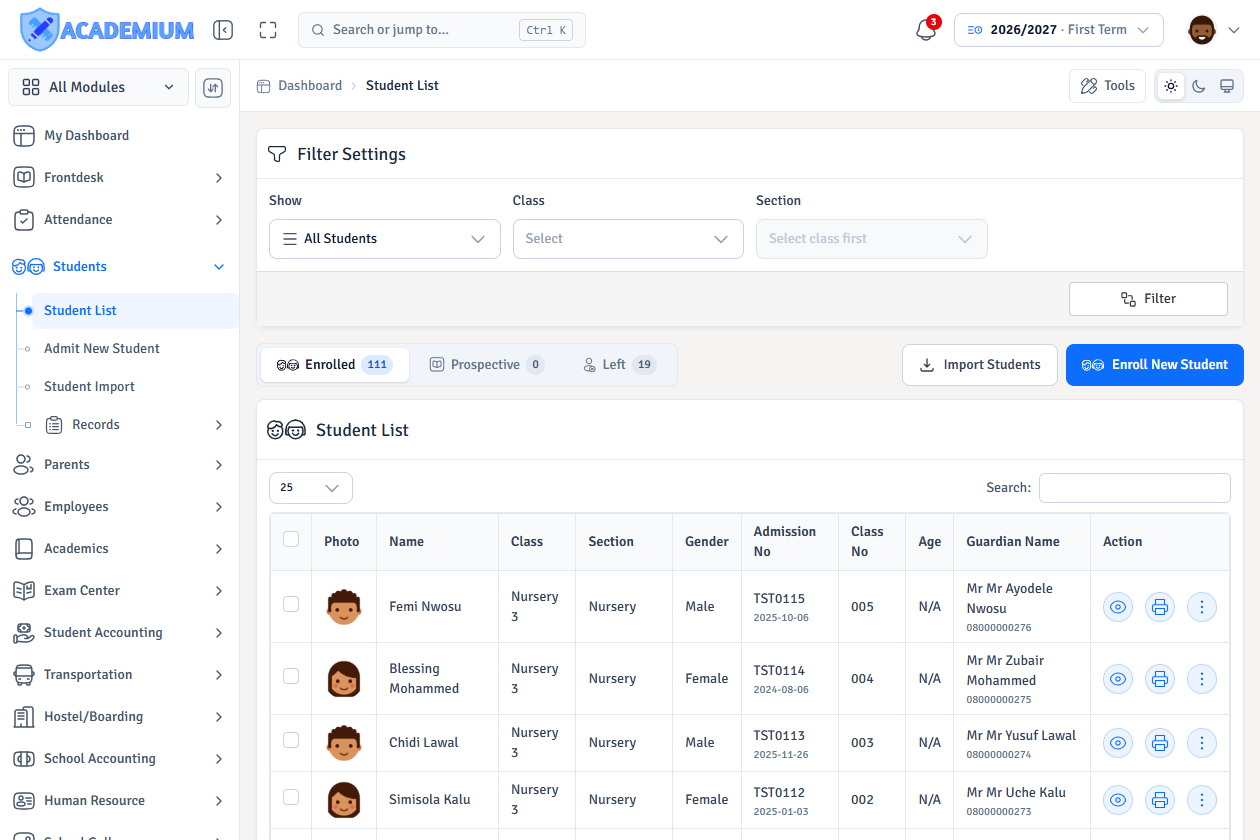
Open Students → Student List. Check the year picker too: the enrolled list normally uses your selected session. It has three tabs:
- Enrolled: students currently at the school;
- Prospective: children who have applied but not been admitted;
- Left: students who have left.
To find a student, use the filters above the list:
- Choose the Class.
- Choose the Section, if you want to narrow the list further.
- Choose Filter.
- Choose View Profile beside the student.
Use Show → All Students for the enrolled list, or Recent Admissions to filter by admission session and term. Check class, section and Search as well: the Enrolled tab's total can be larger than the currently filtered list. An empty filtered list does not mean those students were deleted or never imported.
Creating a new session does not automatically move existing students to new classes. Review their enrolments and promotion history before importing them again. Select a screenshot to open it at full size.
The student profile
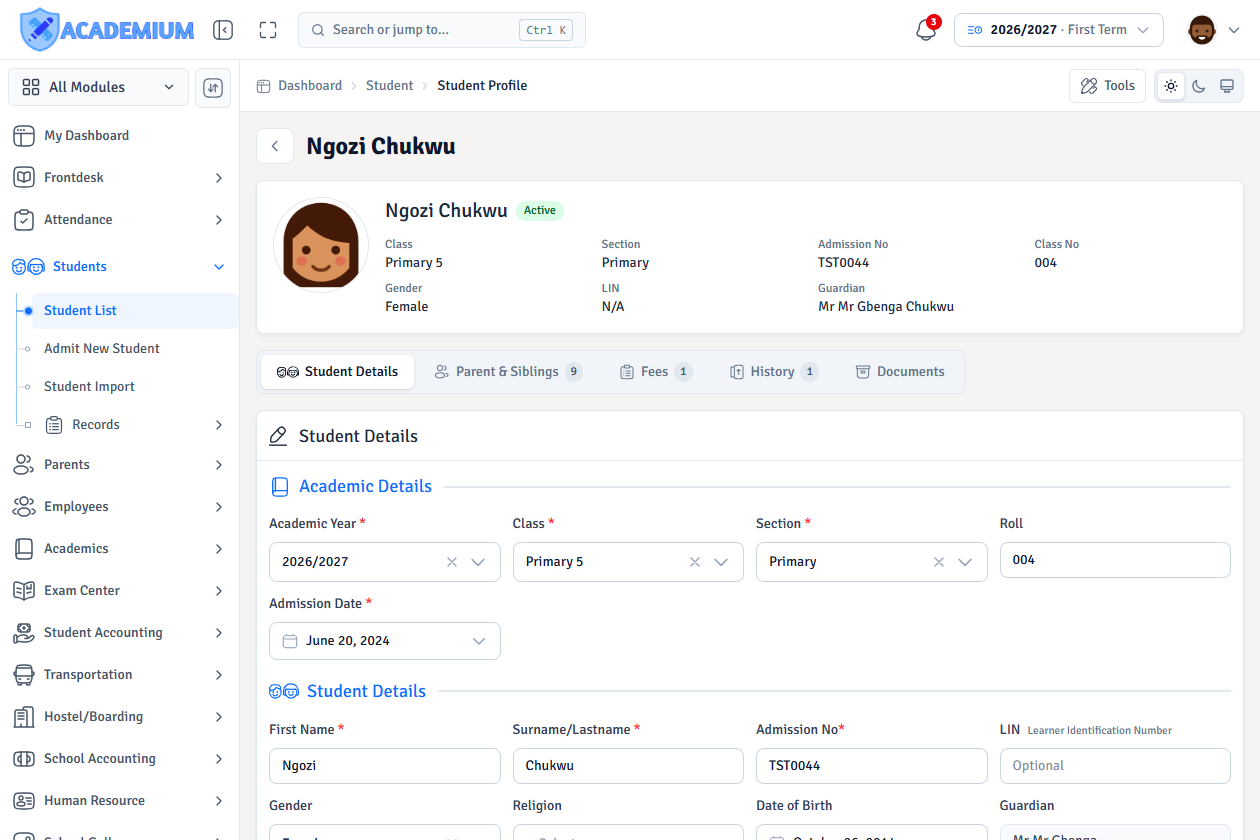
Open a student to see everything about them in one place:
- a summary and their details;
- their guardian, and their siblings at the school; authorised staff can change the parent link after reviewing the new guardian's details and children;
- their fees, term by term (hidden unless your role can see fees);
- transport (vehicle, driver and phone) and hostel (hostel and warden), if they have them;
- their previous school;
- their promotion and transfer history;
- documents, which you can download.
You can open the profile quickly from search, which also has shortcuts to the student's invoice, attendance, transport and hostel.
Actions and printing
Use the row actions for permitted tasks such as Transfer, Change parent, Mark as left and Print. Change parent lets you search for and review an existing family before confirming the new link.
Tick several students to show the sticky action bar at the bottom. It gathers the actions available for that selection, including printing. The print window offers existing report cards and active admission-letter or ID-card templates where available. See Printing from the student list.
The list and profile follow the school's shared Student Fields choices. Required fields stay visible. The student places notice appears only for schools with a student allowance.
Previous-school records
The admission form can review an original Academium ZIP bundle from another school and use its details to start the form. After admission is saved, Previous schools on the profile keeps that school's academic record separately from your school's results. Previous-school fees and purchases do not enter your accounts. See Importing a previous school's record.
To prepare a record for a student who is moving on, use Student records under Alumni & legacy.
Removing a student
A student with school history, such as fees, payments, exam marks or attendance, cannot be deleted. This protects their records, including in bulk-delete actions. Use Mark as left and Transferred to Another School for a departure; see When a student leaves. Use Transfer for a move to another class within the school.
Deleting an unused record still needs delete permission and confirmation. Removing a row from an unsaved import preview is a separate action and does not delete an existing student.
Good to know
- A student who has left has a read-only profile, with a banner showing the date and reason they left.
- Exam results are not shown on the profile. Use report cards and progress reports instead.
Works with other parts of SMS
- The profile’s Fees tab shows what the fee account holds, including transport and hostel.
- Documents attached here also appear in Files and documents.
- The Print button offers ID cards and admission documents set up in printables.