Setting up printables
Use Printables → Setup → Document Designs to prepare reusable report cards, student ID cards, admission application forms and admission letters.
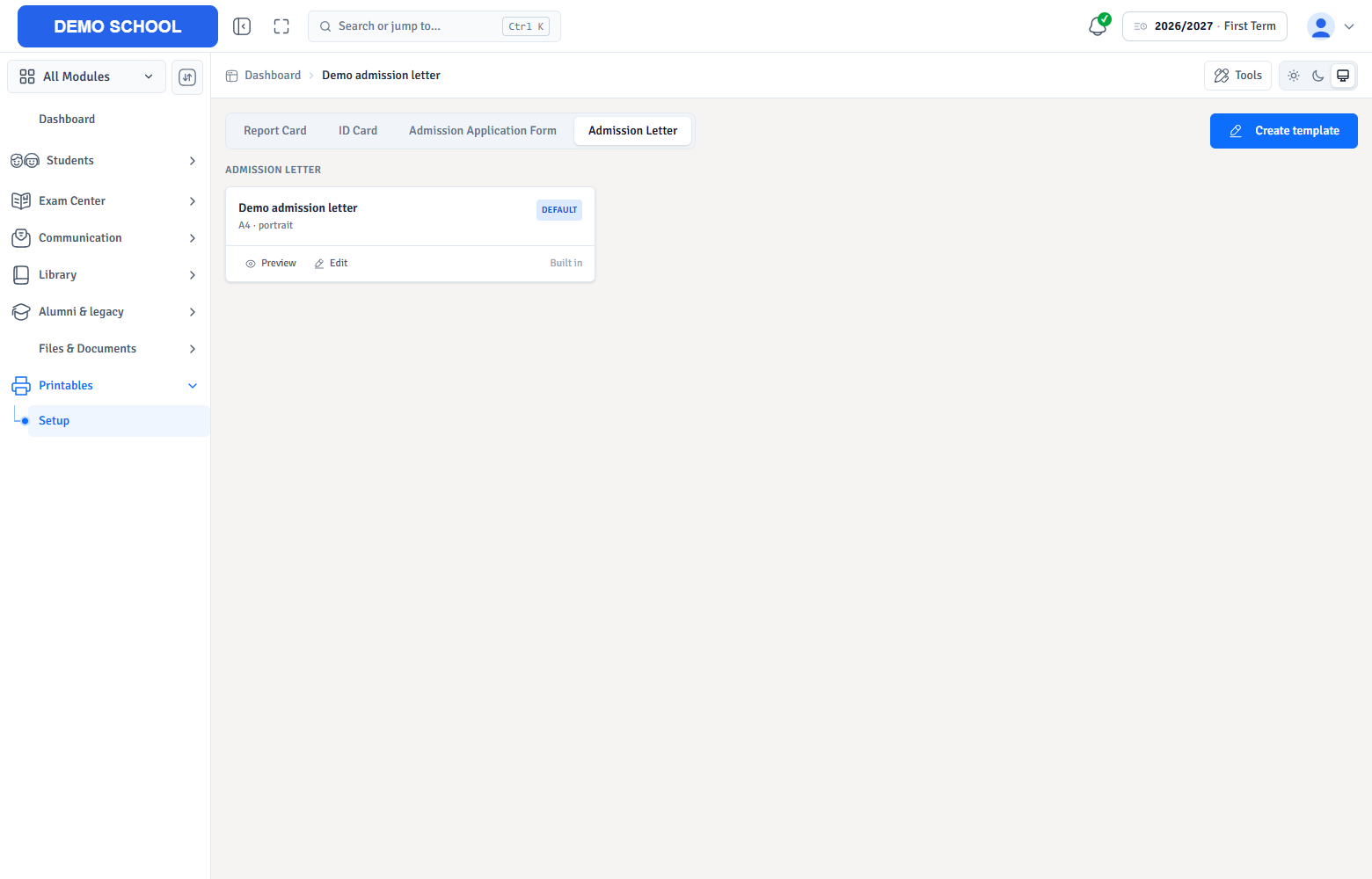
Choose the document
Select its tab, choose a starting layout, and give the design a recognisable name. Keep separate designs when different classes or purposes need different documents.
For admission forms and letters, there are five starting layouts each. Customise a starting layout rather than rebuilding the document from scratch.
Make the design yours
The controls depend on the document. You can arrange sections, choose the information shown, change captions and headings, and adjust colours, fonts, spacing and paper settings. Use the preview to check long names and addresses before printing a batch.
Report cards can include subjects, junior skills, or both. Choose which attendance, grading, position, average, result and remark details to show. Make sure the selected layout suits the assessments your school records.
For ID cards, arrange the front and back, including the student's identity, photo, school details, contact details, validity and any signature or QR block offered by the design.
Admission application forms follow the school's Student Fields settings. Required fields cannot be hidden. A template cannot restore an optional field hidden by the school.
Shared resources
Open Printables → Resources to manage fonts, backgrounds, signatures and stamps. These resources can be reused across designs. Keep resources that existing templates still need.
Save, preview and check
Save the design, then open the corresponding page under Printables → Print. Choose the template and preview a small sample before printing a whole class. Check both the information and its placement on the intended paper size.
Only designs and documents available to your staff permissions appear. To offer admission letters or ID cards from a student's Print button, prepare an active template for that document.
- Printing report cards
- Printing student ID cards
- Admission application forms
- Admission letters
- Printing from the student list
Works with other parts of SMS
- Your letterhead heads every printed document.
- The report card template chosen for a class is also used for results published online.
- Admission forms ask for the fields set in student fields.
- Use the print queue to print documents from different pages together.