Printing student ID cards
- Open Printables → Print → Student ID Card.
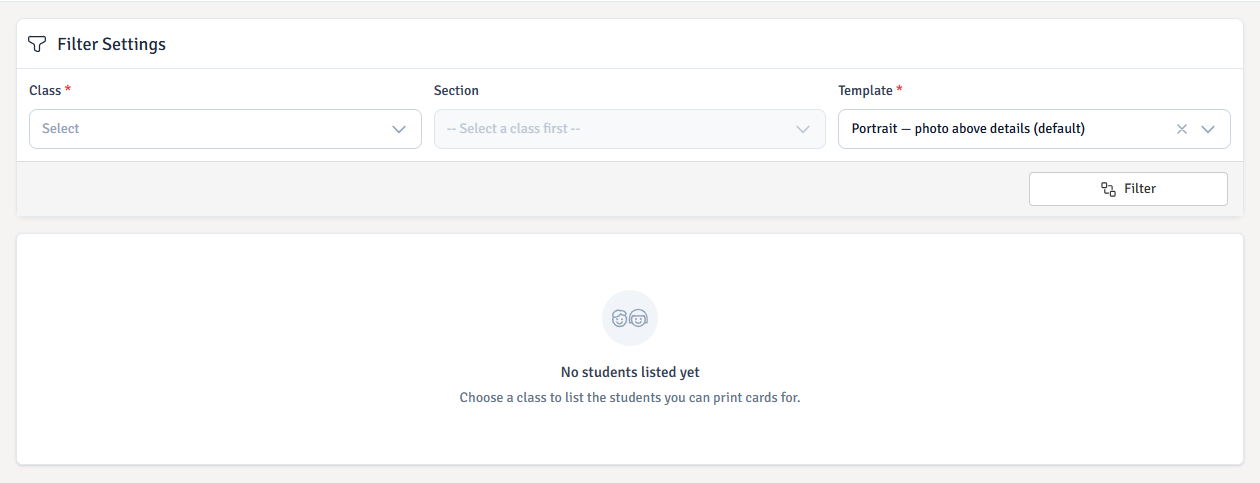
- Choose the class. Choosing a section is optional, so you can print a whole class at once.
- Tick the students. All students are ticked to start with; untick anyone you do not need.
- Generate. The ticked students' cards are put into one document.
- Check the preview, then print or save as PDF.
You can also print available ID-card templates from the student list's Print action, for one or several students. See Printing from the student list.
Good to know
- Cards use each student's saved photo or chosen avatar. Check these before printing.
- The design comes from your ID card template. See Setting up printables.
Works with other parts of SMS
- Cards use student details and photos from student records; designs are set up in printables.