Printing report cards
Report cards bring together everything recorded during the term: marks, grades, positions, comments, attendance and, for younger learners, skills ratings. Nothing needs to be typed again.
Before you print
- Marks are entered for every subject. See Entering marks.
- Positions and comments are done, and the results are authorised. See Positions, comments and authorising results.
- Your report card template is set up. See Setting up printables.
Printing
- Open Printables → Print → Report Card.
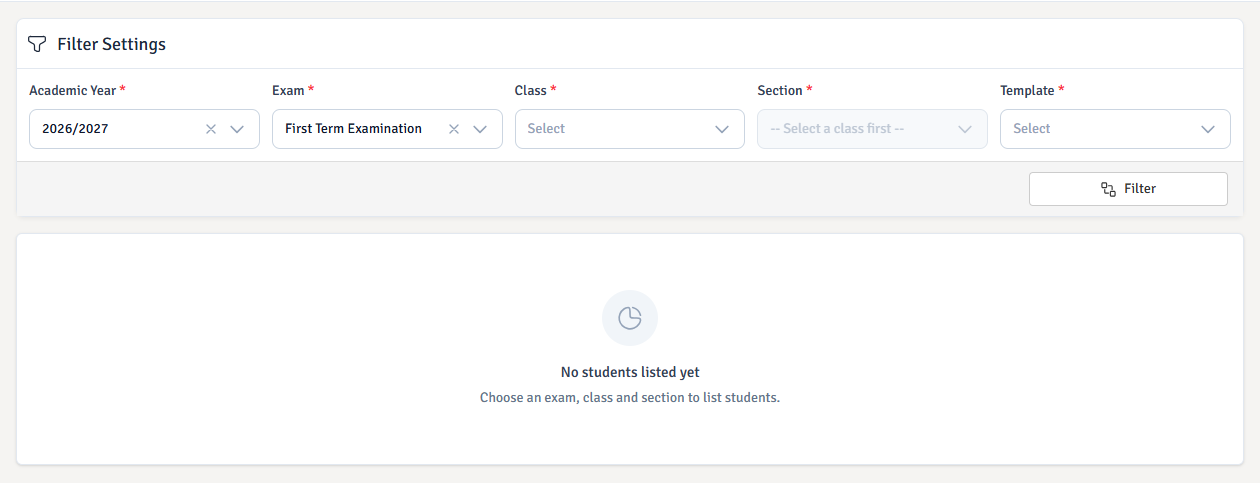
- Choose the session, class, section and exam.
- Tick the students. Tick all of them to print the whole class.
- Generate. All ticked students' report cards are put into one document.
- Check the preview, choose the paper size, and print, or save as PDF.
Existing results from the student list
Use a student's Print action to see their available result records. Select individual results or all available results, choose a report-card template, and preview the batch. For several students, select them in the list and choose Print in the sticky action bar. See Printing from the student list.
Junior report cards
For learners assessed on skills, use the Skills + Subjects or Skills Only layout. Junior report cards can also be printed from Reports → Exam → Junior Progress Reports. See Rating learners and junior reports.
Common issues
A student's comment or position is blank. Positions and comments have not been completed for that class. Finish them on Position & Comments.
The wrong logo shows. Report cards use the report card logo from School settings.
Attendance is missing. Turn on attendance percentage in the report card template.
With Academium Surepass
Scores from computer-based tests and exams in Academium Surepass appear on report cards once Surepass has sent them to SMS. See Sending results to Academium SMS.
Works with other parts of SMS
- Cards bring together marks, attendance, skills ratings and comments.
- The same card is used when publishing results online.