Publishing results online
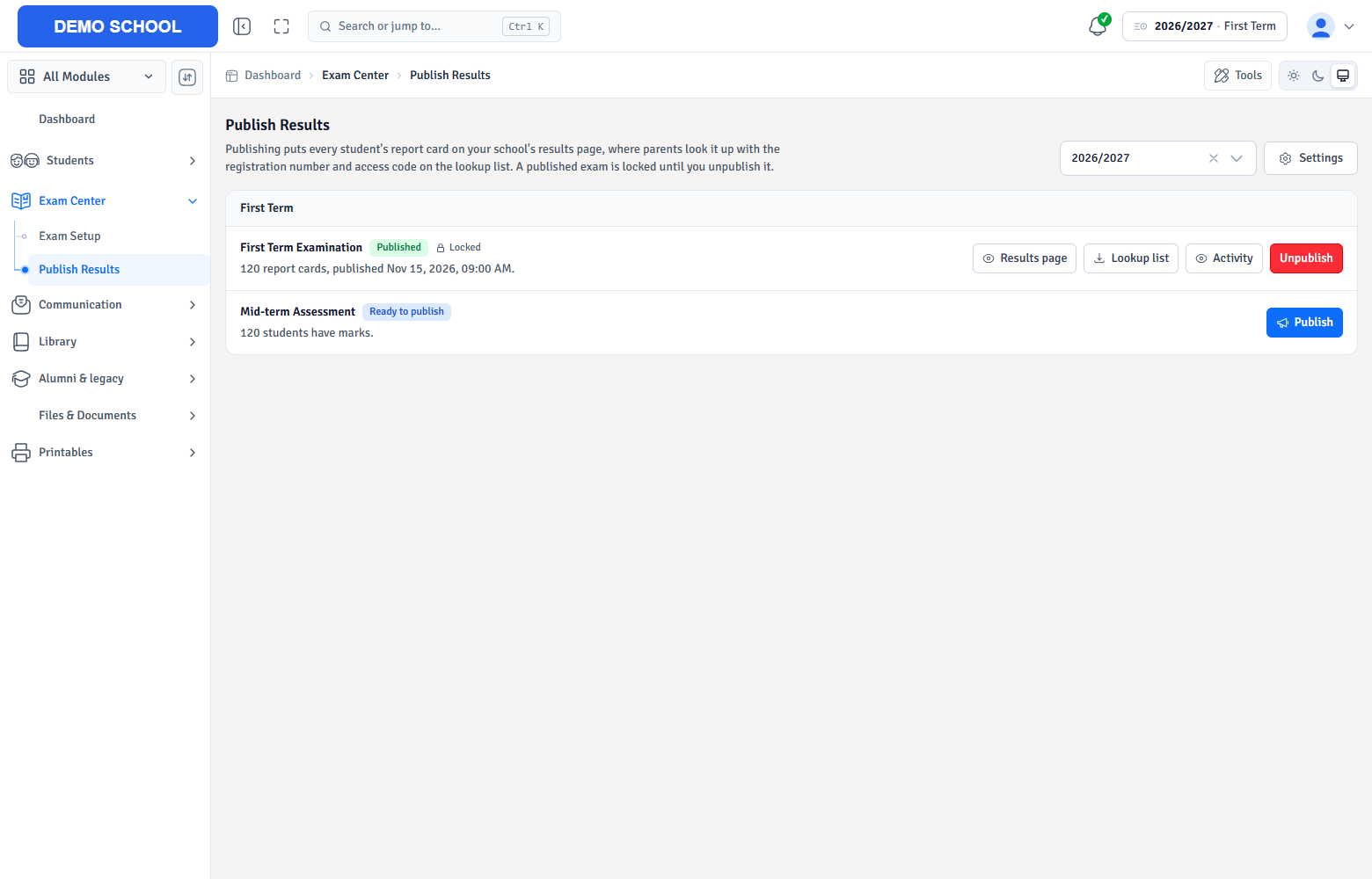
Use Exam Center → Publish Results to prepare report cards and put them on the school's online results page. This is separate from publishing an exam to staff in Exam Setup.
Online publishing needs an enabled Result publishing module, a plan that includes it, the relevant staff permission and an internet connection. Parents use the results page; they do not sign in to the staff SMS application.
Before publishing
- Check the marks, positions, comments and authorisation for the exam.
- Check the report-card templates under Printables.
- Open Publish Results and select the session and exam.
- Review any preparation problems shown for that exam.
See Entering marks and Positions, comments and authorising.
Publish the report cards
- Choose Publish for the exam.
- Choose the report-card template for each class.
- Decide whether to attach invoices. If the school's fee rule withholds results while fees are outstanding, invoices are included because the rule needs each student's balance.
- Review whether access codes are required.
- Confirm the publish.
SMS prepares the cards and uploads them in the background. Follow the progress on this page or in Background tasks. Keep the installation running and connected until the publication is complete.
Wait for the published state before sharing the page. Starting a publish is not the same as making every report card available.
Share the results
Open Results page to check the public page. Give families its current address and their child's registration number. When access codes are enabled, give each family the correct code from the lookup list too.
See Sharing results and lookup details.
Correcting a published result
Publishing locks the exam's results. Marks, positions and comments cannot be changed while that publication is locked.
Choose Unpublish, wait for it to succeed, make and review the correction, then publish again. Unpublishing withdraws the portal copy; do not tell families the corrected copy is ready until the new publish completes.
Works with other parts of SMS
- The published report card is the one you print, drawn with the template chosen for each class; see Setting up printables.
- A student’s fee invoice can be attached when they owe and you choose to include it.
- Parents with the parent portal see published report cards there too.
- Send each student’s result link to their parents by WhatsApp.
- Serve your results page under your school’s own domain with Domain and website.
Common problems
Publish is unavailable. Check the branch's enabled modules, subscription and staff permissions. Reading existing publishing information and unpublishing use their own access rules.
Preparation or upload stopped. Read the reported problem, correct it and use the retry or publish-again action offered. Check for work already running before starting another job.
The portal cannot be reached. Restore the connection and check the current state. Closing a page does not cancel a background task; shutting down the installation can stop work that still needs to run.