Background tasks
Long-running work can continue while you use another page in SMS. Supported tasks include publishing results, preparing student records and preparing or sending record emails.
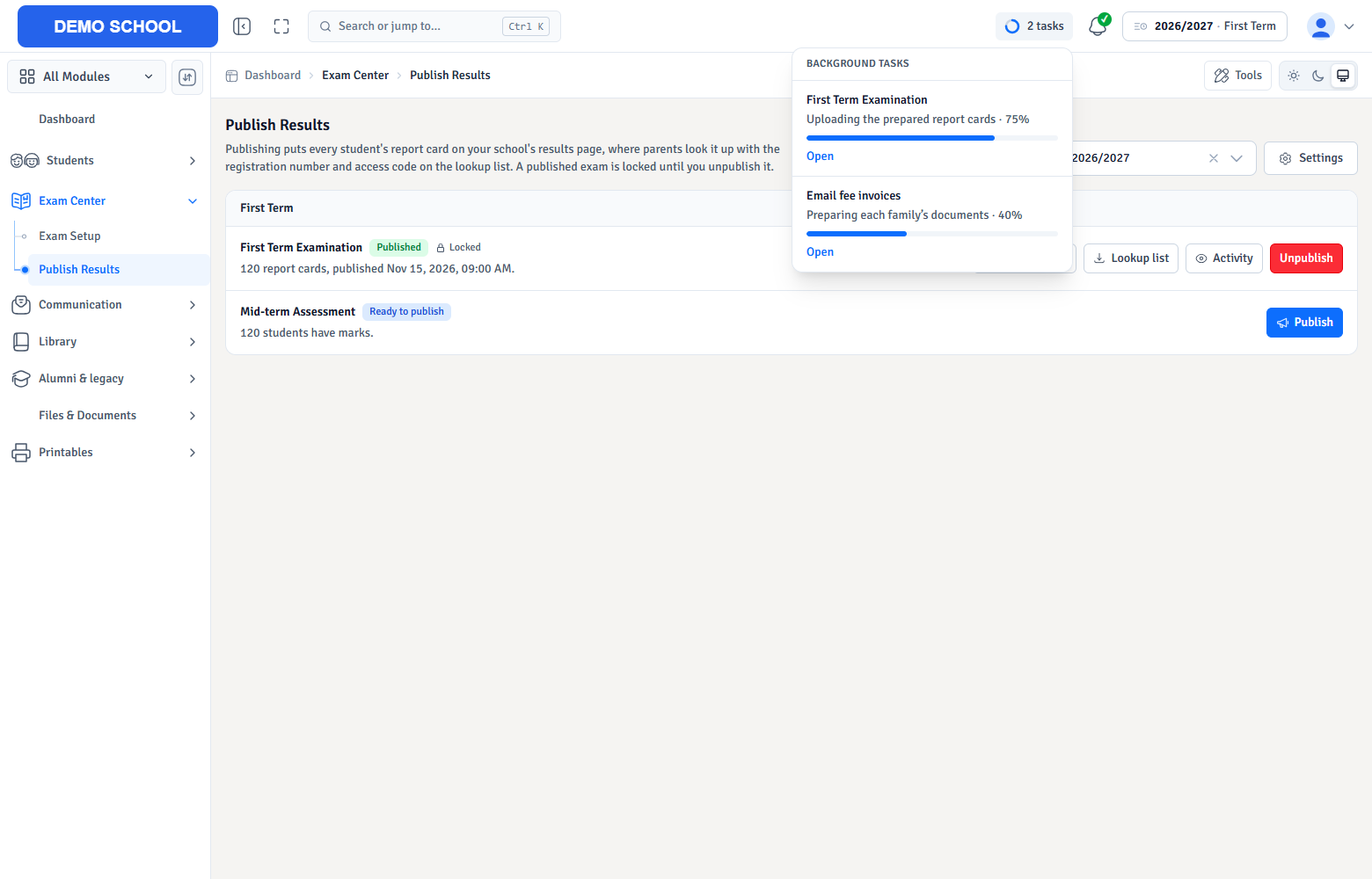
Find a task
While work is running or has recently ended, Background tasks appears near the window controls in the desktop app, or beside the notification bell in the web workspace.
Open it to see the task's name, current stage, progress and any available time estimate. Open the task's page when you need its detailed controls or an explanation.
Read its state
| State | What to do |
|---|---|
| Running | Let the current stage finish; follow its progress |
| Waiting | Check whether it needs a connection or another condition shown on the task |
| Done | Open the result or task page when needed |
| Stopped or failed | Read the problem and use the retry action offered by that task |
The percentage describes the current work being reported. A time estimate can change as the task reaches a different stage.
Keep working safely
Moving to another page does not cancel the task. Keep the installation running and connected while work still needs to be prepared or uploaded. A server may continue scheduled work when available, but do not assume a computer that has been shut down can finish its own pending work.
Before starting a second publish, export or email send, check whether the first is still running. Opening another page is different from starting the job again.
Common questions
There is no Background tasks button. It appears when supported work is running or has recently ended. It is not a permanent list of every action in SMS.
A task is waiting while I can use other records. Local records may still be available while the task needs the online portal or mailbox.
Closing the panel did not stop the work. The panel is a progress view. Use the task's own controls for any action it supports.
Works with other parts of SMS
- Tasks started from results publishing, student records and sending records appear here.