Right-click actions and page tools
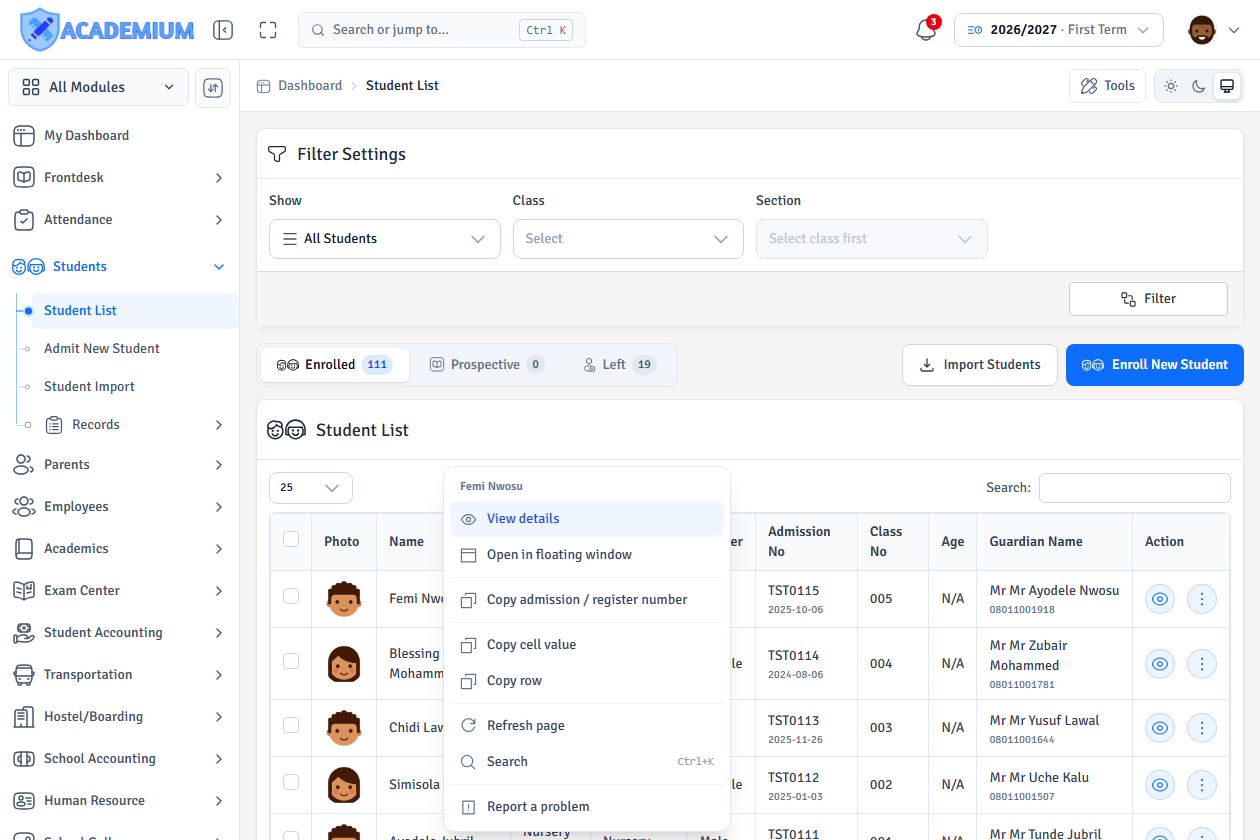
Right-click in the SMS workspace to open actions for the item under the pointer. The menu depends on the page, the record and your permissions.
Records and table values
On a supported student, parent or staff record, the menu can offer View details, Edit, a reference-number copy action and Open in floating window. It only offers record actions already available to your role.
In a table, use Copy cell value for one value or Copy row for the row's useful text. Photo and action controls are not copied as record values.
In an editable text field, the menu offers the applicable copy, cut, paste and selection actions. Browser or operating-system clipboard permission may still be required. Password fields do not offer password copying.
Export filtered results
Supported tables offer Export filtered results, with the formats that table supports, such as CSV, Excel or PDF. This exports the matching results across pages rather than just the visible page. Apply your search and filters first, and check the exported file before sharing it.
Where a page does not provide a table export, that option is absent. Use its normal export or report action instead.
Page tools
The menu can also offer Refresh page, Search, Print page, Take screenshot and Report a problem. Availability depends on the page and enabled features. Save edits before refreshing or leaving a form.
Search opens the usual workspace search. See Searching Academium. For opening another record without leaving your main page, see Floating windows.
Report a problem
Choose Report a problem, describe what happened and, if helpful, what you expected, then submit it. A short thank-you confirmation closes automatically. Reporting does not save unfinished changes on the page.
Take screenshot opens a preview of the current visible page with Save image and, where supported, Copy image. Share the image separately if support needs it. The school must enable screenshots under School Settings → Features; it is off by default. The general Print page action has a separate feature switch, also off by default; a table's own permitted print/export action may still be available.
Review school information before sharing it. Do not include passwords, PINs or recovery codes. Reporting a problem does not save an unfinished school form.
Works with other parts of SMS
- Right-click a supported record to open it in a floating window beside your work.