Floating windows
A floating window lets you inspect another SMS page while keeping the main workspace open, for example a student's profile while checking a class list.
Open a window
Right-click a supported record or page and choose Open in floating window. The option appears only for eligible pages inside the same SMS application and respects your existing permissions.
You can have up to five floating windows. If the limit is reached, close one before opening another.
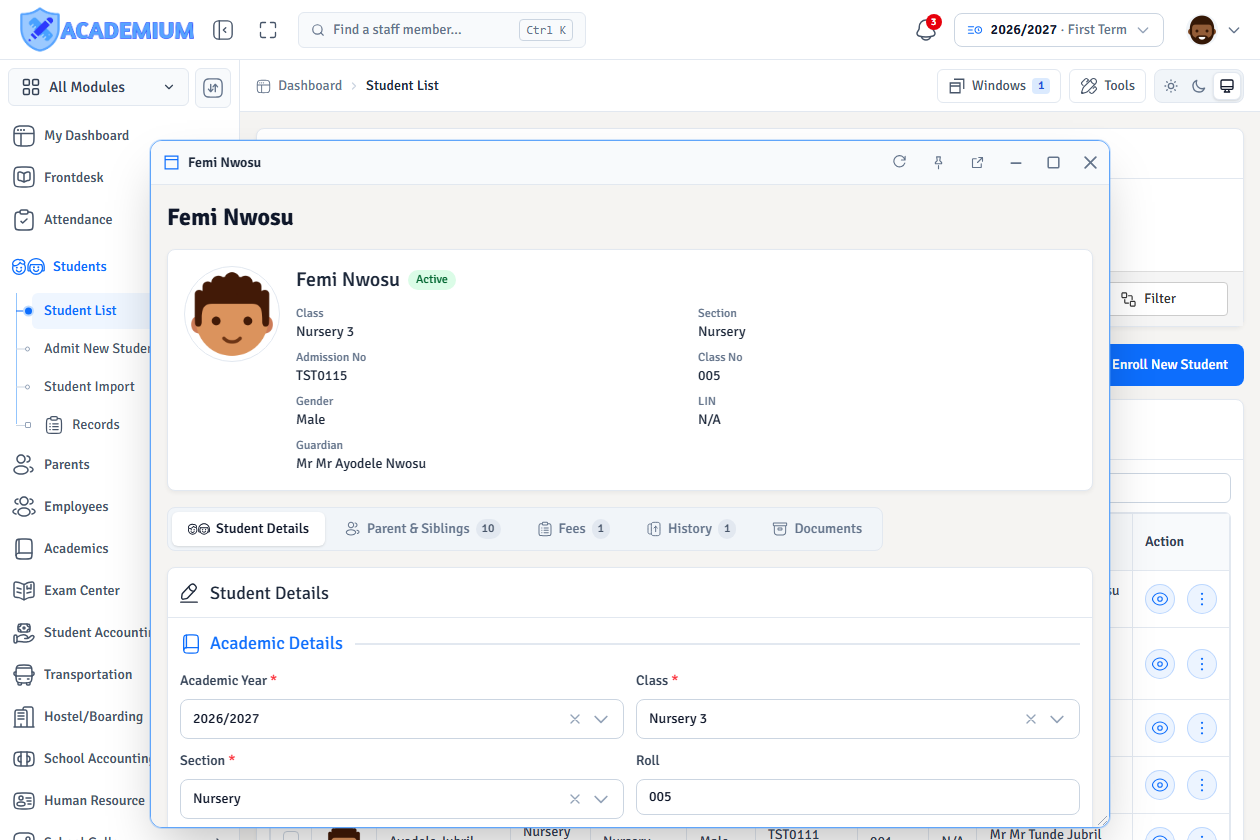
Arrange your windows
- Drag the title bar to move a window and its edges to resize it.
- Use the window controls to maximise, minimise, refresh or close it.
- Pin a window to keep it visible when working outside it. Unpinned windows minimise when you click elsewhere.
- Use the floating-window launcher to see open windows and restore one you minimised.
Minimising a window keeps its current page open; it does not submit a form. Save changes with the page's normal Save action before closing or refreshing.
Following longer work
Floating windows are for opening pages beside each other. Publishing results, preparing records and sending record emails also have Background tasks, so you can follow their progress after moving to another page. Keep the installation running and connected while it still needs to prepare or upload work.
Accounts and school changes
Floating windows belong to the signed-in account and current branch. They close when that identity changes, so a previous person's records are not left open for the next person.
If a page cannot be opened in a floating window, use its ordinary View action. A floating window is a view of the same application, not a separate account or permission level. See Right-click actions and page tools.
Works with other parts of SMS
- Keep a student’s record open while collecting fees, or pocket money beside a family invoice.