Collecting a fee payment
Open Student Accounting → Invoices / Fees Payment, find the student, and open their invoice. You can also search for the student and use the invoice shortcut.
Finding the invoice
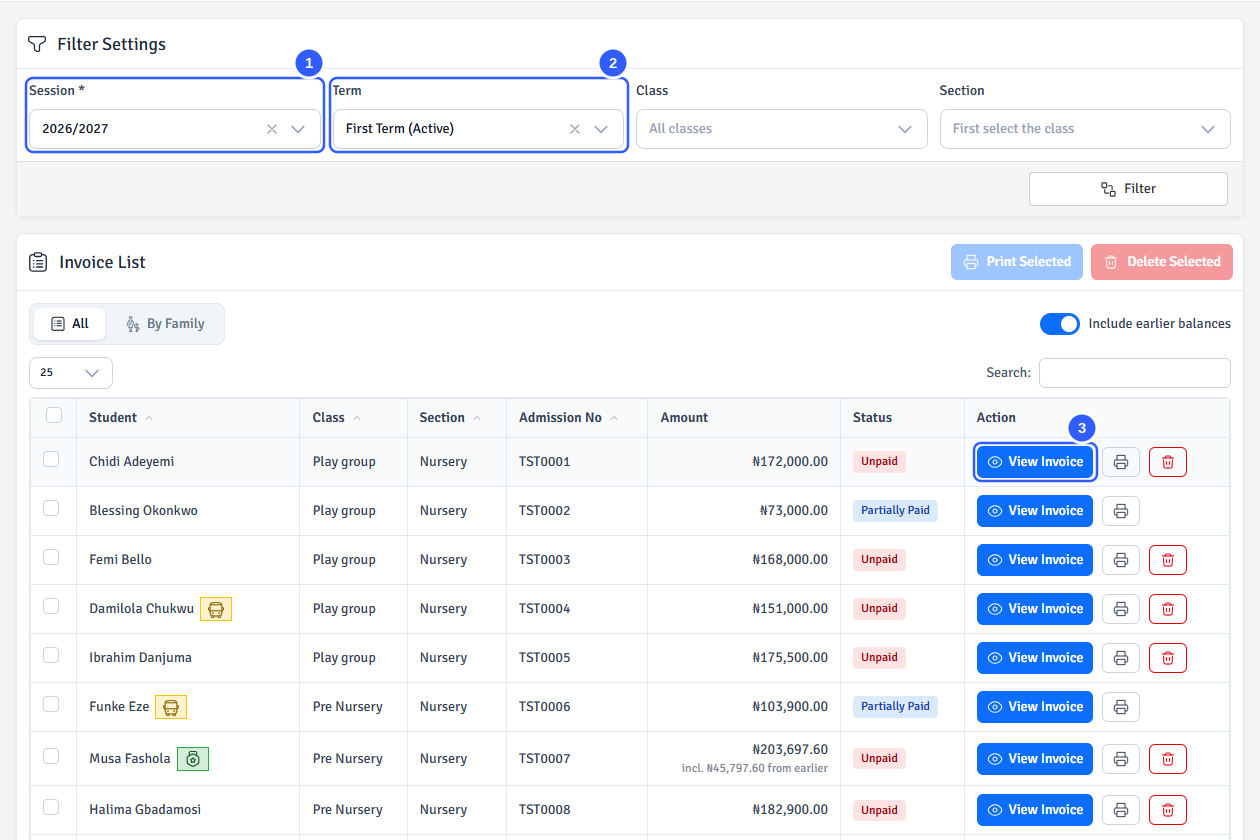
- Choose the Session you want to work in.
- Choose the Term, then apply Filter if you changed the selection.
- Find the student and choose View Invoice. Use the class filter or search box to narrow a long list.
The invoice
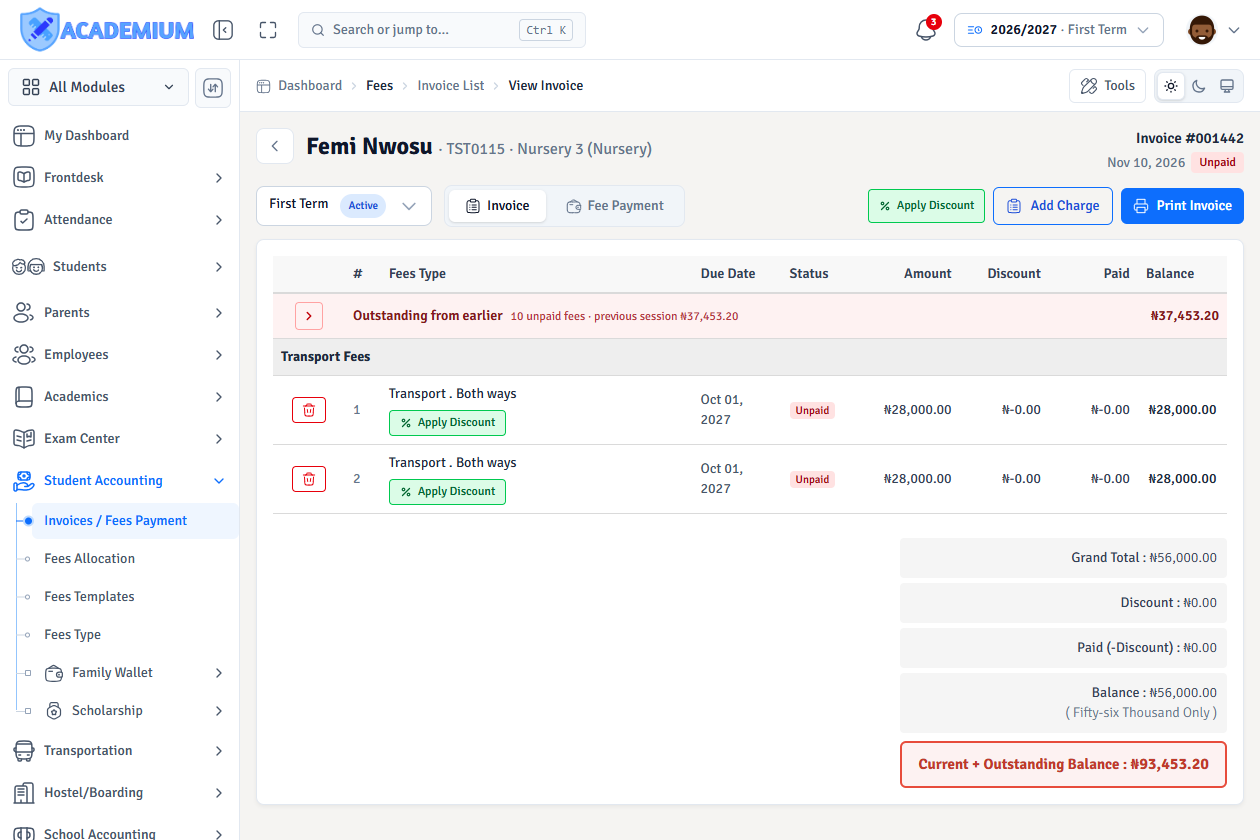
The tabs depend on the account and your permissions:
- Invoice shows the student's charges, what has been paid and what remains. Other student charges, including transport, hostel, inventory or library charges where used, appear in the same account.
- Removed Fees appears for staff with edit permission once a fee has been removed.
- Payment History appears once payments have been recorded, grouped by transaction.
- Fee Payment appears when you may collect money and there is a balance to pay.
Unpaid earlier balances from previous terms are listed at the top, each with its session and term. They can be paid even when nothing is billed this term. Use the term switch to look at another term. On the invoice list and Outstanding Fees report, check the previous-balance option when reviewing carried-forward amounts.
Taking a payment
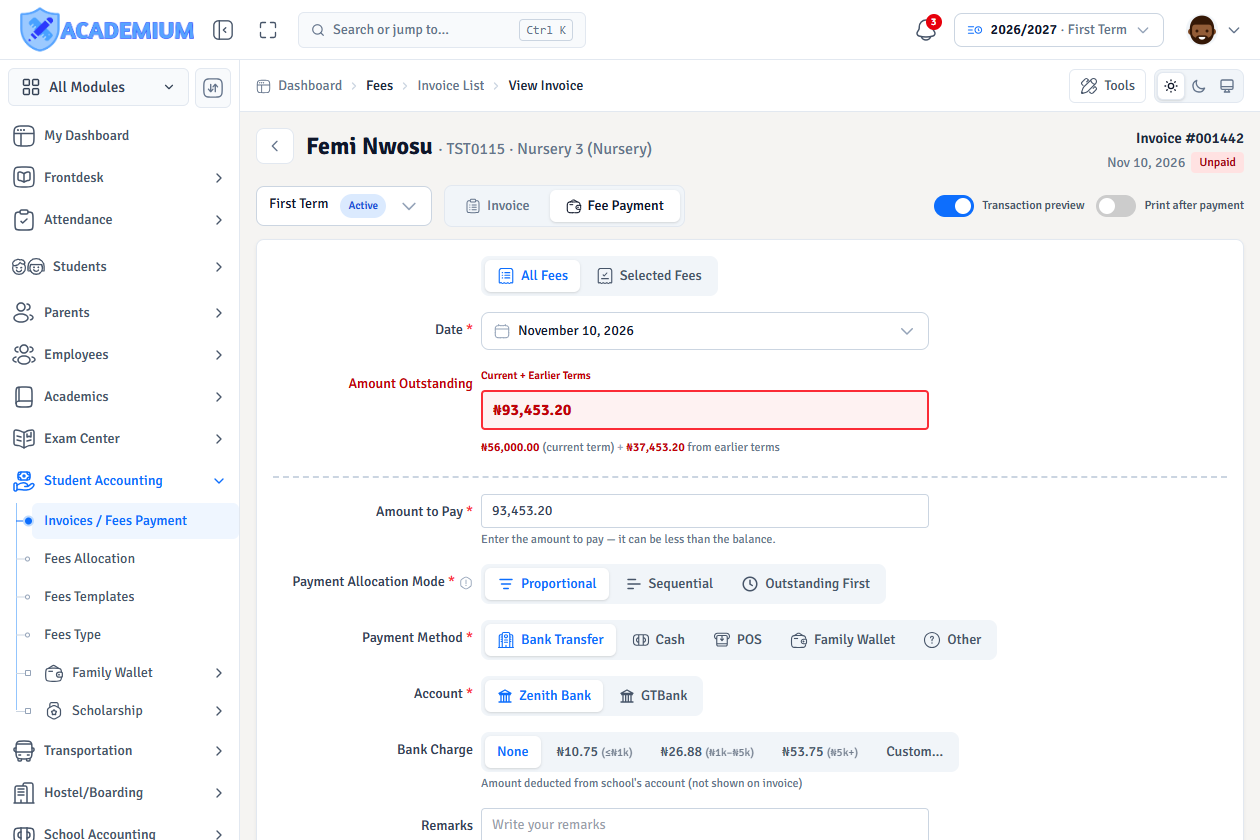
- Open the Fee payment tab.
- Choose what the payment is for:
- All fees, or
- Selected fees: tick particular fees, from this term or any earlier term.
- Enter the amount. It can be the full amount or a part payment.
- For a part payment covering several fees, choose how it is shared out:
- Proportional: shared across the fees in proportion to what each owes;
- Sequential: pays the fees in order, one after another;
- Outstanding first: pays earlier balances first (only offered when there are earlier balances).
- Choose the payment method, the account the money went into, and add remarks.
- If the payment came by bank transfer with a bank charge, choose the charge (₦10.75, ₦26.88, ₦53.75 or a custom amount). The charge comes off the school's account, not the student's fees.
- Save.
If you turned on transaction preview in your preferences, you see a summary to check before saving. If you turned on print after payment, the receipt opens straight away.
After the payment
- The invoice updates to show what is paid and what remains.
- The payment is recorded in school accounting automatically. See Inflow.
Paying from the family wallet
If the family has money in their family wallet, choose family wallet as the payment method.
Common issues
I took a payment against the wrong student. Reverse it and take it again. See Reversing a payment.
An earlier balance is missing. Use the term switch to check the term it belongs to. Balances carried forward at promotion appear at the top of the invoice.
Works with other parts of SMS
- Use Add Charge on the invoice to add transport, a hostel place, a product from the store or a one-off charge.
- Choose the family wallet as the payment method when the family has a balance.
- After a payment, send the receipt by email or WhatsApp, or add it to the print queue to print later with others.
- The payment is recorded in school accounting against the account you chose.
- Parents with the parent portal see the payment within about five minutes.