Printing invoices and receipts
Receipts
- If print after payment is on in your preferences, the receipt opens as soon as you save a payment.
- To reprint a receipt, open the student's Payment History, select the transactions, and print their receipts.
Printing after payment starts off. Turn it on when you want the preview to open after saving a payment. A payment is still recorded when automatic printing is off.
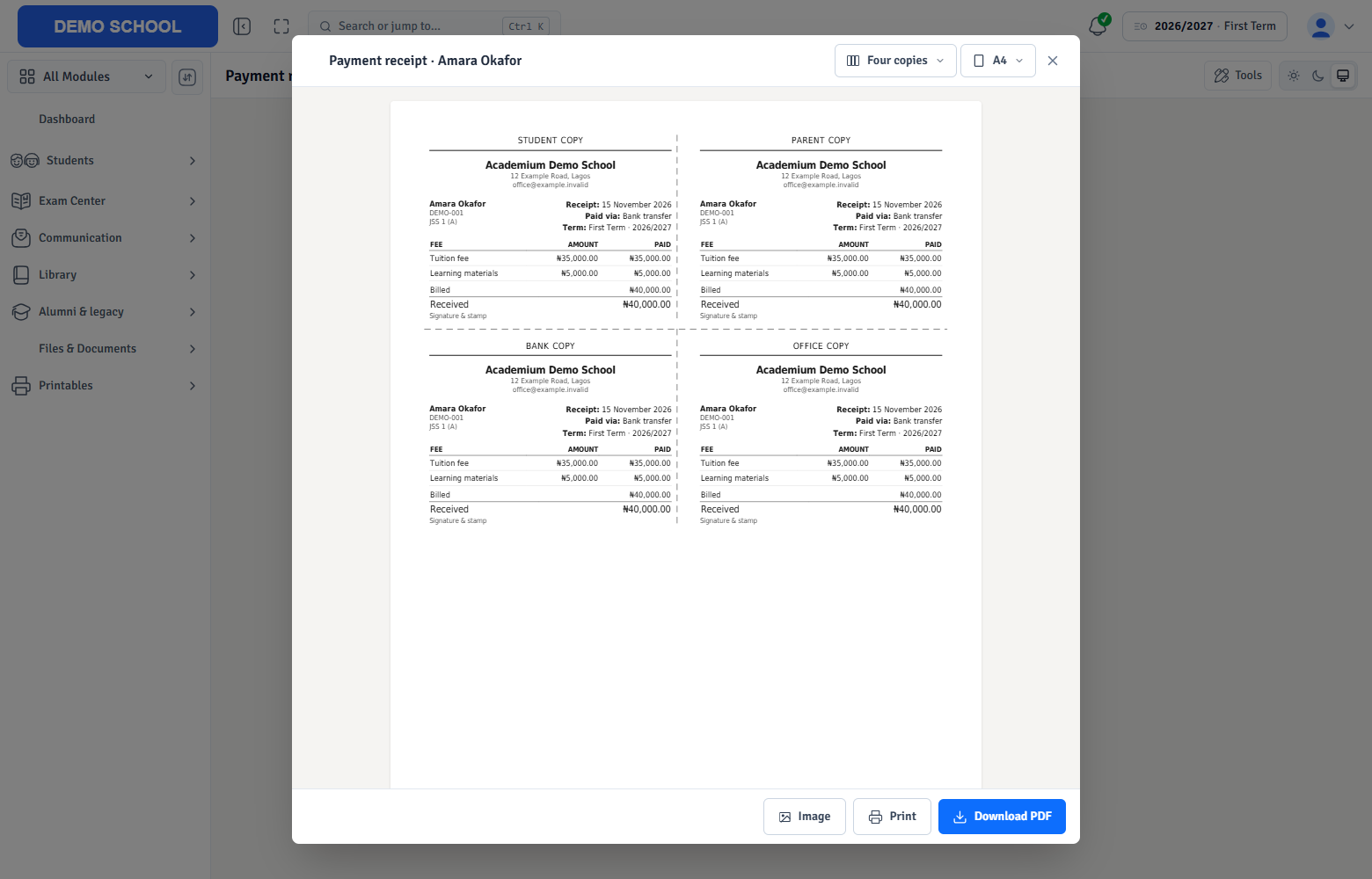
The payment preview offers Single copy or Four copies. Four copies fit two by two in portrait, or four across in landscape. Review the paper, orientation and copies in the preview before printing or downloading the PDF.
Printing one student's invoice
From the student's invoice, print:
- the full invoice;
- only the paid fees; or
- only the outstanding fees.
You see a preview before printing. Choose a single copy or four copies on one page. The copies layout follows the selected portrait or landscape orientation.
Printing invoices for a class or for families
Open Student Accounting → Invoices / Fees Payment:
- List invoices by student (All) or by family (By Family).
- Choose whether to include balances carried forward from earlier terms.
- Print one invoice per page, or four per page to save paper.
Saving as PDF
Use the PDF download action where the preview provides one. You can also choose your computer's Save as PDF printer from the print dialog. Check the selected students, period and previous-balance option before saving.
Sending documents to families
With the school mailbox set up and the relevant record and sending permissions, use Sending records by email to prepare and email supported invoices or receipts. Review the recipients and document options before confirming.
Works with other parts of SMS
- Select invoices on the invoice list and send them to parents by email or WhatsApp.
- Add to queue from the print preview to print invoices and receipts from different pages together.
- When publishing results online, a student’s invoice can be attached to their report card.
- Parents with the parent portal see each fee line and recent payments without needing a copy.