Printing admission application forms
Print an application form for a family to complete, or print a filled form using a student's existing record. Open Printables → Print → Admission Application Form.
Blank forms
- Choose the blank-form option.
- Choose a saved template or one of the five starting layouts.
- Set the number of copies, from 1 to 50.
- Open the preview, check the page and print or save it.
Blank forms are useful for families applying in person. Printing a blank form does not create a prospective student or enrol anyone.
Filled forms
Choose the filled-form option, filter the students, and select the records to include. Choose the design and preview the documents before printing. Correct inaccurate student information in the student's record, then generate the form again.
Customising the form
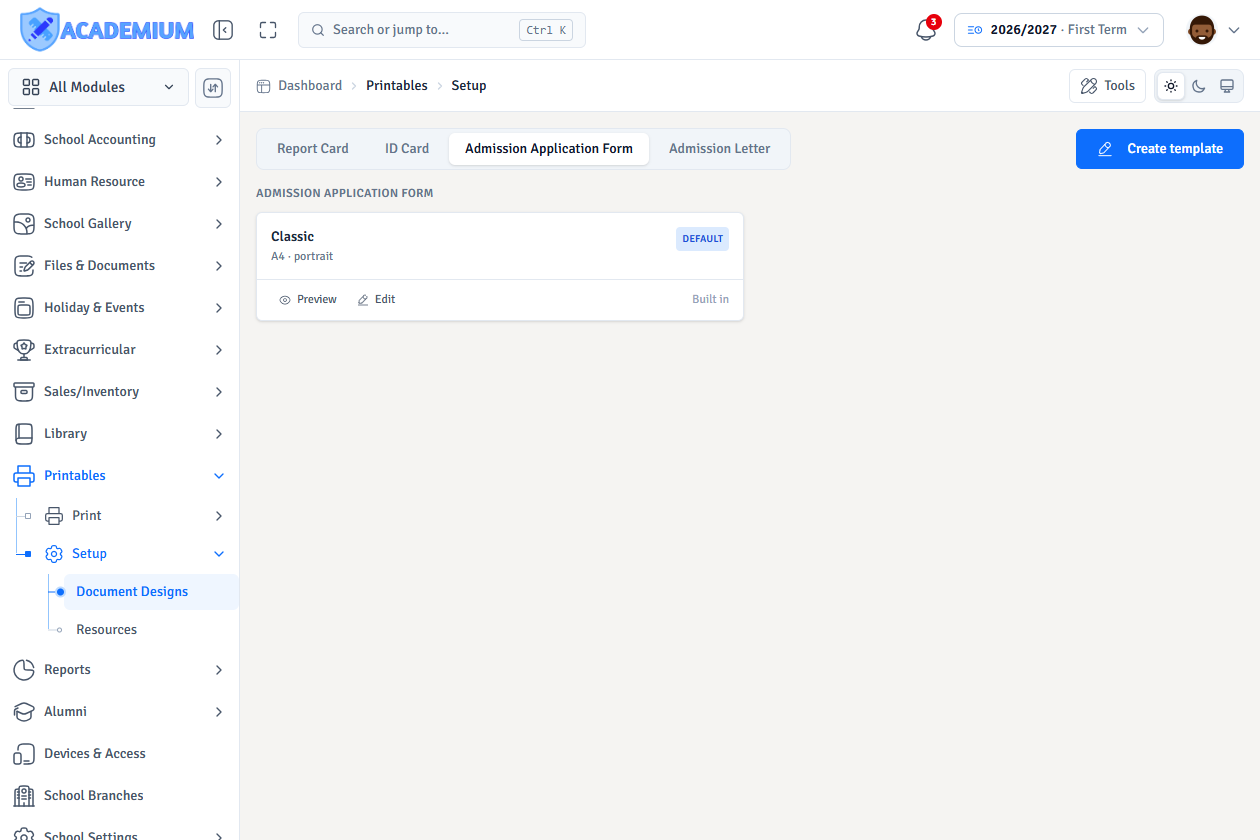
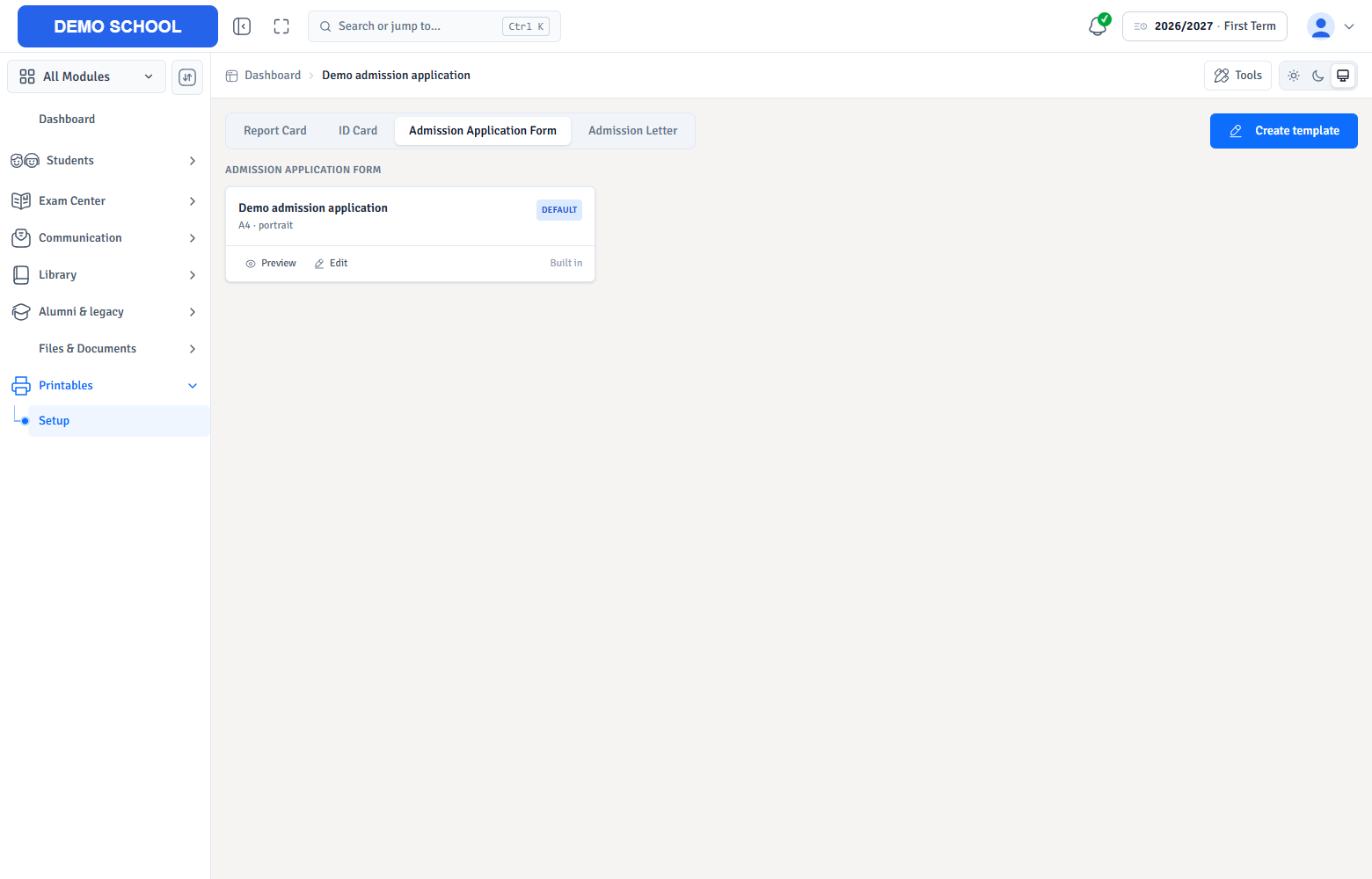
Open Printables → Setup → Document Designs → Admission Application Form. Start with one of five layouts, arrange the sections, change captions and style the document using the available controls. Save a separate design for another purpose instead of overwriting one staff already use.
The form follows Student Fields, including active custom fields where supported. Required fields stay on the form. Optional fields hidden by the school cannot be turned back on in a template. Required fields appear before optional ones within their sections.
A field is missing. Check Student Fields and the selected template. For an additional question outside the standard fields, review Custom fields.
A filled form is blank in places. Check the student's saved details; changing a design does not supply missing information.
Works with other parts of SMS
- The form asks for the fields set in student fields, under your letterhead.