Student Fields
Student Fields is one shared list for the standard student information your school collects and displays. Open it from Settings.
The same choices apply to admission and editing forms, student profiles, lists, imports, reports and student printables. You no longer need to maintain separate admission and profile lists.
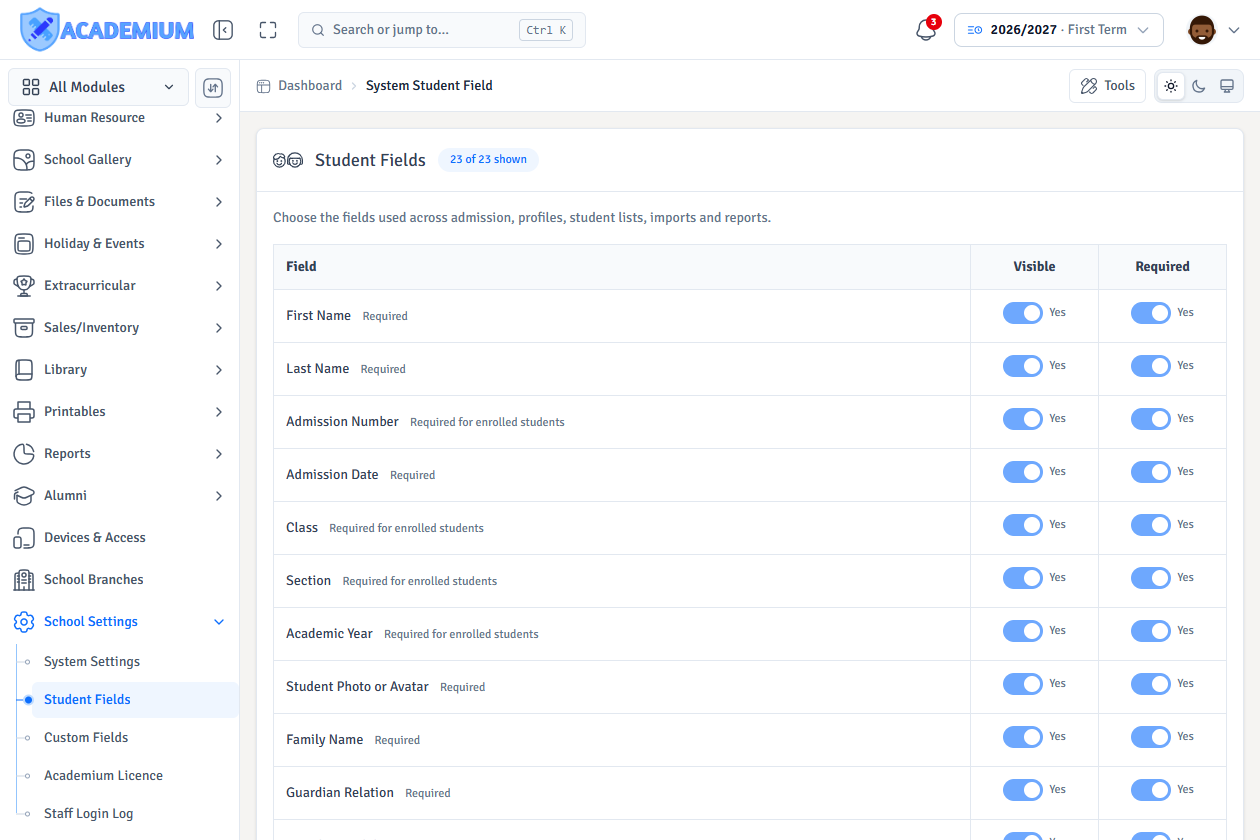
Required fields come first
These details stay visible and required:
- First name and last name.
- Admission date.
- A student photo or a chosen built-in avatar.
- Family name, guardian relation, guardian mobile number, guardian email and guardian address.
- For enrolled students: admission number, class, section and academic year.
You cannot switch these fields off. Prospective students do not need the placement details that only apply after enrolment. Class Number is assigned automatically rather than made a required manual entry.
Choosing optional fields
- Find the field below the required fields.
- Turn Visible on to use it throughout the student screens.
- Turn Required on if staff must complete it. A required field must stay visible.
- Save the changes.
Optional details include gender, religion, date of birth, previous school details and additional guardian information. The list shows the standard fields the current admission form supports. Older separate father and mother fields are no longer new-entry fields; existing historical values are not a reason to keep asking staff to enter them.
Changing visibility does not erase a value already saved. Changing a requirement does not fill missing information in old records: check those records when you next edit or import them.
Photos and avatars
Upload a photo or deliberately choose an avatar for each child. An automatic placeholder does not complete the requirement. Siblings need their own choice too. The student import template offers named avatars rather than asking you to paste image links.
Printables and custom fields
An admission application template follows these choices. You cannot hide a required field in that template or turn on an optional field the school has hidden globally.
Use Custom fields for additional information outside the standard list.
Works with other parts of SMS
- Fields decide the admission form, printed admission forms and import templates; the birthday field also drives birthdays.