Importing and exporting students
Import students from a spreadsheet, review the records, then save the students you are ready to add. Importing needs a paid plan and student-import permission.
Prepare the template
- Open Students → Student Import.
- Choose Single class for one class and section, or Multi-class to prepare sheets for several classes and sections.
- Choose the destination classes and sections, then download the template offered on the page.
- Fill in the student rows. Keep the supplied headings, sheet names and class information. The workbook's student data starts on row 3; its lists sheet supplies dropdown choices and is not a class to import.
Download the current template when preparing a new file. A compatible file you already have can also be uploaded: in Single class mode, the upload area is ready as soon as class and section are selected; in Multi-class mode it is always available. You do not have to download a template first. Each class sheet supports up to 1,000 students, and one preview/import request accepts at most 2,000 rows across the file. Split larger files into batches. Follow the required fields shown in the template and your school's student-field settings. Upload an .xlsx or .xls Excel workbook. The current student-import upload does not accept CSV. Use Multi-class mode for a workbook with several class sheets.
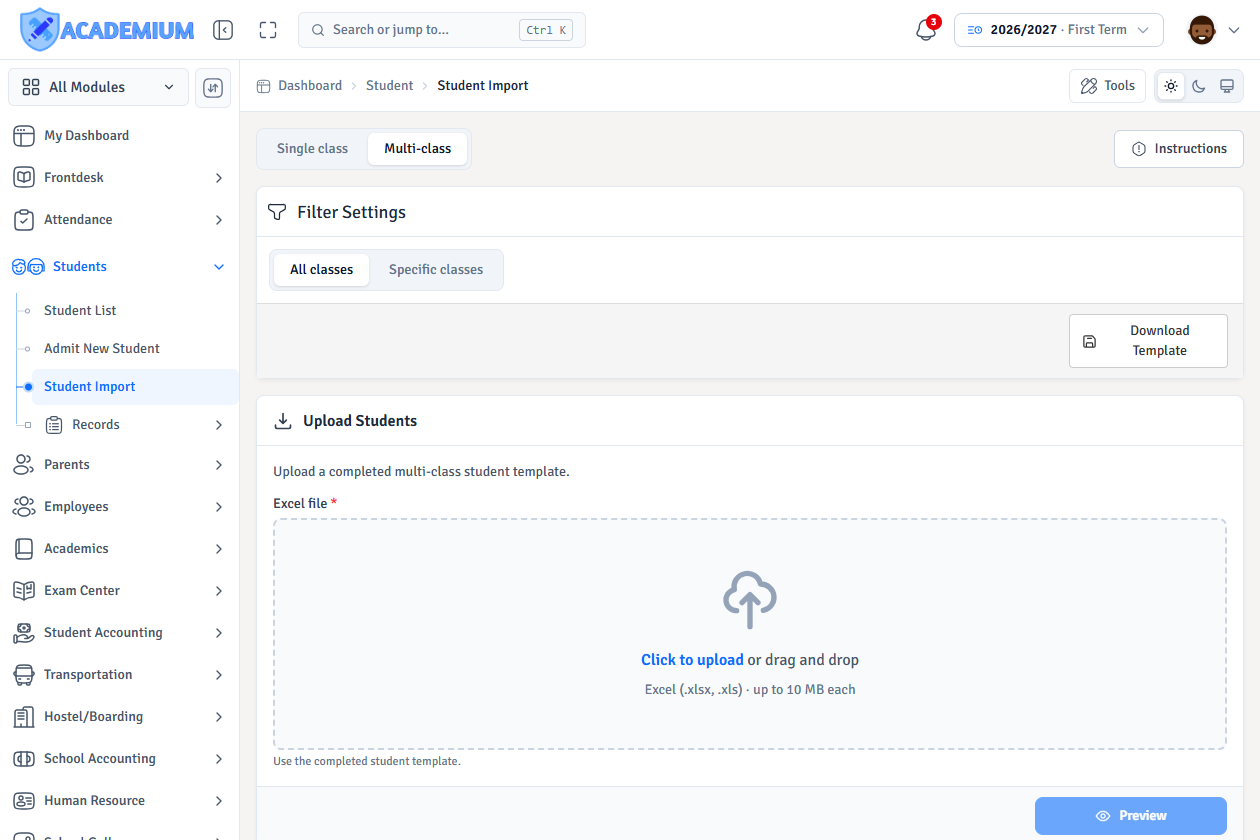
Required columns follow the school's shared Student Fields settings. Keep the supplied dropdown choices, including named avatars. A photo or deliberately chosen avatar is required for each child; an automatic placeholder is not enough.
Upload and review
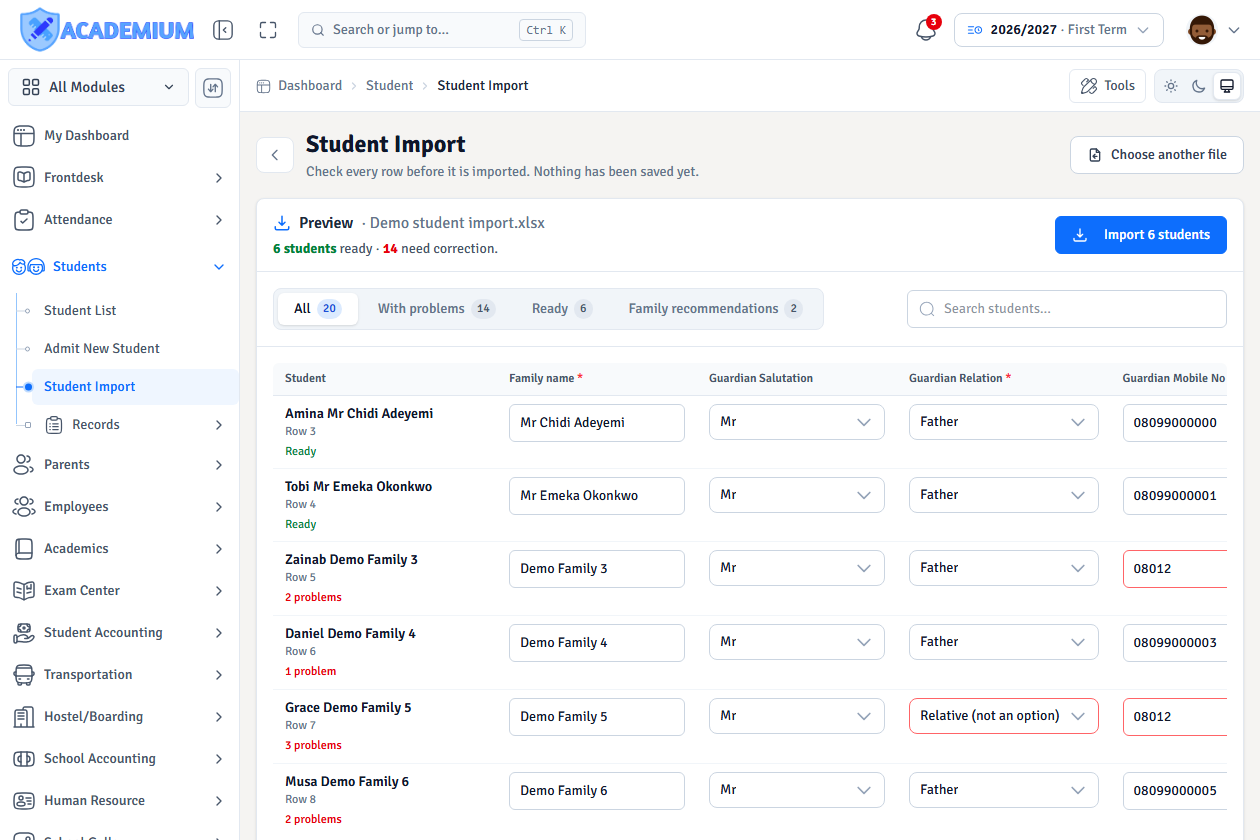
Choose the file, then Preview. The preview opens even while the file is still being checked; loading placeholders remain until that work finishes. No students have been added at this stage.
The preview has four tabs:
| Tab | Use it to |
|---|---|
| All | Browse the uploaded students |
| With problems | Find records that need corrections |
| Ready | Check students that can be imported |
| Family recommendations | Compare possible existing families; these choices are optional |
Search by student name, row or contact details. In a multi-class import, use the sheet filter to narrow your review. The table scrolls within its own area so the horizontal scrollbar stays within reach.
See Reviewing and correcting a student import and Matching families during an import.
Save the students
- Correct the blocking problems, or leave those rows for a later batch.
- Check the Ready count and the destination classes.
- Choose Import for the ready students and wait for the result.
- Check the imported students in Student List, including a few profiles and their guardians.
Only the ready students in that submission are saved. Rows still needing corrections remain for review. Each submitted batch is saved together: if saving any student or related import data fails, the whole submitted batch is rolled back. A preview or a failed batch does not partly add those students.
Students are enrolled into the session selected in your workspace, normally the branch's current session. Check the year picker before downloading a template or importing. Importing does not promote existing students or move the whole school to a new session. See Sessions and terms.
Exporting students
Use the student list's available export controls or Export filtered results from its table actions. Check the selected academic year, filters and supported format before exporting a class list or offline copy. See Page tools.
Common issues
The file cannot be read or its headings are refused. Download a fresh template. Keep the headings and class-sheet structure unchanged, and check the file format and row limit.
There are many problems. Open With problems, search for a student or filter by the problem field, then correct one record at a time. A family recommendation alone does not prevent import.
No students were imported; the entire batch was rolled back. Nothing from that submission was saved. Read the reported error, correct it and retry. Earlier successful batches remain saved.
Students do not appear in the list. Clear class, section and search filters. If Show is set to Recent Admissions, check its session and term, or choose All Students. See The student list and profile.
Works with other parts of SMS
- Templates follow your student fields, and guardian phone or email links siblings to an existing parent.