Changing a student's parent
Use Change parent when a saved student belongs under a different existing parent record. You need permission to edit the student.
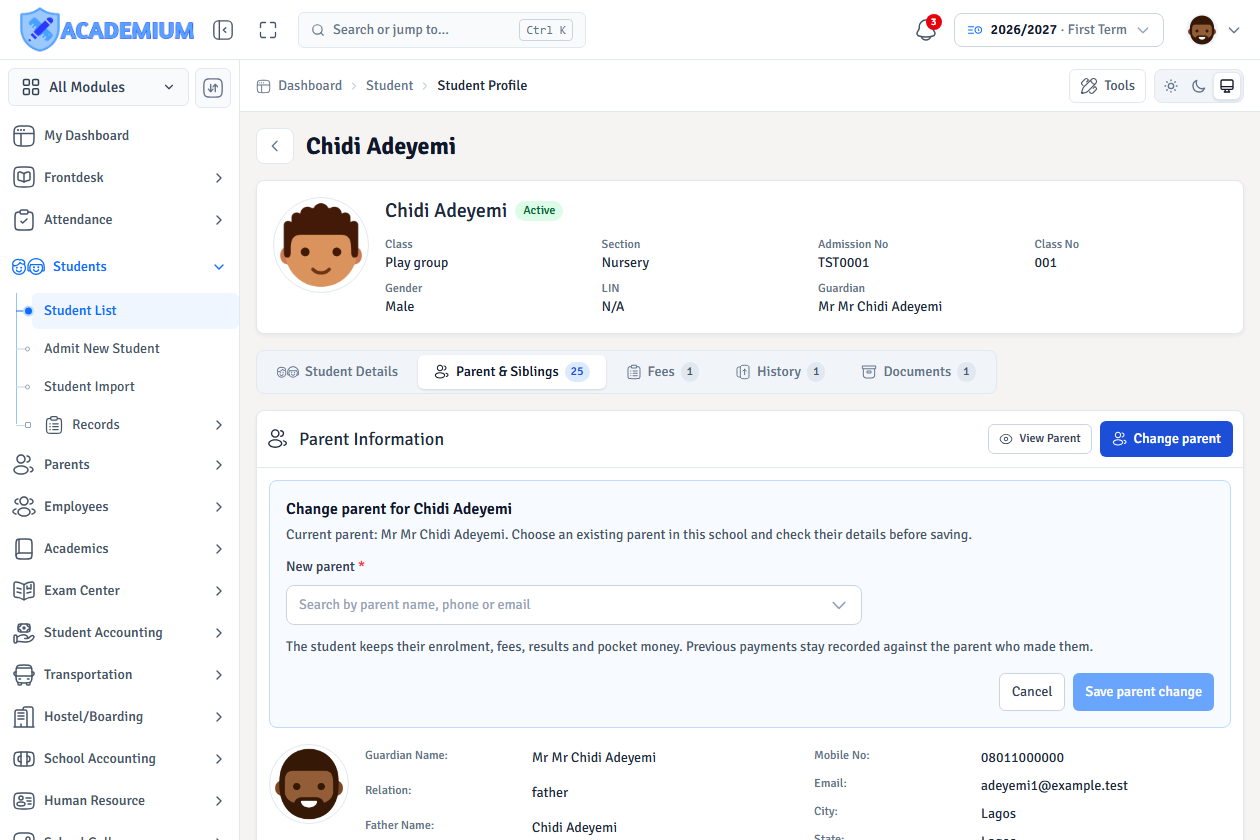
Change the link
- Open the student's Profile from Student List.
- Choose Change parent in their details or parents area.
- Search New parent by name, phone or email. Choose a parent from the same school.
- Check the selected guardian's contact details and the children already linked to them.
- Choose Save parent change, read the confirmation and confirm.
The confirmation explains that the previous parent loses access to this student through their parent account, and the new parent gains it. Verify the family carefully before saving.
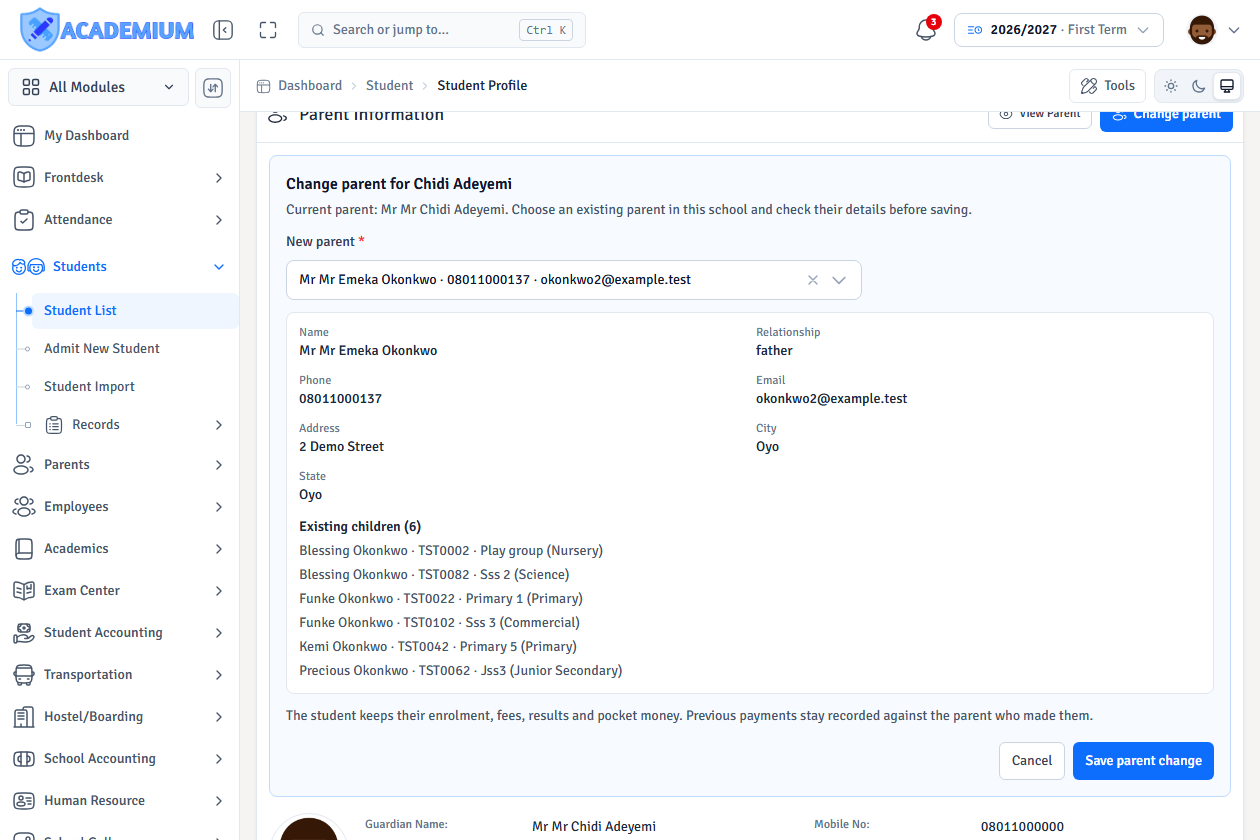
What is kept
The student keeps their enrolment, fees, results and pocket money. Previous payments stay recorded against the parent who made them. Other children keep their existing parent links. If the school inherits student surnames from the family name, the form warns that the new family surname will also be applied to the student.
This action selects an existing parent. To create a parent first, use Parents → Add New Parent; see Parents and guardians.
Common issues
I cannot see Change parent. Your role may not have student-edit permission, or the student's profile may be read-only.
The parent is no longer available, or the link changed while I was reviewing. Reload the profile and check the current parent before trying again. A failed change leaves the existing link in place.
Works with other parts of SMS
- The child keeps their enrolment, fees, results and pocket money; earlier payments stay recorded against the parent who made them.
- The new parent’s family wallet and family fee collection now include the child.