Admitting a student
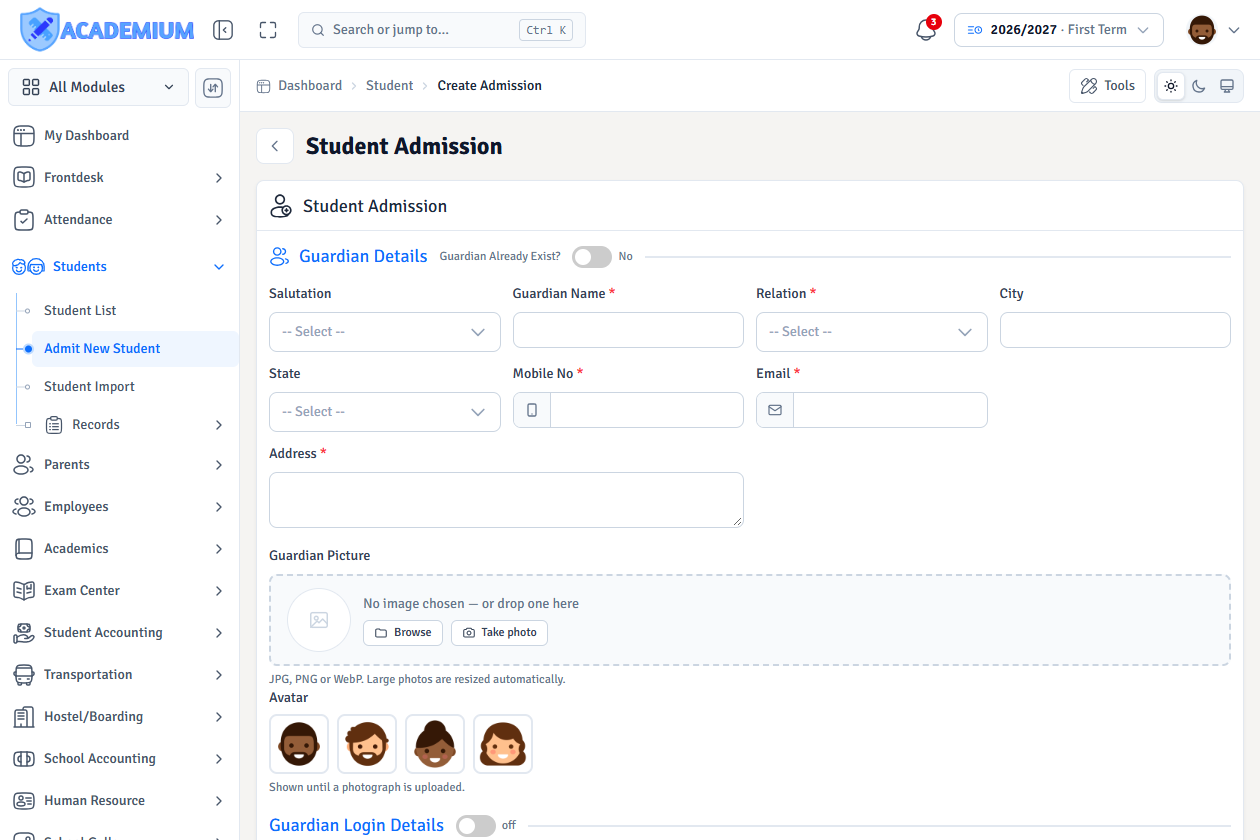
Admitting a student creates their record, enrols them in a class and section for the selected academic year, and links them to their family. Open Students → Admit New Student and check the year picker before starting.
Before you start
Create the class and section. If fees should be allocated during admission, prepare the class's fee templates too.
Complete the form
- Choose an existing guardian or enter a new family's details. Review existing children before choosing a family so siblings are linked correctly.
- Complete the student's identity and admission details, including their first and last names and admission date.
- Select the class and section. The section choice loads after the class; wait until it is ready.
- Upload a student photo or deliberately choose a built-in avatar. Do this for each child, including siblings.
- Complete the remaining required details and any optional information your school records.
- Review any fee allocation before submitting.
The school's Student Fields settings control standard fields across admission, profiles, lists, imports and reports. Required fields cannot be hidden. Guardian information includes family name, relation, mobile number, email and address. Class numbers are generated automatically.
Brothers and sisters
You can add up to five children for the same guardian on one admission form. Check each child's name, class, section and photo or avatar separately. Do not create another family record simply because you are admitting another child.
After admission
Check the student in the Enrolled list and open their profile. From the list you can also collect fees, change the parent link or print available documents, subject to your permissions.
Works with other parts of SMS
- Start from a prospective student recorded at the front desk, so nothing is typed twice.
- Allocate the class’s fees, a transport route and a hostel place as part of the admission.
- Import another school’s record bundle with Importing previous school records.
- Link the student to their parent, which connects fees, the family wallet and the parent portal.
Common problems
I cannot add a student in Free mode. Free mode allows 50 active students per branch and academic year. A school above that allowance must reduce its active roster or upgrade before new student-linked work. See Free mode.
The photo is still required. An automatic placeholder is not a chosen avatar. Select one deliberately or upload a photo for that child.
The class or section is missing. Check that it exists, is available for the selected year and has finished loading.
The guardian is wrong. Use Change parent rather than deleting and readmitting a student who already has history.
With Academium Surepass
Admitted students can be brought into Surepass for CBT tests and practice. See Importing from Academium SMS.