Printing from the student list
The student list's Print action brings together the documents available for a student. You do not have to visit each printing page separately.
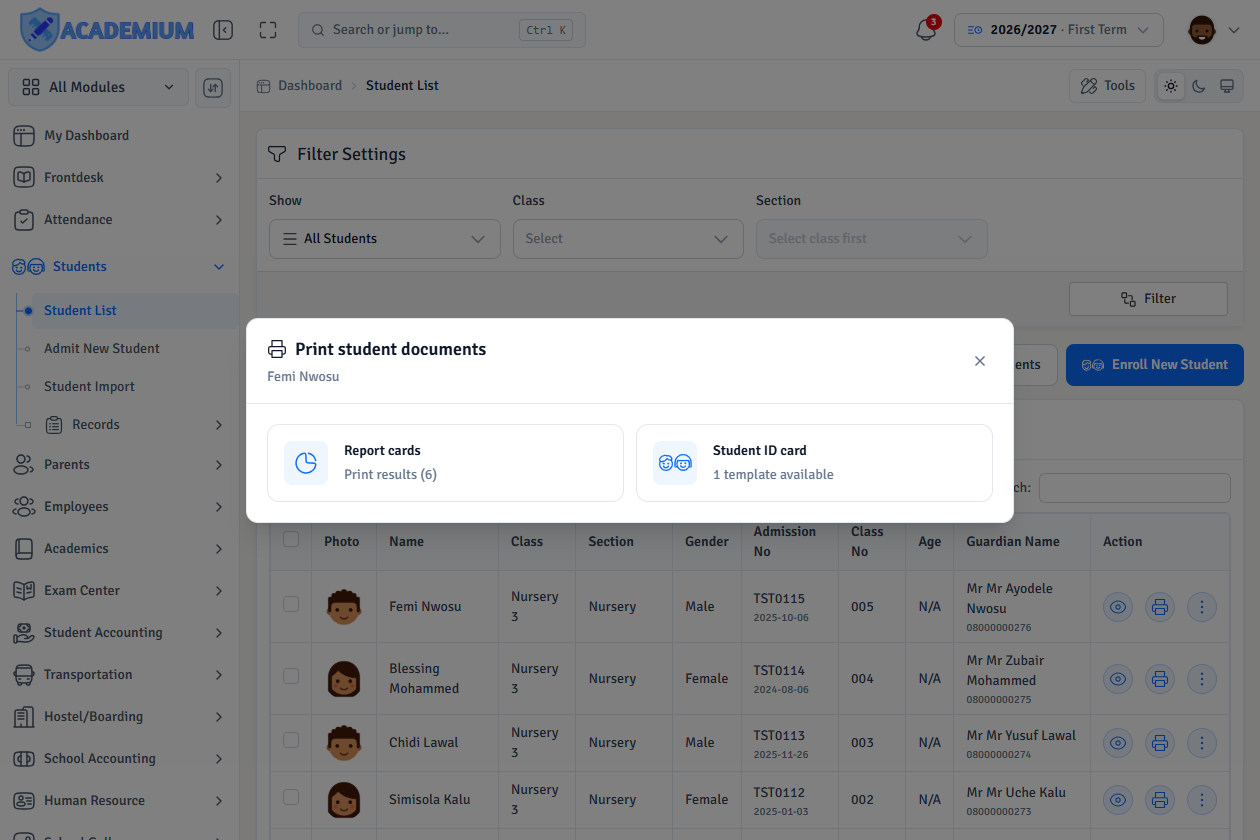
One student
- Open Students and find the student.
- Choose their Print action.
- Select the document offered in the window.
- Choose a template and the records to print, then open the preview.
The available choices depend on the student's records, the school's active templates and your printing permissions.
Report cards
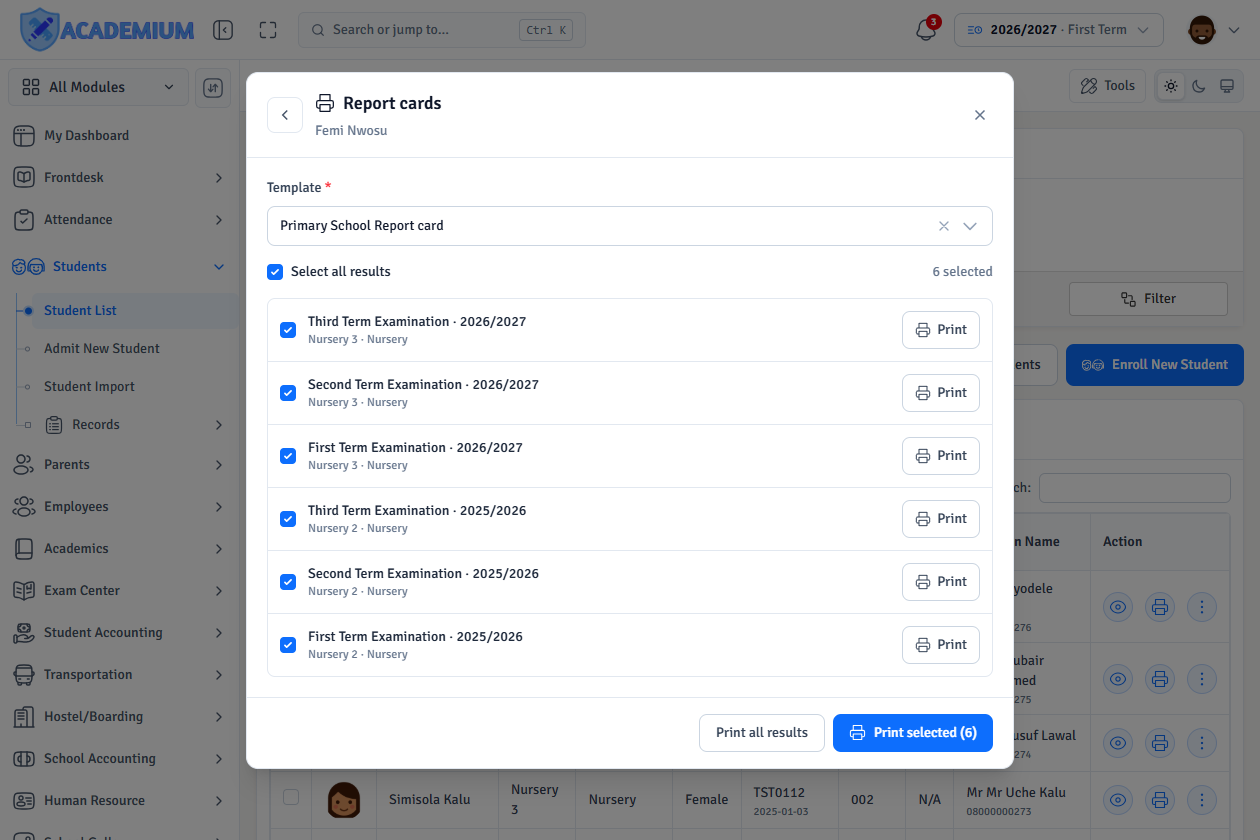
Report cards are offered when the student has existing result records. Open the results choice to see the available exams and academic periods. Select individual records or use Select all, choose the report-card template, and preview the selected results together. You can also print an individual result.
An empty results list is not a reason to create a new exam record from this window. Check that the results exist and that you have access to them.
Admission letters and ID cards
These choices appear when the school has active templates for them. Choose the appropriate design before printing. If one is missing, ask the person responsible for Document Designs to prepare it.
Several students
Tick students in the list. A sticky action bar appears at the bottom with the actions available for that selection, including Print. Open it to choose the document and template for the selected students.
Review the selection before a batch print, especially after changing filters. Preview the documents to catch missing photos, long names or incorrect placement before using paper.
No documents are available. Check existing results, active templates and your permissions. The window only offers documents it can prepare for that selection.
Works with other parts of SMS
- Documents need an active template from Setting up printables; use the print queue to print several together.