Printing admission letters
Use an admission letter to give a student a personalised offer or confirmation. Open Printables → Print → Admission Letter.
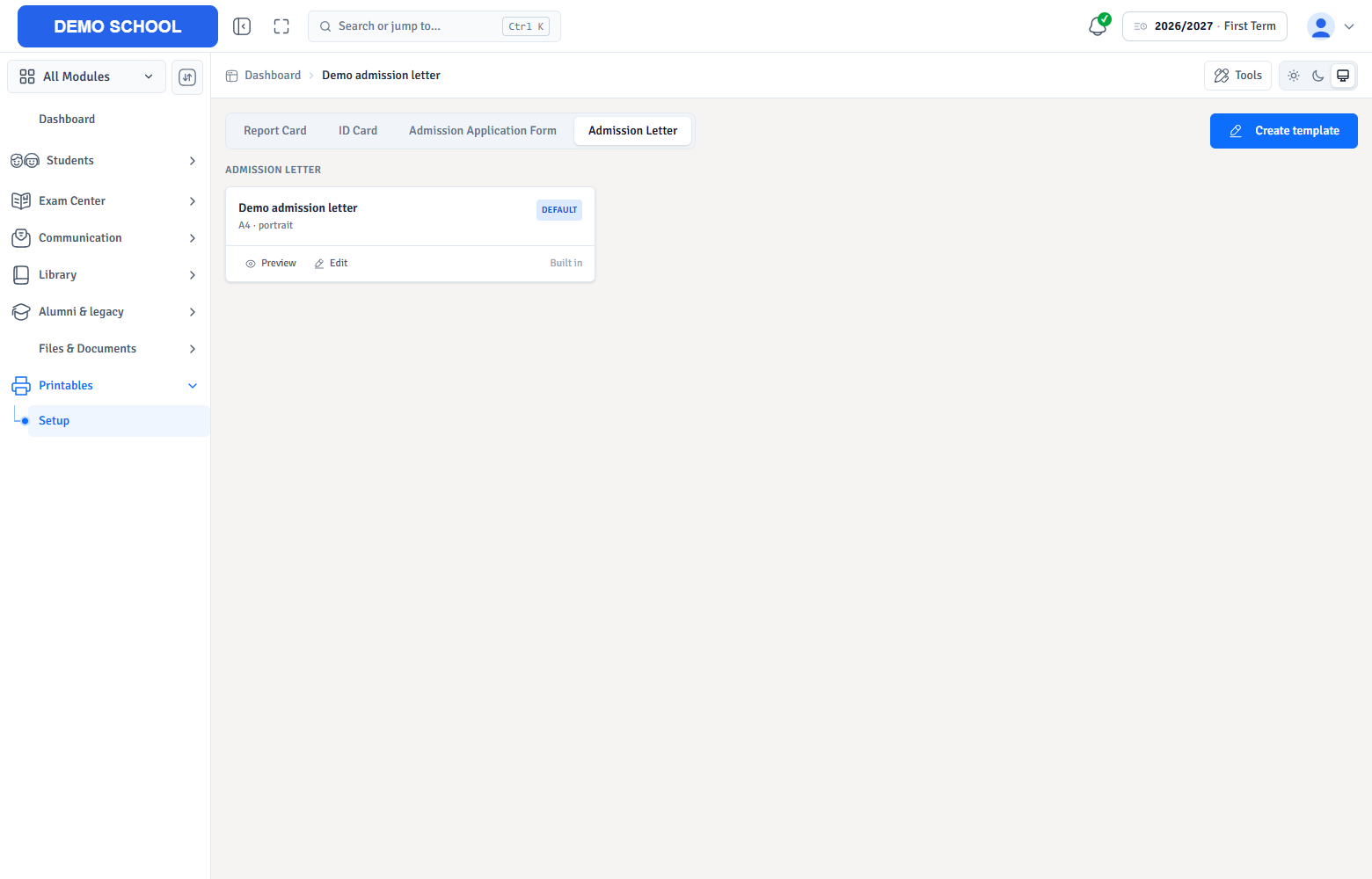
Prepare the letter
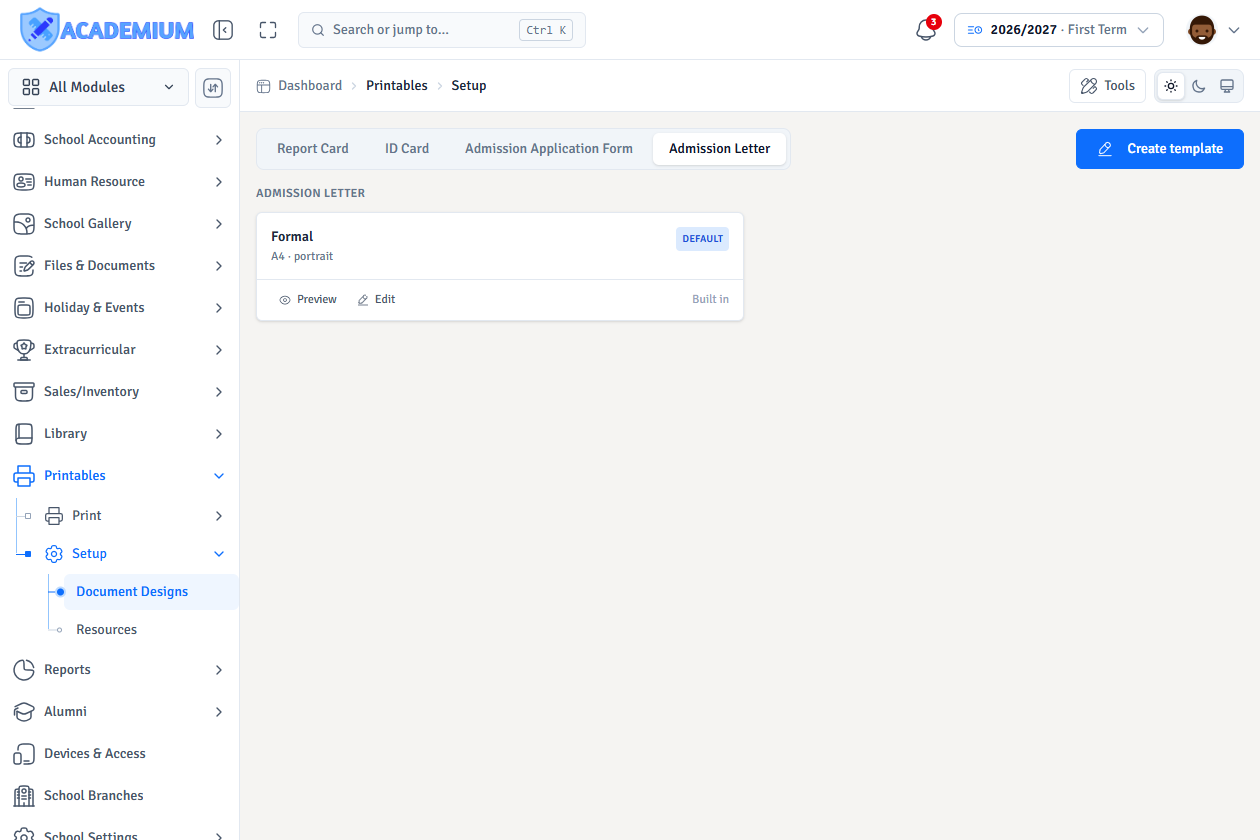
- Open Printables → Setup → Document Designs → Admission Letter.
- Choose one of the five starting layouts.
- Write the school's wording, arrange the sections, and set its heading, colours and shared resources.
- Save the design and make sure the intended template is available for staff to use.
Use the supported placeholders to personalise the wording:
| Placeholder | Replaced with |
|---|---|
| {student_name} | Student's name |
| {school_name} | School's name |
| {class_name} | Class |
| {section_name} | Section |
| {academic_year} | Academic year |
| {admission_number} | Admission number |
| {admission_date} | Admission date |
| {issued_on} | Letter issue date |
Keep the braces and spelling intact. Preview a real student to check that the wording reads naturally.
Print letters
On Admission Letter, select the students for the current academic year, choose the template and open the preview. Check names, placement and admission numbers before printing or saving the documents.
You can also use the Print action in the student list. Admission letters appear there when an active template is available. See Printing from the student list.
The letter is unavailable from a student. Check that the school has an active admission-letter template and that your role can print it.
A student's details are wrong. Correct their record and generate a fresh preview. Editing the letter's wording will not correct the student's record.
Works with other parts of SMS
- Letters use the student’s placement from admission, under your letterhead.