Finding school documents
Files & Documents → All Documents brings together files already held in student records, staff records and file shares. It saves you opening each person's profile to find an attachment.
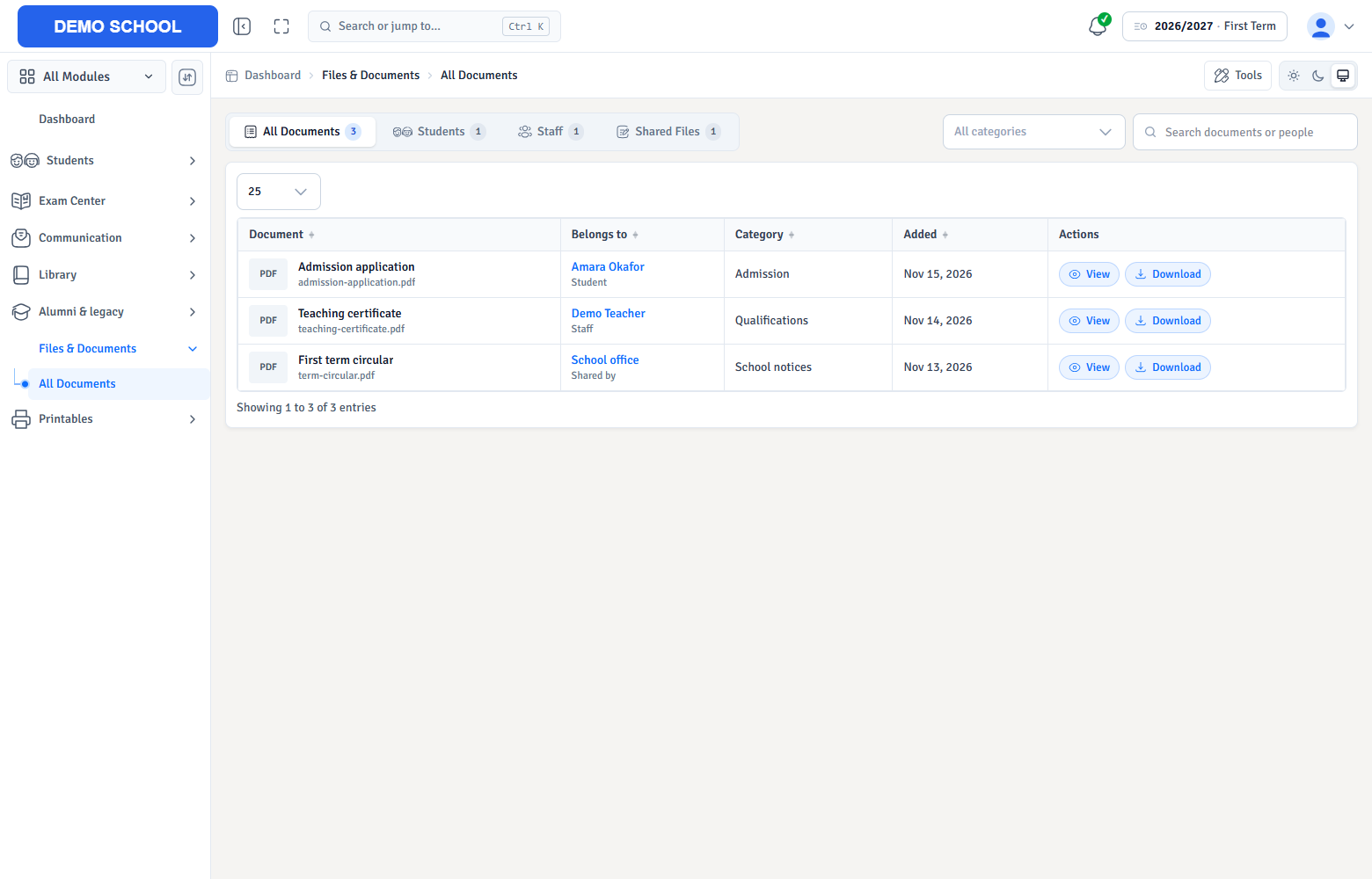
Find a file
- Open All Documents.
- Choose the relevant group, such as student, staff or shared documents.
- Narrow the list by category or search.
- Check the document title, owner, type and added date before opening it.
Your role determines which records you can see. The combined list does not grant access to a student's or employee's documents that you were not allowed to open before.
Open or download
Use View for supported pictures and PDFs. Use Download to save a file; other file types may need a suitable application on your computer. Where an owner link is offered, open it to return to that person's record.
Add, replace or remove documents
Use the document's original location: the student's Documents tab, the staff profile or the original file-sharing page. All Documents is a combined browser; it does not replace those upload and removal controls.
Works with other parts of SMS
- Files are the attachments on student and staff profiles, shown according to your permissions.
Common problems
An attachment is missing. Check the branch, group, category and search, then check the original record and your permission to view it.
The row exists but the file cannot open. Ask the person managing the original record to check that the attachment is still available. Do not upload a second copy without checking the first.
A file has no View action. Download it and use an application that supports its format. Pictures and PDFs can be viewed directly where available.