Setting up school email
Open Communication → Email to create the school's shared mailbox. School email is available on every plan when Communication is enabled; staff permissions and mailbox limits still apply.
One mailbox belongs to the school and is shared by its authorised staff. It is not a separate personal mailbox for each member of staff.
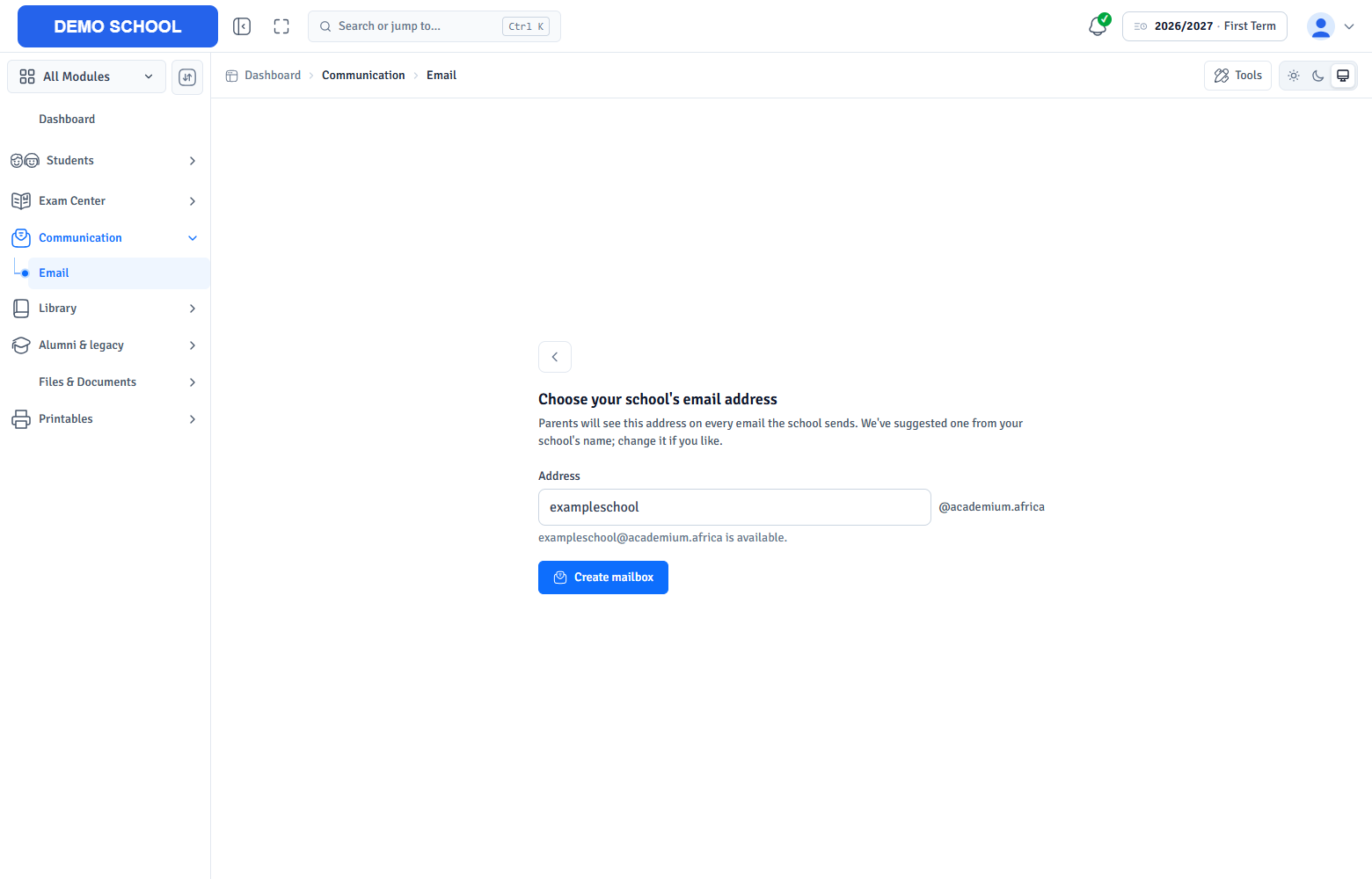
Choose the address
- Open Email and review the suggested school name.
- Choose at least four letters or numbers; dots and hyphens are also allowed.
- Wait for the availability check to finish.
- Check the complete address and confirm setup.
New school mailboxes use @academium.africa. Existing @academium.com.ng mailboxes keep their original address.
The address cannot be changed once created. Choose a name your school can keep using.
Give staff the right access
Ask the administrator to review the Communication and email permissions. Setting up the mailbox, reading messages and sending messages use their respective access controls.
Staff use the mailbox inside SMS. Families can send to the school address from their own email application and reply to messages they receive.
Works with other parts of SMS
- Give your mail its own look with email design, and receive mail at your own domain with Domain and website.
Common problems
The name is unavailable. Choose a different school name and wait for the new check.
The name check or setup cannot connect. Restore the connection and retry the check. Do not assume the address was created until the page confirms it and opens the mailbox.
Our school already has a .com.ng address. Keep using the existing mailbox. The new default does not rename or migrate an existing address.
Text messages (SMS) say coming soon. Text messaging is not available yet. Email and WhatsApp are; see Sending WhatsApp messages.
Continue with Using the school mailbox.