Using the school mailbox
After setting up school email, open Communication → Email to work in the school mailbox.
The mailbox is shared. Your role determines which reading, sending and setup actions are available.
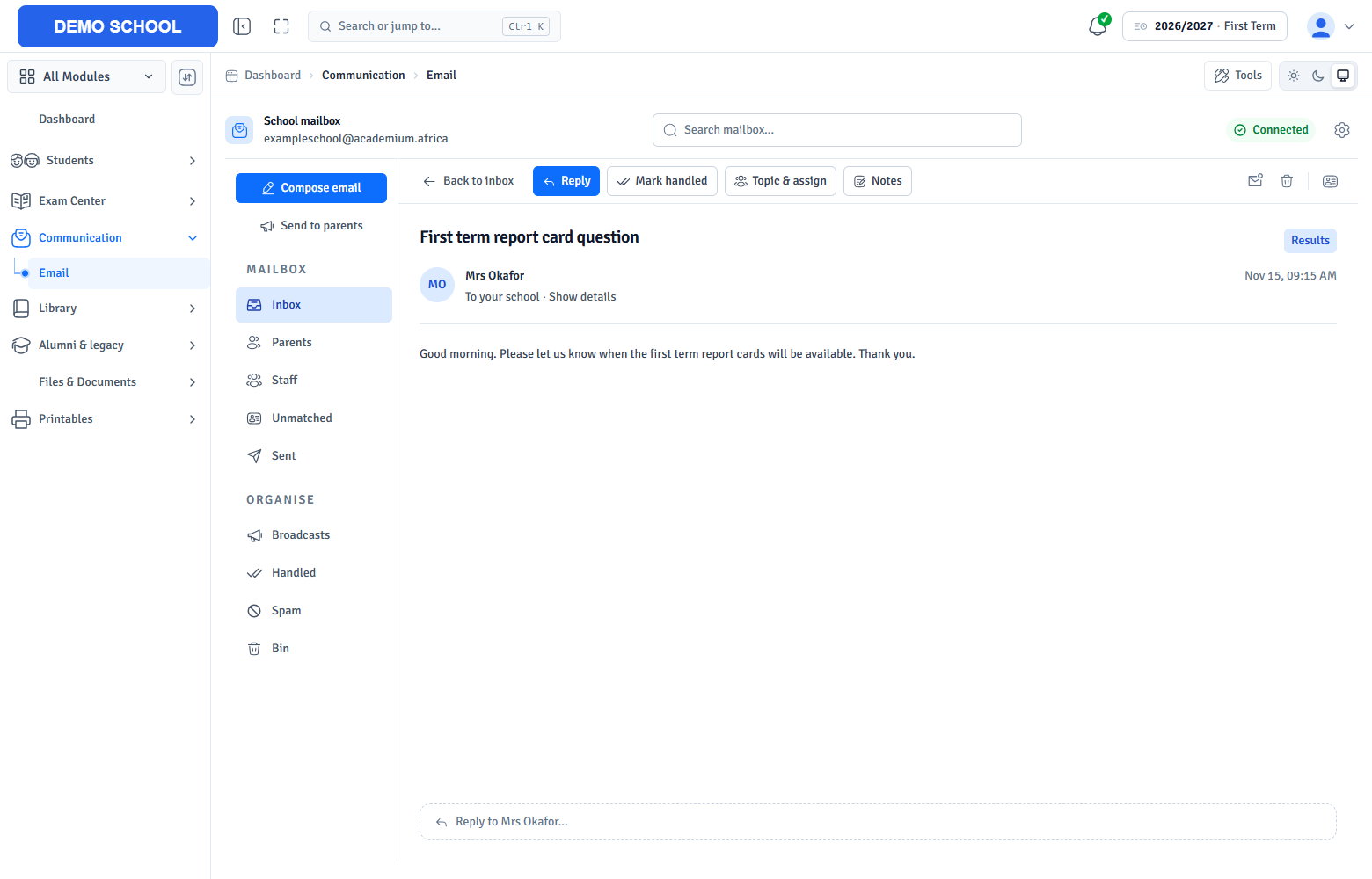
Read and reply
Open a message to read its conversation and attachments. Review the sender before replying. The reply is sent from the school address, and replies from families arrive in the same school mailbox.
Use the mailbox's search and available folders or filters to find earlier messages.
All mail to and from one address reads as one conversation, so a parent's emails stay together.
See who is writing
SMS matches each sender to your school's records. When a parent writes, the panel beside their message shows:
- their children and classes,
- what the family owes, with a link to collect it,
- each child's latest result.
Each part only appears for staff allowed to see it. Someone without fee access sees the panel without the fees.
Share the work
- Give a conversation a topic so it reaches the right people.
- Assign it to a member of staff.
- Add notes for colleagues. Parents do not see them.
- Mark it handled when it is dealt with. A new message from the same person reopens it.
Messages from the parent portal
If your school has the parent portal, records requests and complaints or feedback that parents send there arrive in this mailbox too.
Compose a message
- Choose the compose action.
- Check the recipients and subject.
- Write the message.
- Add the attachments you intend to send.
- Review the message and send it.
Check the conversation and recipients when replying or forwarding; a shared school address does not make every message appropriate for every recipient.
Attachments
Open or download attachments using the actions offered. When sending, review the attached files before confirming so the message contains the intended documents.
For supported school records, use Sending records by email rather than preparing the same document separately for every family.
Works with other parts of SMS
- The panel beside a parent’s message reads their children from parent records, fees owed from student accounting, and latest results from the exam centre.
- Your email design is used for mail sent with the school’s template.
- Mail to your school’s own domain arrives here once set up in Domain and website.
Common problems
A staff member cannot read or send. Ask the administrator to check the member's email permissions and whether Communication is enabled.
A message is queued or has a sending problem. Read the status shown and check the connection. A queued message is not confirmation that it has reached or been read by its recipient.
Another member of staff has already replied. Review the conversation before sending another answer.