Welcome to Academium SMS
Academium SMS is the school management system your staff use to run the school day: registers, students and families, fees, exams and report cards, staff and payroll, the school's accounts, and much more.
This help centre explains each part of Academium SMS in plain language: how to set it up, how to use it day to day, and what to do when something does not work as expected.
Who uses Academium SMS
Academium SMS is used by school staff. Each member of staff signs in with their own account, and what they can see and do depends on their role.
Academium SMS comes with these roles:
| Role | Usually responsible for |
|---|---|
| School Owner | The whole school, including settings, branches, devices and the subscription |
| School Admin | Running the school day to day, setting up staff and their permissions |
| Teacher | Registers, marks, comments and timetables for their classes |
| Accountant | Fees, the family wallet, school accounts, payroll and tax |
| Receptionist | The front desk and prospective students |
| Librarian | Books, loans, book sales and library records |
Your school can also create its own roles, such as "Bursar" or "Head of Year", and decide exactly what each one can do. See Staff roles and permissions.
The three Academium SMS applications
Depending on how your school has chosen to run Academium, you will use one or more of these:
- Server Edition: installed once, on a computer at the school. It holds the school's records and serves everyone on the school network.
- Client Edition: for shared computers at school. It finds the school's server and lets several colleagues stay signed in, switching with a PIN.
- Individual Edition: for one person's own computer. It keeps working without a connection and sends your changes to the school when it can reach it again.
How your school runs Academium explains how these fit together, and Which application should I use? helps you choose.
If colleagues are working on different computers, Understanding sync and when changes appear explains when saved work reaches them and how to check its progress.
Finding your way around
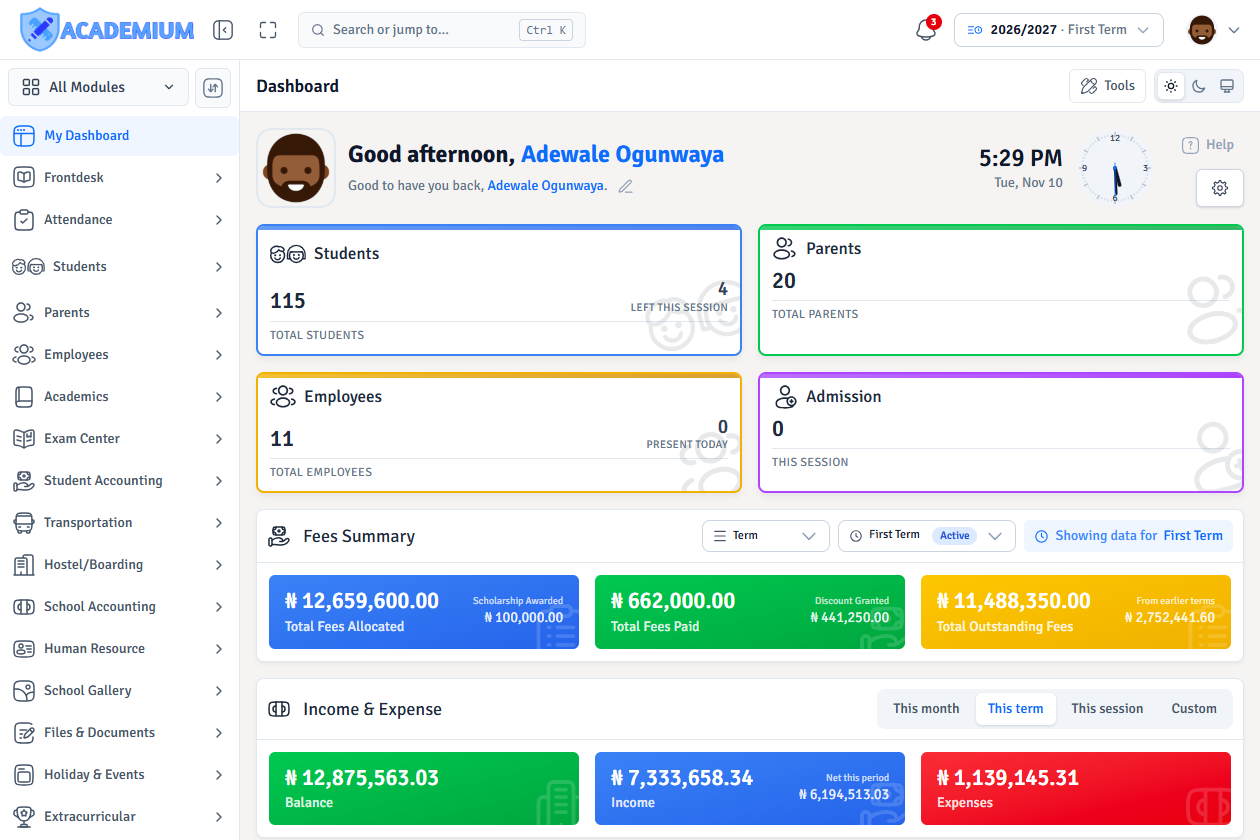
- The sidebar on the left lists the modules you have access to. You can reorder and hide items, or narrow the list to one area such as Finance.
- Search (press Ctrl + K) finds students, staff, parents, classes and pages by name, even with a typo.
- Your dashboard shows what matters for your role, and Catch Up lists work that needs your attention.
If you are new, start with Your first sign-in. If you are setting up a school, start with Setting up your school: a checklist.
Explore the newer workflows
-
School email: create a shared school mailbox on @academium.africa and send supported records to families.
-
Online results: prepare report cards, publish them and share the school's separate results page.
-
Student record transfers: prepare selected history, share an expiring link and import another school's Academium ZIP during admission.
-
Background tasks: follow preparation and sending while working on another page.
-
Library: manage lending copies, sales stock, loans and class book lists.
-
Files & Documents: find attachments across records you can access.
-
Printables: design report cards, ID cards, application forms and admission letters.
-
Student printing: print available documents for one student or a selection.
Availability depends on your school's plan, enabled modules and staff permissions. See Free mode for the current allowance and included features.
With Academium Surepass
Academium Surepass is Academium's computer-based testing (CBT) and exam-practice app. Schools use it to run class tests and exams on computers in the lab, mark them automatically, and send the scores back into Academium SMS for report cards. Surepass uses your SMS classes, students, staff and subjects, so nothing is set up twice. See Surepass and Academium SMS.
Works with other parts of SMS
- Each student has one record that fees, attendance, results and messages all use, so nothing is typed twice.
- Charges from transport, hostel, the store and the library all land on the same fee invoice.
- Parents can see their children’s fees, attendance and published results in the parent portal.