School Admin guide
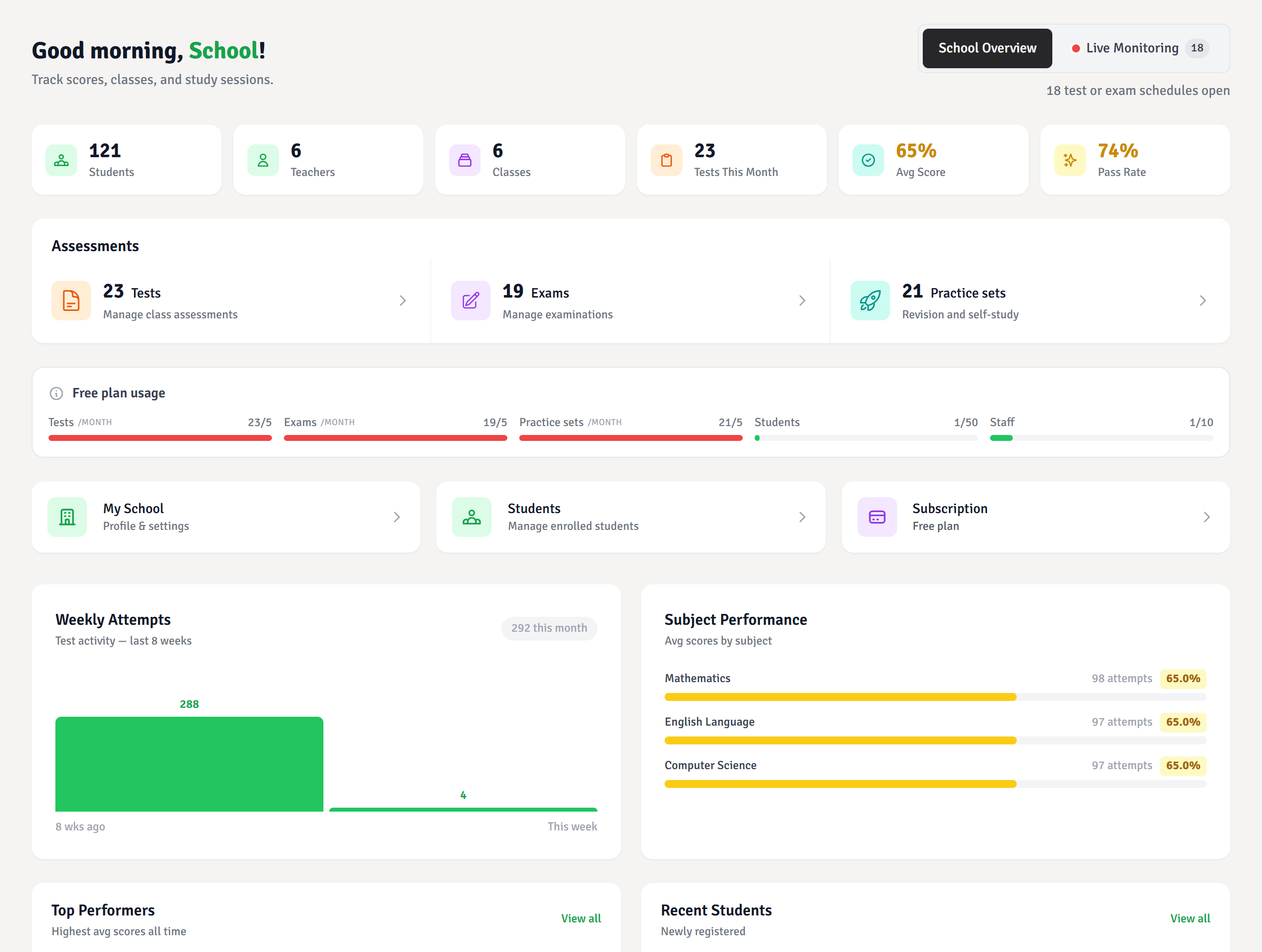
As a School Admin, you organise the school’s daily Surepass work: student records, instructors, classes, lab preparation, assessments, and results.
Start with the school records
- Check School Settings → Sessions & Terms so you are working in the intended academic period.
- Review Classes & Sections.
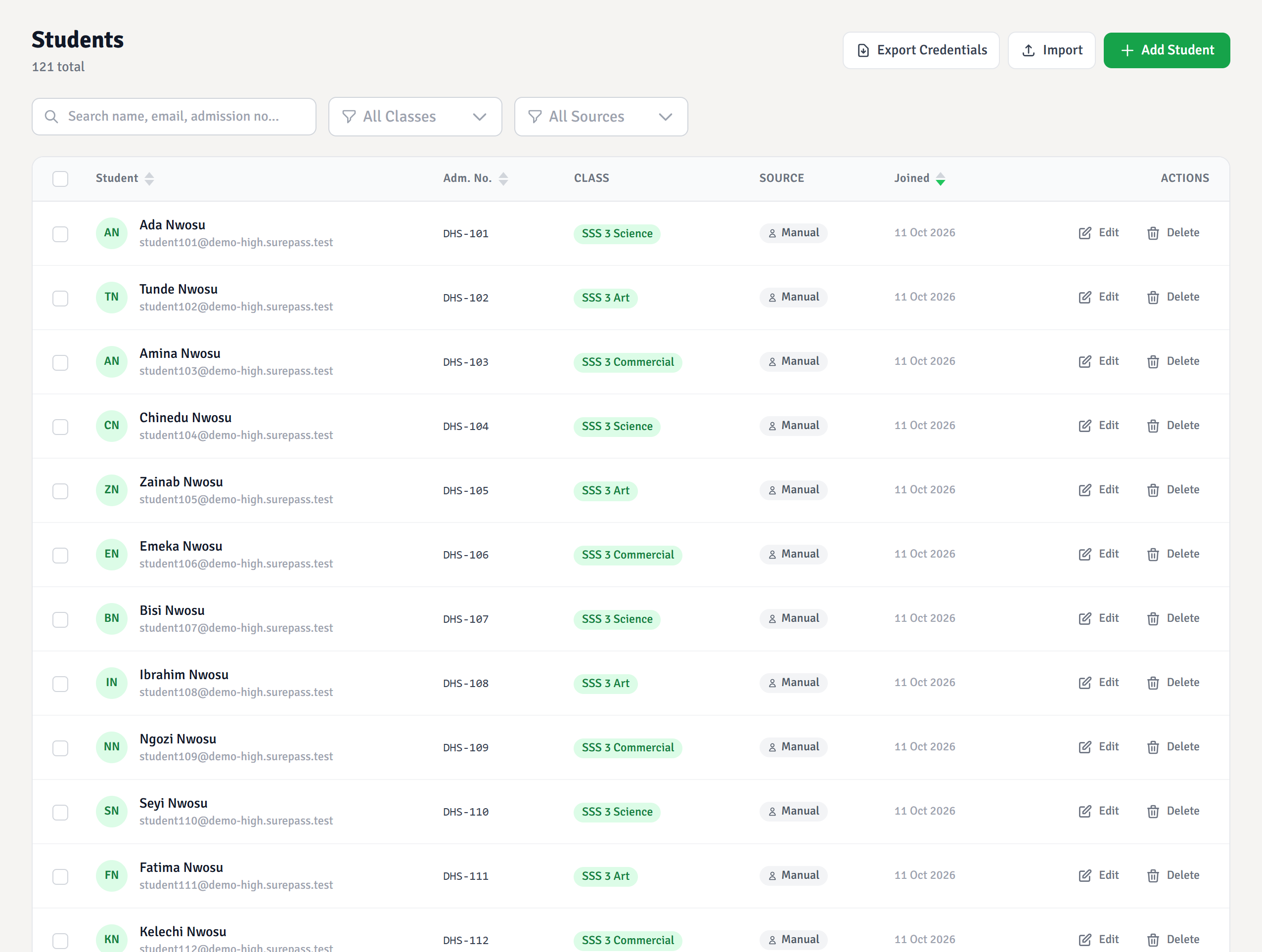
- Open Students and check class assignments before a test is scheduled.
- Add or import students using the current template. Check failed rows instead of importing the whole list repeatedly.
- Use Export Credentials to prepare student sign-in details.
Follow Adding students, Managing students, and Student sign-in details.
For SMS-managed records, update the source record in SMS, then use the appropriate Surepass import or refresh.
Prepare instructors
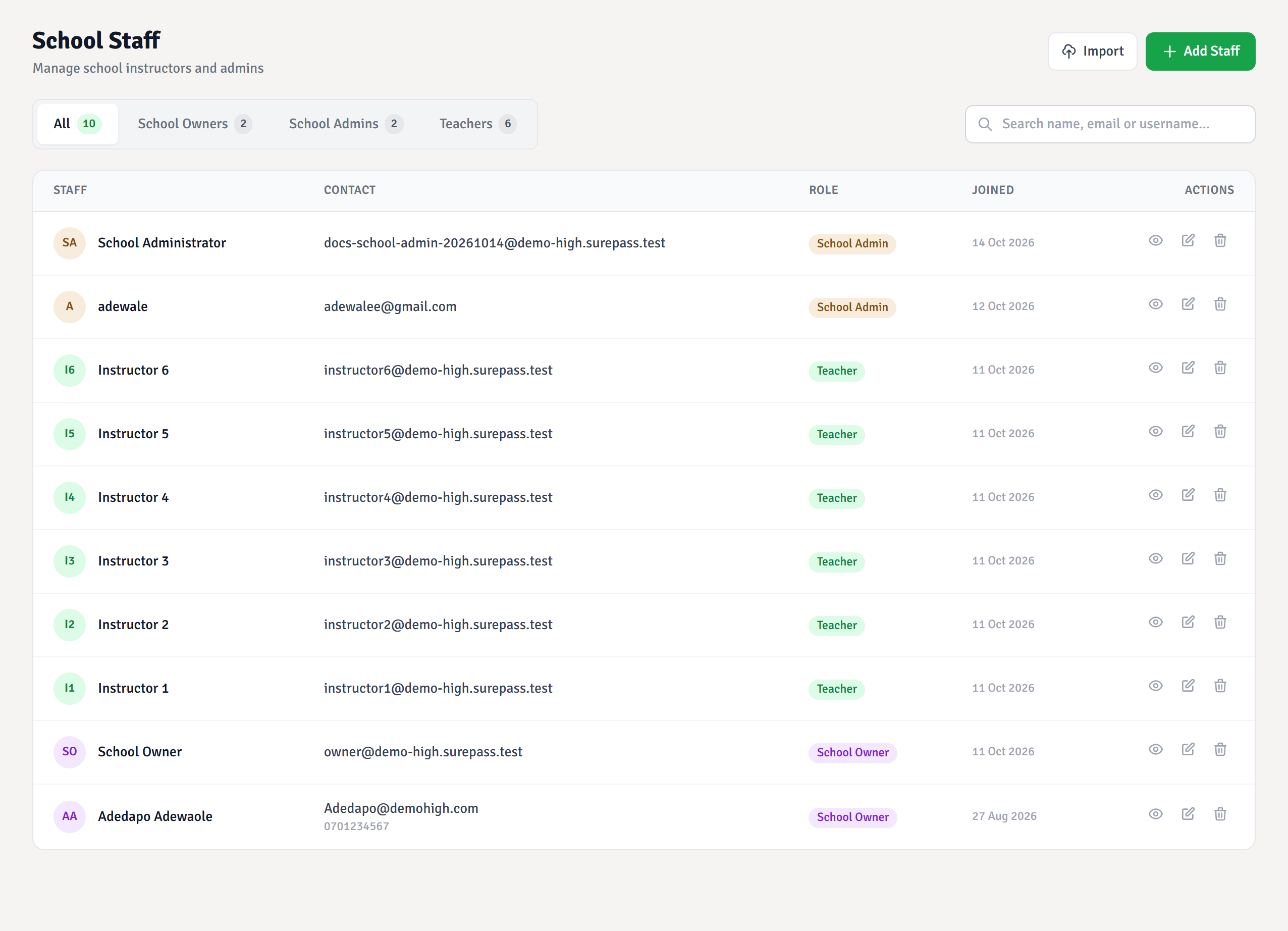
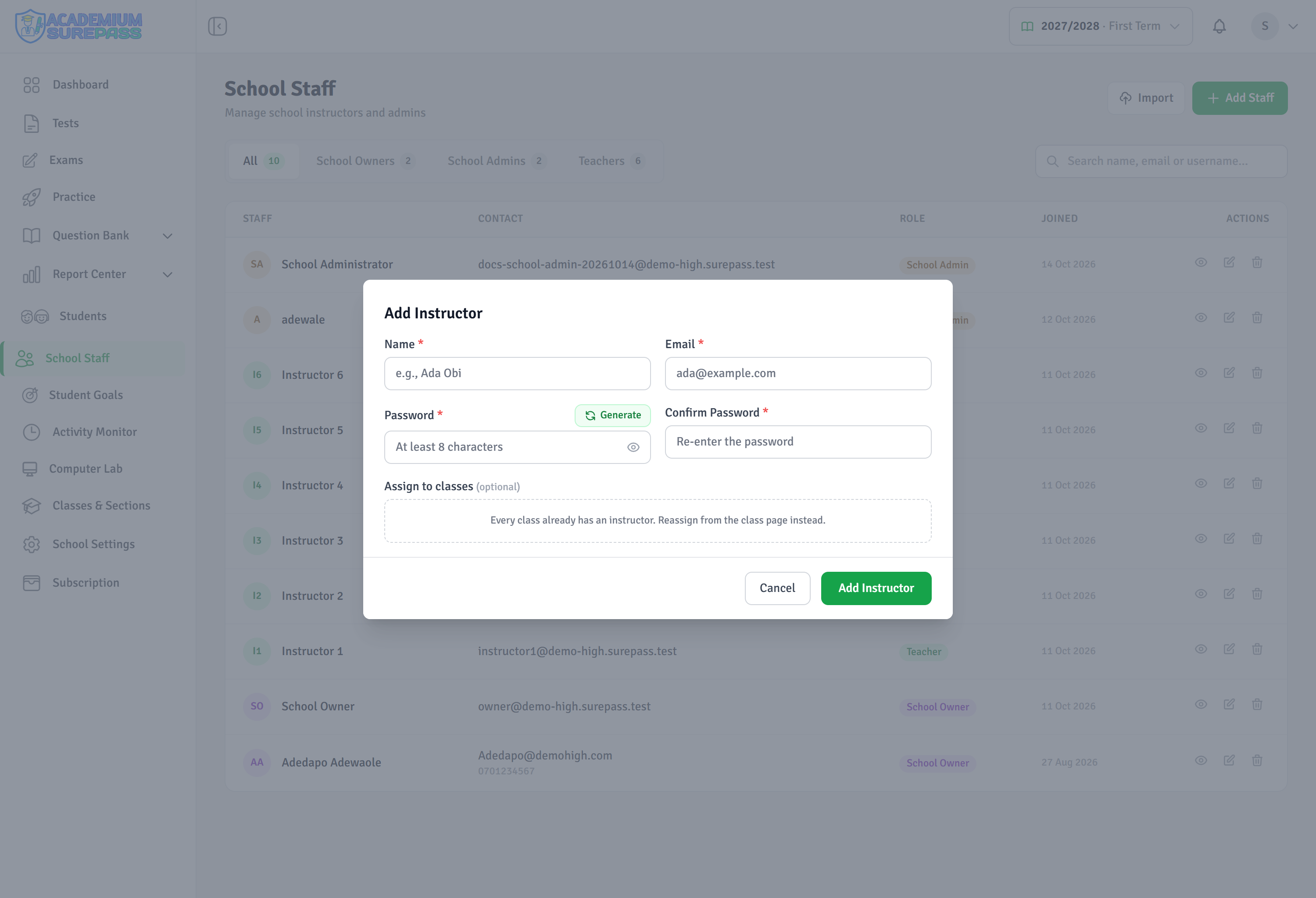
Open School Staff to add instructors, review their assignments, or reset a password. A School Admin can create Instructor accounts. Ask the School Owner when another School Admin or School Owner account is needed.
If an instructor cannot find a class or a colleague’s test, review the school’s class assignments and content visibility before creating duplicate records. See School access and permissions.
Prepare the lab
Check Computer Lab → Lab Rooms and Devices. Make sure the layout reflects the room, each usable seat has the correct computer, and faulty seats are unavailable.
Before the sitting, check the schedule, class list, seat assignments, and any temporary-password dockets. Follow the Exam day checklist.
Support the sitting
Use Dashboard → Live Monitoring and open the relevant schedule. Review requests, locate students by name or seat, and use the controls available to your account.
If a computer fails, change the student’s seat with a reason and help them resume the existing attempt. Do not create a second account to work around a seat or sign-in problem.
Close the reporting cycle
Check unfinished marking, review Student Results, resolve conflicts, and prepare exports or Printables. A completed sitting is not the same as a fully marked result.
Use Checking results before reporting before printing or sending scores to Academium SMS.