Start here for your school
Use these guides to get your school ready for computer-based tests, run a sitting with confidence, and turn completed attempts into checked results.
Choose your role
| Your account | Start here |
|---|---|
| School Owner | Set up the school and oversee assessment work |
| School Admin | Organise students, staff, and daily school operations |
| Instructor | Build papers, supervise sittings, and mark answers |
| School Student | Sign in, take an assigned paper, and practise |
Your role decides which actions you can use. School settings also affect which classes and staff-created papers you can work with. See School access and permissions.
The school assessment journey
- Prepare the school. Check the academic session and term, classes, subjects, staff, and students.
- Prepare the paper. Choose the assessment type, settings, sections, and questions.
- Prepare the sitting. Publish, schedule, and arrange lab seats where needed.
- Run the sitting. Students sign in; staff follow progress, requests, and any computer problems.
- Check the results. Finish theory marking, resolve repeated attempts, and review the correct class and term.
- Use the results. Export, print, or send checked scores to Academium SMS if your school is connected.
Follow Your first school assessment for a guided first run.
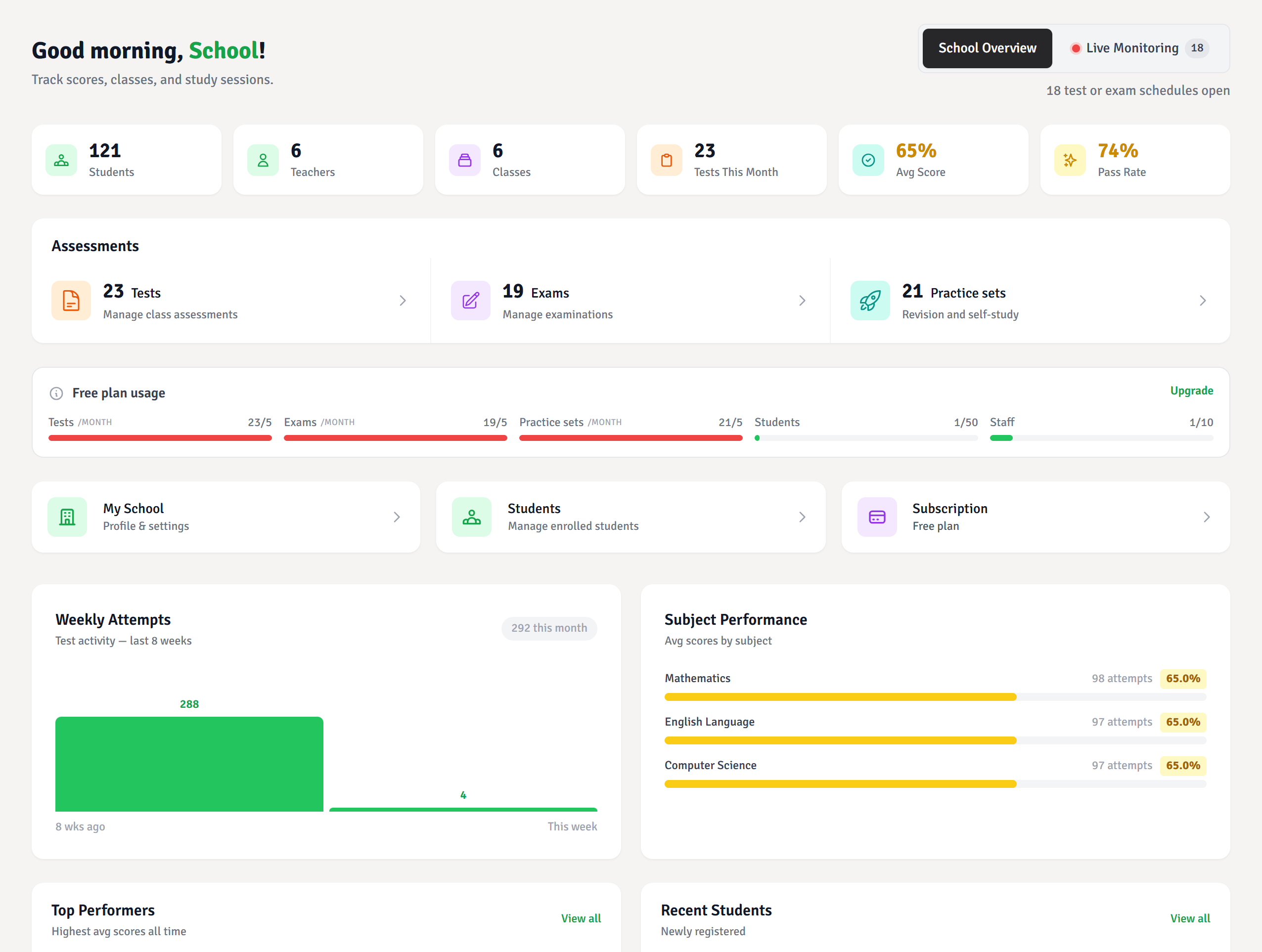
Working with Academium SMS
Surepass can use your SMS school records and return CBT scores for report cards. A connected school may show Managed by Academium instead of an editing button. Make those changes in SMS and refresh the matching records in Surepass.
A school can also manage its academic records directly in Surepass. The School setup checklist explains both paths.
Find an answer quickly
Search for the action you want, such as add students, late student, extra time, or pending grading. Choose your account type in the help centre to narrow the guides.
If an expected menu or action is missing, start with School troubleshooting. Include the exact message, the affected class, and the paper or schedule when contacting support.