School access and permissions
Surepass combines your account role with school settings to decide which records and actions you can use.
School roles
| Role | Main responsibilities |
|---|---|
| School Owner | School setup, staff accounts, academic settings, assessment oversight, and school reports |
| School Admin | Daily school administration, students, instructors, assessment arrangements, and school reports |
| Instructor | Questions, tests, exams, practice, supervision, marking, and following students |
| School Student | Assigned papers and the learning activities made available by the school |
Use a separate account for each person. A student account cannot perform staff actions.
Adding staff
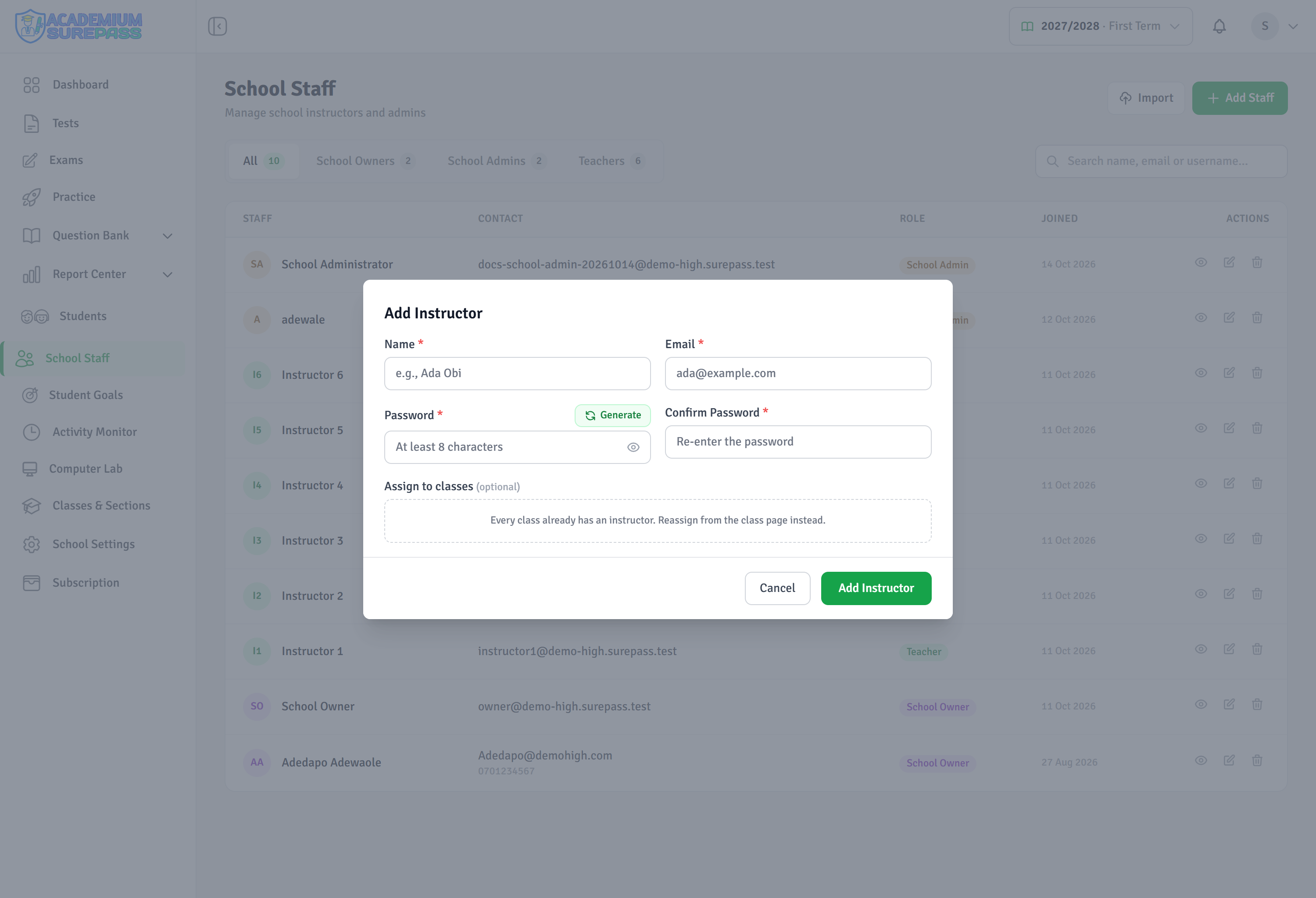
School Owners can choose Instructor, School Admin, or School Owner when adding staff. School Admins can add Instructor accounts.
For an SMS-managed school, import the relevant staff from SMS. See School Staff.
Which classes an instructor can use
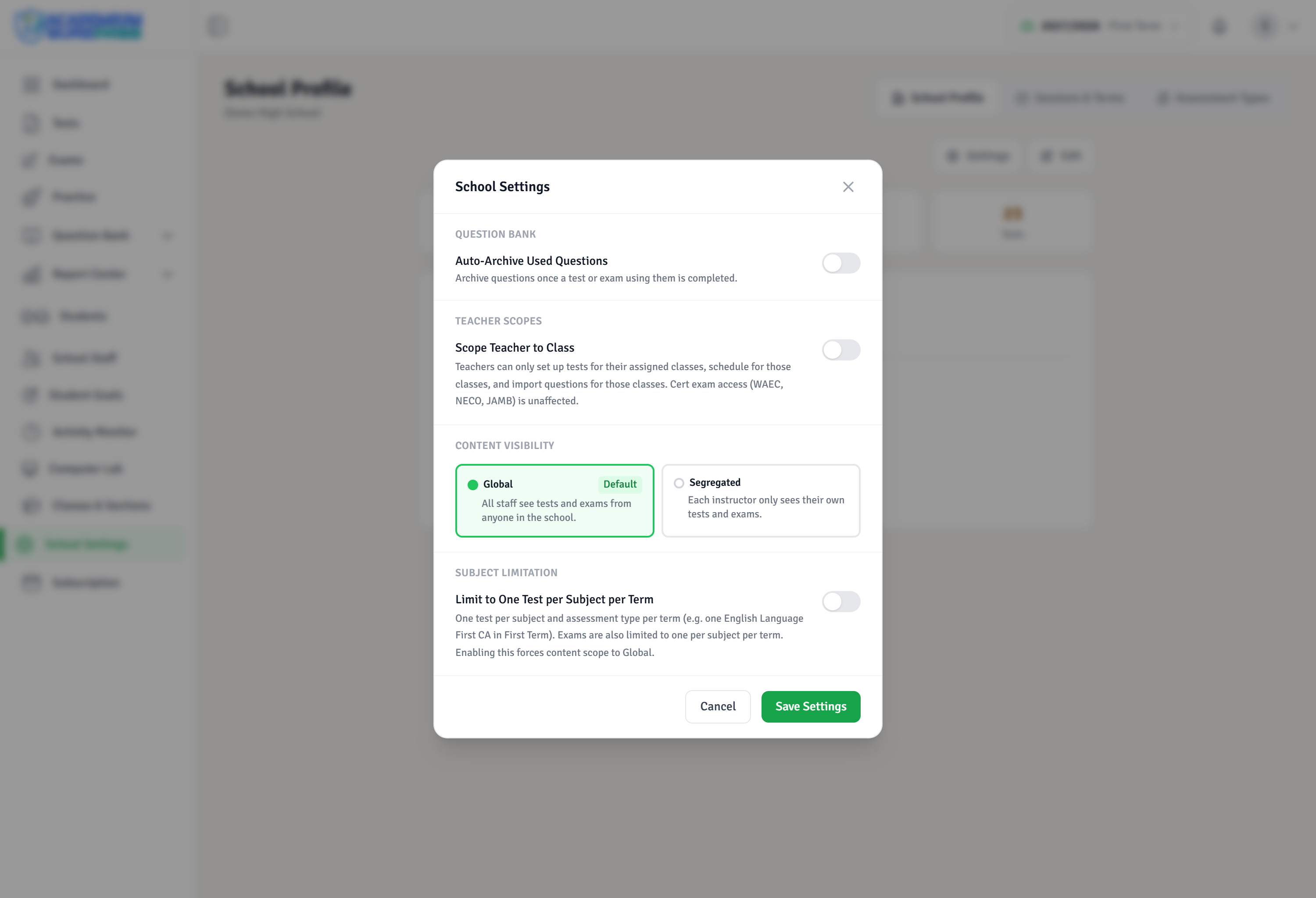
Scope Teacher to Class, under School Settings → School Profile → Settings, limits instructors to their assigned classes for assessment setup, scheduling, and question importing.
Before enabling it, review class-section assignments. If a teacher has no appropriate assignment, their class choices can be empty.
Turning this setting off does not turn a student into a staff member; account roles still apply.
Which papers staff can see
Content Visibility has two choices:
- Global: school staff share visibility of the school’s tests and exams.
- Segregated: each instructor sees their own tests and exams.
Owners and school admins retain school-level oversight. Limit to One Test per Subject per Term requires Global visibility.
The live monitor follows the same staff-content arrangements. A teacher cannot use a copied monitor link to manage a paper outside their permitted scope.
Why a control is missing or disabled
Check, in order:
- The account belongs to the intended school and has the right role.
- The record is in the intended academic period.
- Instructor class assignments and school content visibility allow the task.
- The feature is available for the school and edition being used.
- The record is not locked because it is already in use.
- The record is not Managed by Academium.
Some controls are deliberately protected once a sitting has started. Use the available live controls for an active sitting instead of editing its original questions, duration, or marks.