School Profile and settings
Open School Settings → School Profile to review school details and the way staff work with assessment content.
School details
Review the school name and contact details, then use Edit for fields you can change. Check changes before saving.
Student Login Code appears when home access is available. This is the school code shared with students; it is separate from each student’s own off-school code. See Home access.
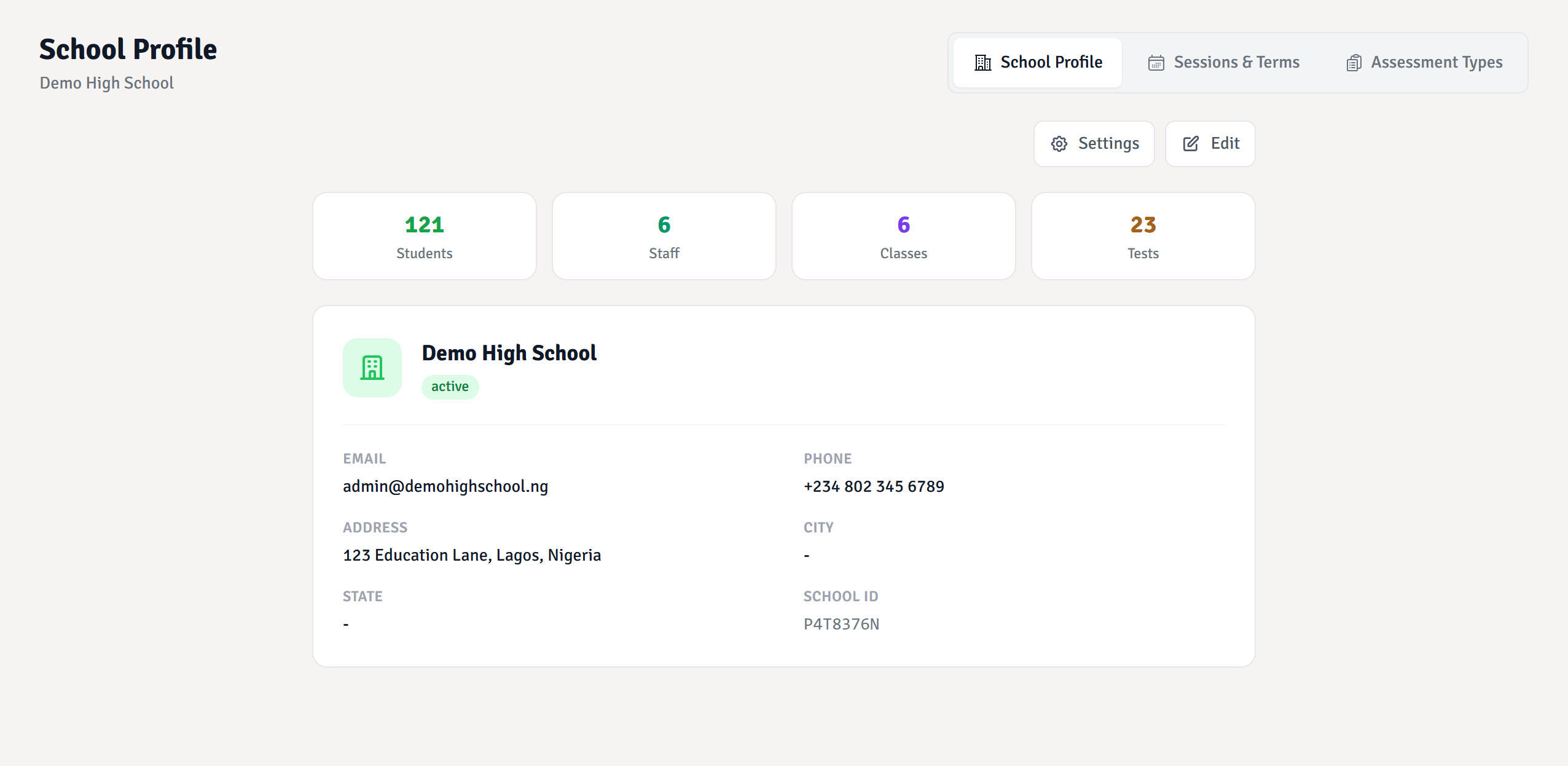
Open the settings panel
Choose Settings and review:
| Setting | Effect |
|---|---|
| Auto-Archive Used Questions | Used questions are archived after the relevant completed test or exam, helping avoid accidental reuse |
| Scope Teacher to Class | Limits instructors’ assessment setup, scheduling, and question importing to assigned classes |
| Content Visibility — Global | Staff share visibility of the school’s tests and exams |
| Content Visibility — Segregated | Each instructor sees their own tests and exams |
| Limit to One Test per Subject per Term | Limits repeated test combinations for a subject and assessment type, and repeated exams for a subject within the term |
The one-test setting requires Global content visibility. Review that change before saving.
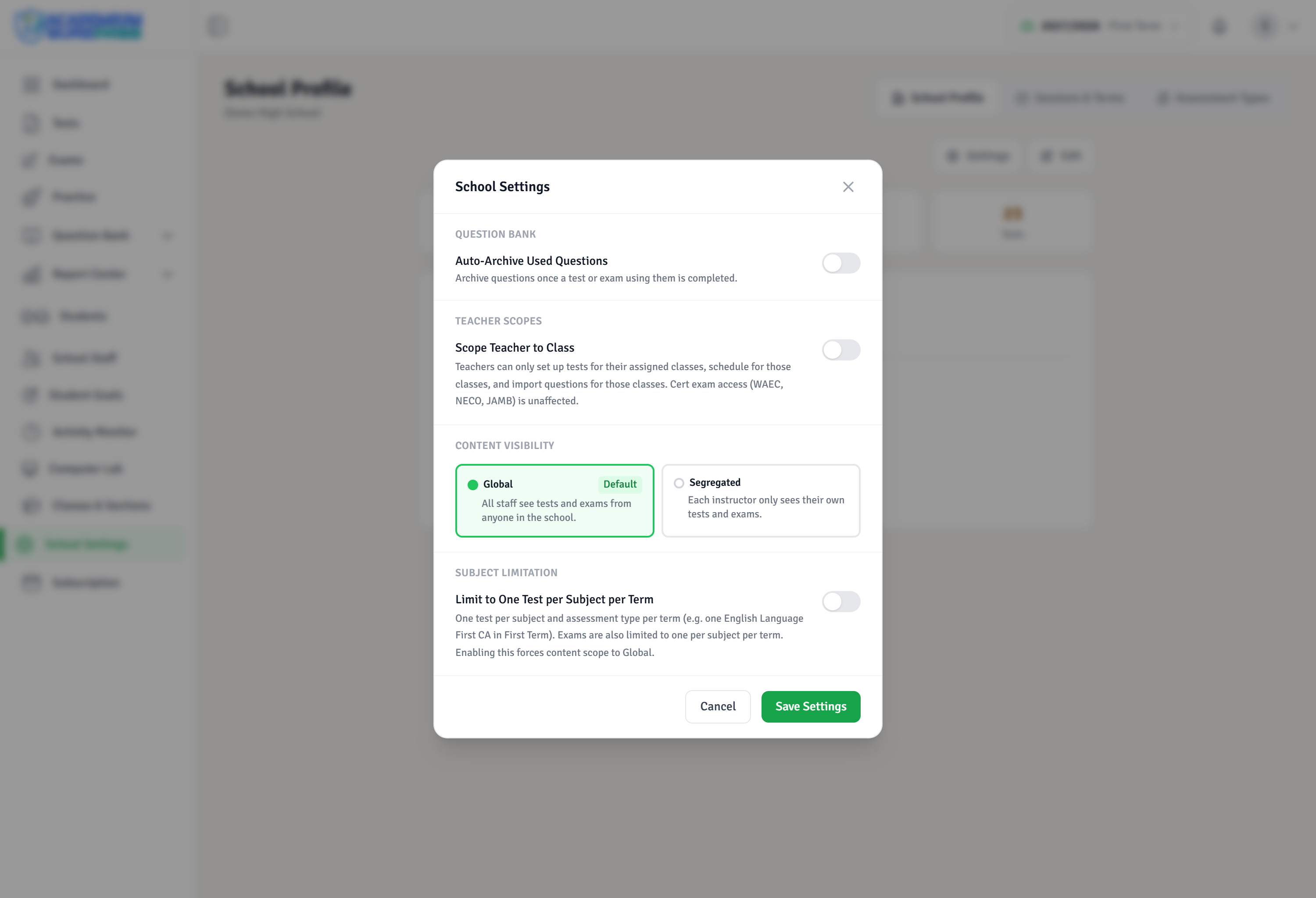
Prepare assignments before limiting instructors
Confirm the instructor assignments for the school’s classes and sections. An instructor with no relevant assignment can have no class choices when class scope is enabled.
These settings organise staff access; they do not create the school’s classes or student records.
Before saving
- Check which staff and classes the change affects.
- Confirm the content-visibility arrangement agreed by the school.
- Click Save Settings.
- Ask an affected instructor to check their class choices and available papers.
See School access and permissions.
Managed records
If a record shows Managed by Academium, change the source record in SMS and refresh it in Surepass. It should not be replaced with a manually created duplicate.