Choosing the current term
School tests and exams belong to a term. The intended session and term need to be active before staff prepare new papers.
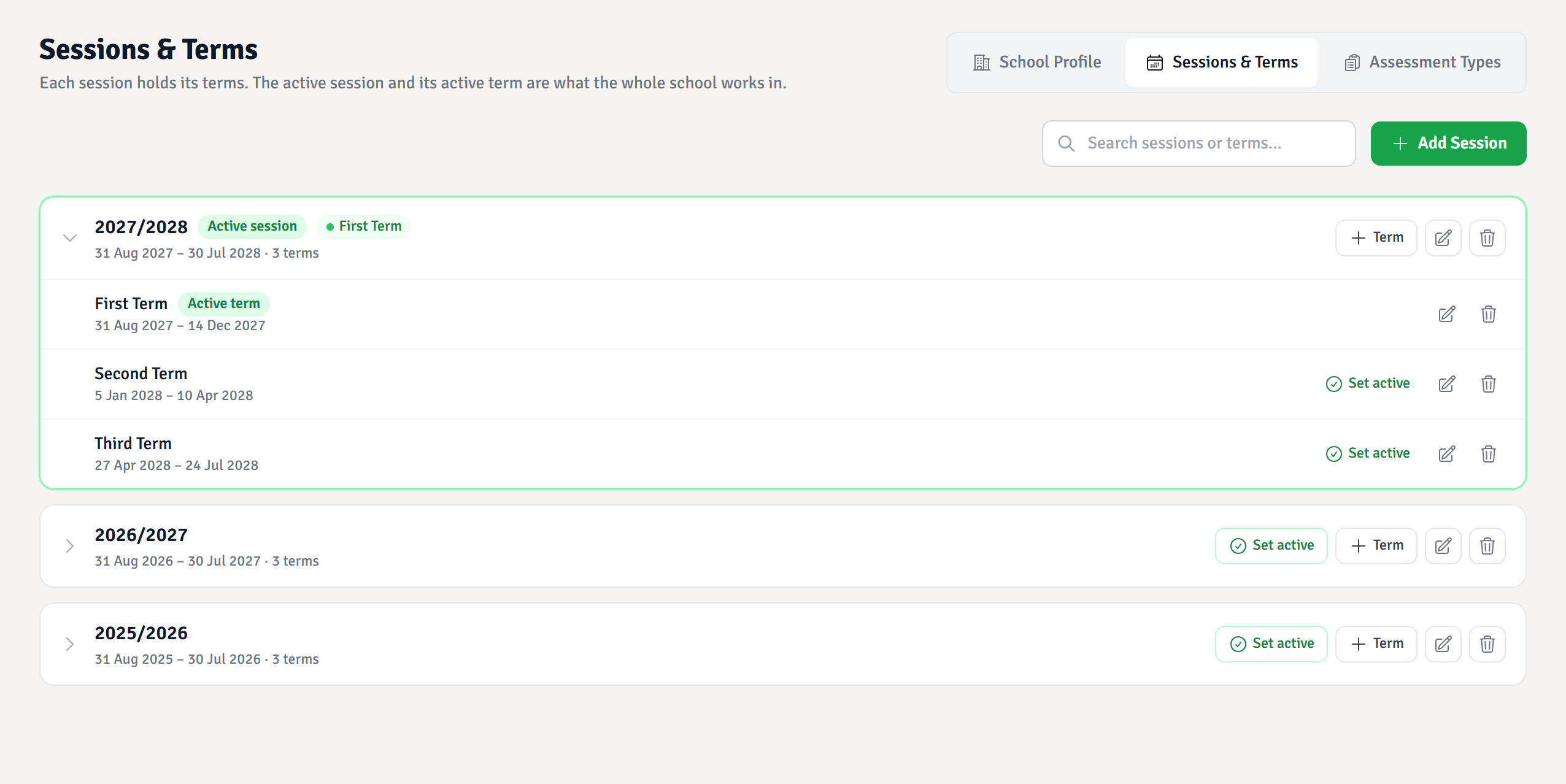
Find the term
- Open School Settings → Sessions & Terms.
- Expand the intended session.
- Review its terms, dates, and active labels.
Terms are managed on this shared page; they are not a separate School Settings tab.
Add a term
Choose the session’s add-term action, enter the term name and dates, and review whether it should be the session’s current term. Confirm Create Term.
For example, add First Term under the school year that it belongs to.
Make a term current
Use the term’s activation action and review the confirmation. Activating a term also makes its session active.
Confirm both Active session and Active term afterwards. A term saved as current inside an inactive session is not yet the whole school’s active term.
Viewing old work
The academic-period selector in the header lets authorised staff choose a period to review. Always check the displayed period when a paper or report seems missing.
Viewing a past period and changing the school’s active term serve different purposes.
Academium SMS schools
Change the academic period in SMS and refresh Session & Terms in Surepass. Managed academic records should not be duplicated manually.
Before changing periods, use Preparing for a new term.