Sessions & Terms
An academic session is the school year, such as 2026/2027. It holds the terms for that year.
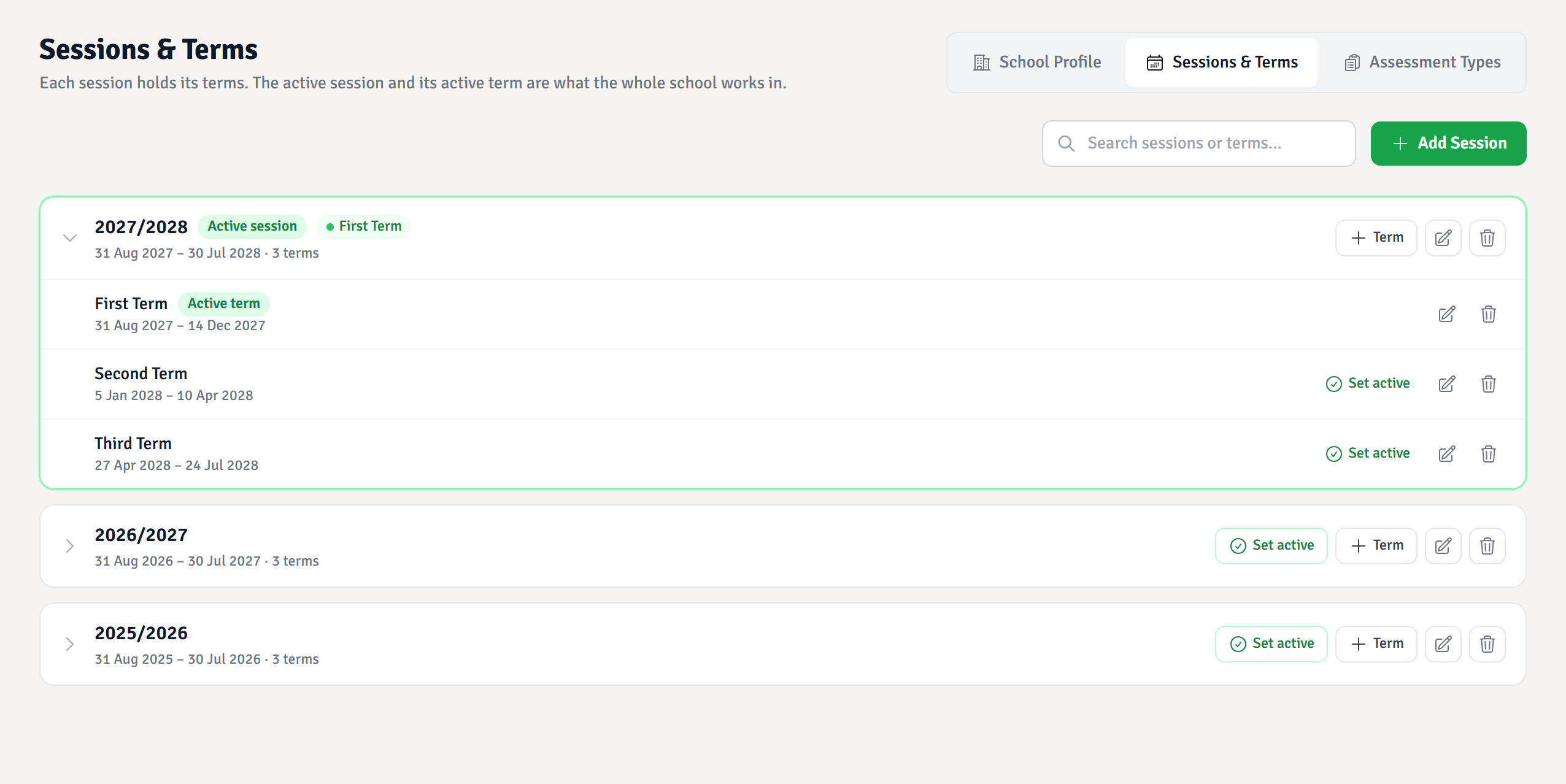
Open School Settings → Sessions & Terms. The page shows each session with its terms inside an expandable panel.
Add a session
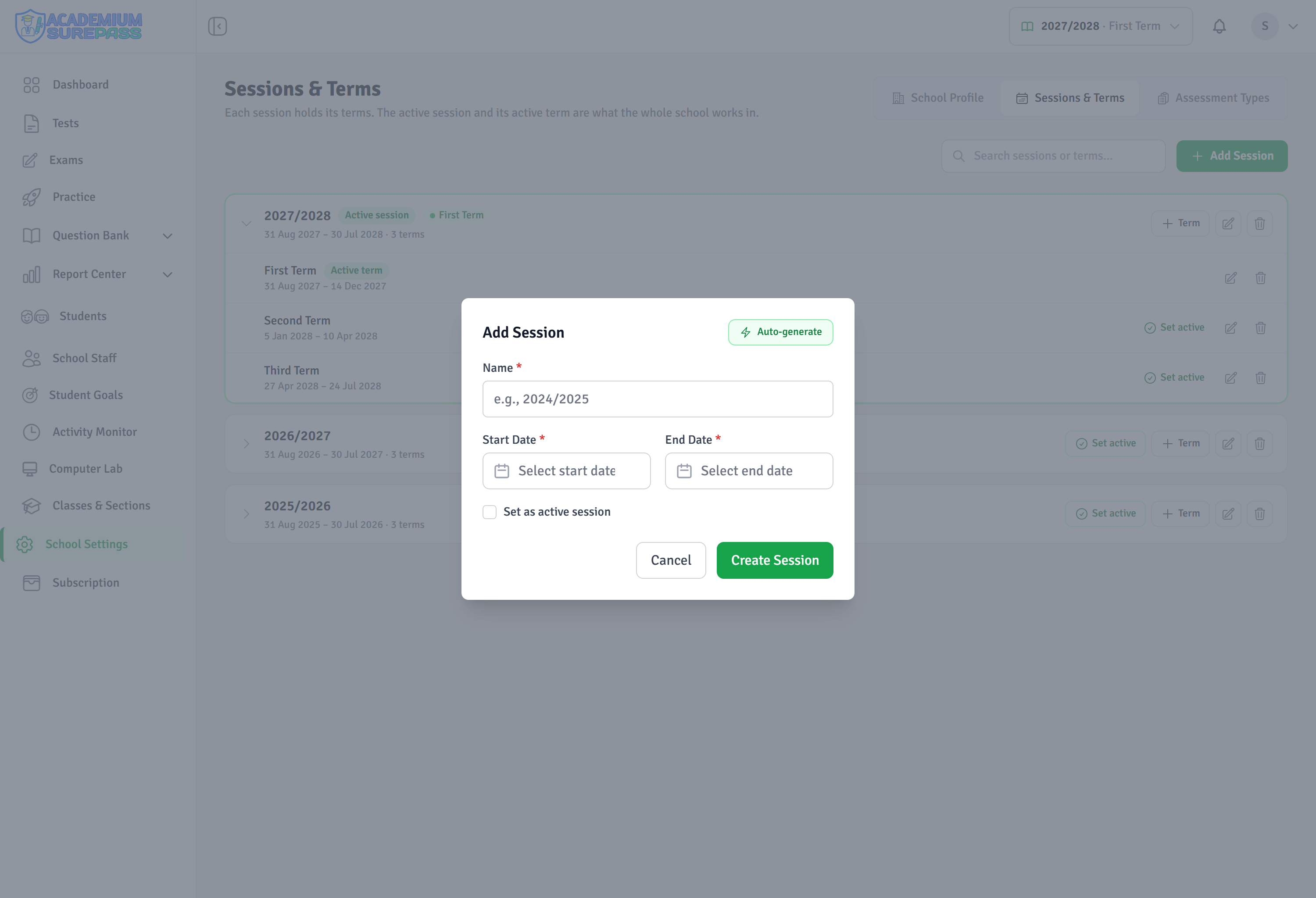
- Click Add Session.
- Review or enter the name, start date, and end date.
- Use Auto-generate if you want the suggested school-year arrangement.
- Review Terms to be created before including them.
- Confirm the session.
When suggested terms are included, the session and its current term are made active. Check their dates before accepting the suggestion.
View and find terms
Expand the intended session. Use the search box to find a session or term by name.
An Active session is the school’s current year. Its Active term is the period used for current school work. A term marked Current term inside an inactive session is that session’s saved term choice.
See Choosing the current term.
Change the active period carefully
Review unfinished marking and reports before moving the school to another period. Changing the active session is a school-wide change.
Use the header’s academic-period selector when you want to view another period, and check its label before creating or reviewing work.
Follow Preparing for a new term.
Schools managed by Academium SMS
Sessions and terms are maintained in SMS. They appear in Surepass after the appropriate sync or refresh. Do not recreate the same school year manually.
See Academium Sync.
Deleting a session
A session with terms cannot be deleted directly. Preserve past academic records for reporting instead of deleting them to tidy the list.