Student sign-in details
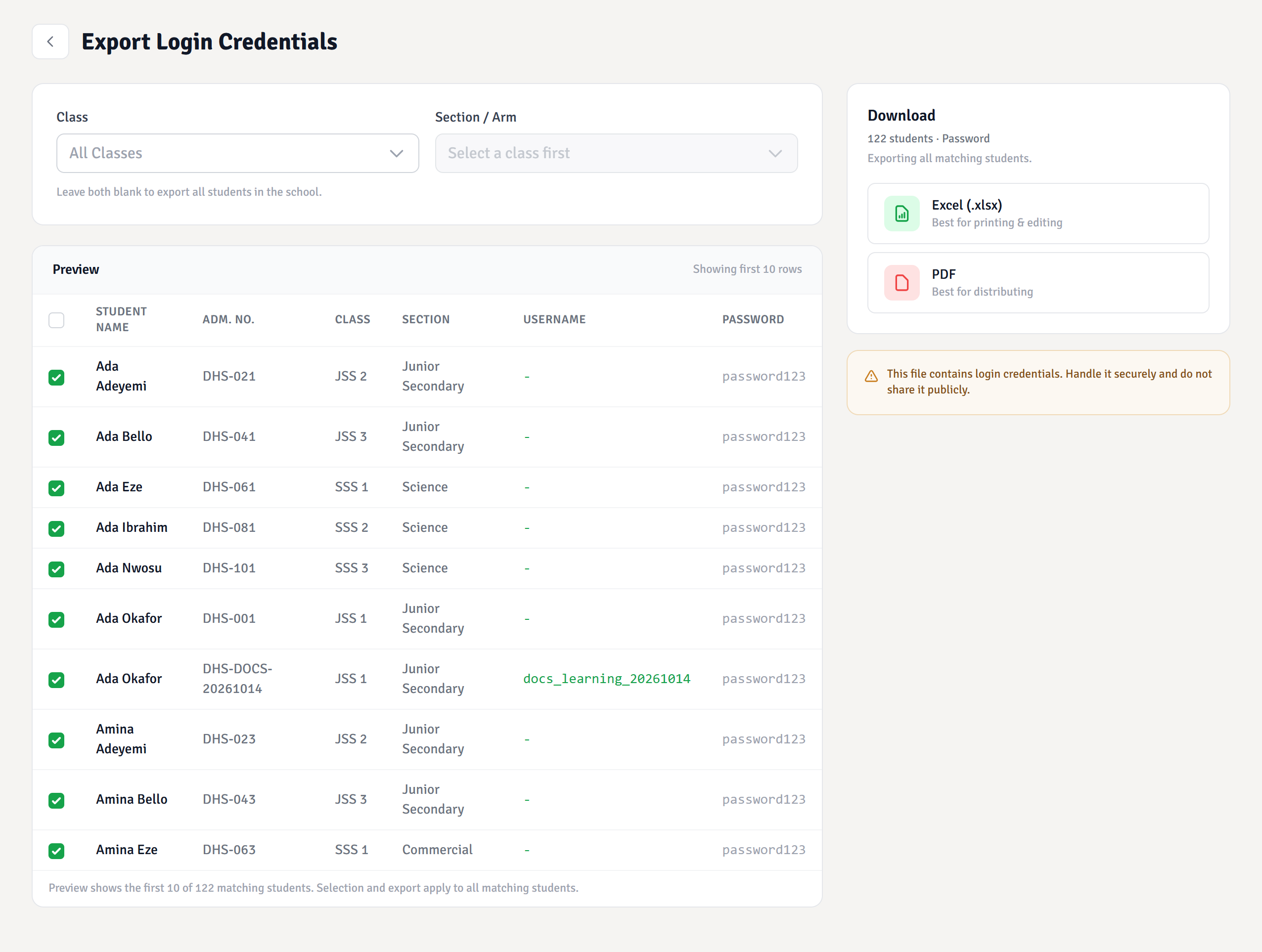
Use Students → Export Credentials to prepare sign-in details for the intended students. Keep each student’s details private.
Choose the right credential
| Choice | Use |
|---|---|
| Local Password | The school student’s normal sign-in at school |
| Off-School PIN | Home sign-in through the Individual Edition when home access is available |
| Temporary sitting password | Issued from the sitting’s seating tools when that paper requires one |
The school’s shared login code and a student’s individual off-school code are separate values. Students need both for home access.
Prepare an export
- Open Export Credentials.
- Choose Local Password or Off-School PIN.
- Select the Class and Section / Arm, or review the whole-school selection deliberately.
- Check the Preview and select the intended students.
- Download the available Excel or PDF output.
- Check the names and usernames before printing or distributing it.
A student has changed their password
The Local Password export contains the school’s initial default password, password123. It does not recover a custom password that a student has set.
If the default no longer works, use the student’s edit form to set a replacement password and give it to them privately. Do not assume the exported default is their current password.
Exam sign-in is asking for another password
A seated paper can require its own temporary password. Prepare those dockets from Seating and temporary passwords.
Resetting the student’s normal password does not remove the sitting’s temporary-password requirement.
Home access
Use Off-School PIN only when the school has enabled the feature. For a lost device or revoked code, review the student’s Off-School access rather than resetting only their school password.