Sharing student records
Prepare the required file first under Student records. Sending needs the student-record sending permission and a school mailbox that can send.
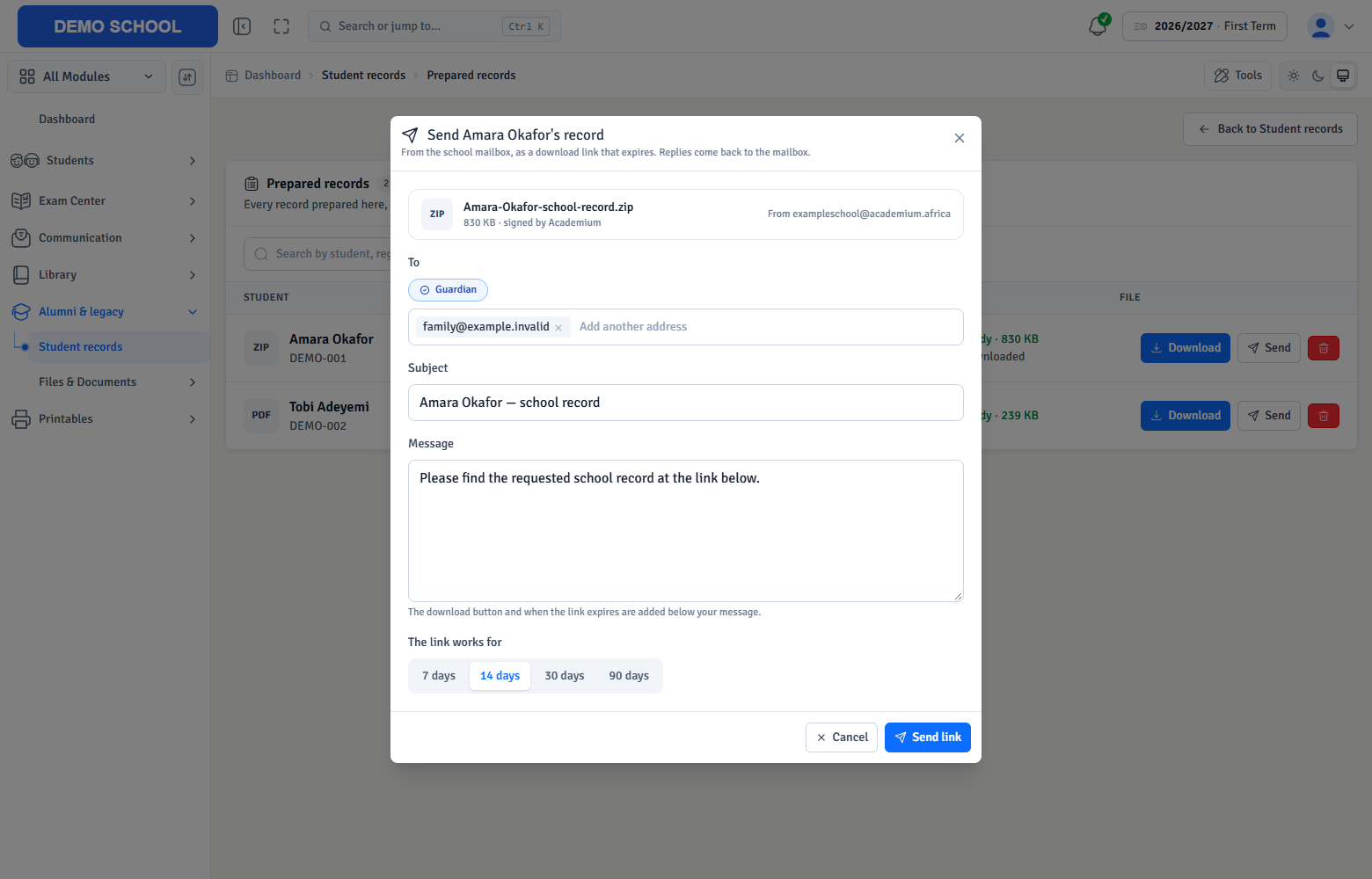
Send a prepared record
- Open the completed record's Send action.
- Review the file and the information included.
- Add the intended email addresses. One send accepts up to twenty addresses.
- Review the subject and message.
- Choose a sharing-link expiry from one to ninety days.
- Confirm and follow the preparation, upload and sending progress.
The school mailbox sends a link to the record. A queued or preparing job has not yet completed delivery.
The recipient should download the file before the link expires. A receiving Academium school needs the original ZIP bundle for import.
Review a records request
A recognised records request in the mailbox can show the requester, student and years requested. Check the requester's identity and the student match before using Prepare record.
If it is for another branch, switch to that branch. If no student matches, search in Student records. A suggested recipient still needs your review before sending.
Withdraw a link
Use Revoke on the sent link when it should no longer work. Revoking a link cannot recall a file that someone has already downloaded.
The sharing link's expiry is separate from the seven-day retention of the locally prepared export file.
Works with other parts of SMS
- Sharing links are emailed through the school mailbox.
Common problems
Send is unavailable. Check that the file is finished and still exists, the school mailbox is active and your role may send student records.
The upload is waiting or failed. Check the connection and the message shown in the task. Do not assume a waiting job has reached the recipient.
The link expired. Prepare the file again if needed, then create and send a new sharing link.
See School email setup and Background tasks.