Attendance Compliance
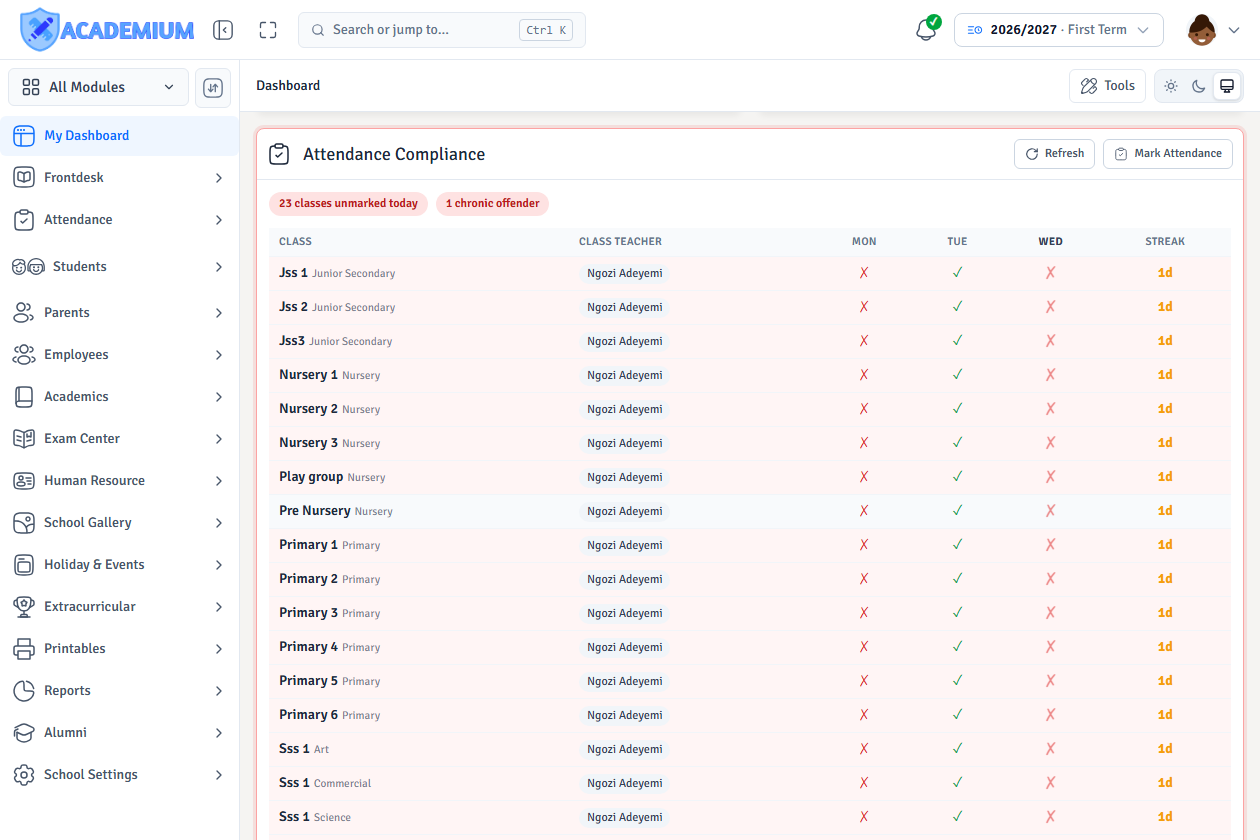
Attendance Compliance helps you check whether class registers have been saved. It is available on the School Owner and School Admin dashboards when the attendance module and dashboard permission are enabled.
Read the panel
- The summary shows how many classes are unmarked today, or that all classes are marked.
- The class table shows the class, class teacher and each school day so far this week. A tick means a register was saved; a cross means it is missing. A dash means no mark is shown for that day.
- Streak counts consecutive missed register days.
- Expand Teachers with Missed Attendance for staff follow-up, including this week, last week and term totals where supplied.
The panel checks completion of the register. It does not mean every student was present. Opening a new register with Present selected is still only a draft until Save.
Follow up
Use Mark Attendance or a class/teacher View action to open attendance, choose the correct class and date, and save the register. Choose Refresh on the panel to check again after corrections.
Why it disappears
The card is hidden while loading or refreshing, when access is unavailable, when there are no classes to report, on non-school days and between terms. It can show All classes marked today when there are classes to report and all their registers are saved.
If it is missing during a school day, check the dashboard's panel settings, attendance permissions, term dates and school calendar. See Taking the student register and Arranging your dashboard.
Works with other parts of SMS
- Built from the registers taken each day, with each class’s class teacher named.