The Instructor Dashboard
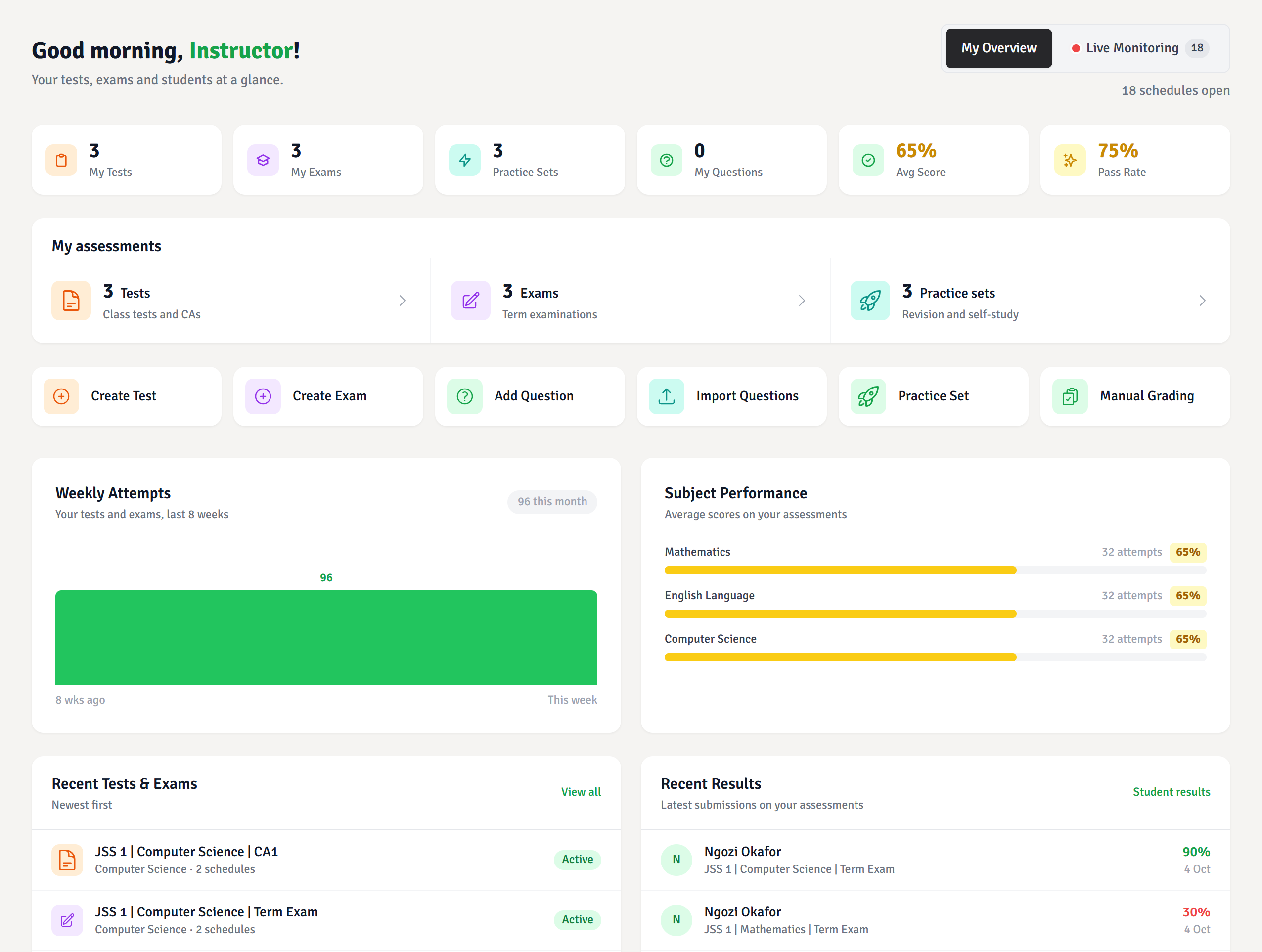
Your Dashboard brings together the assessment work and student activity relevant to your instructor account.
Find your current work
Use the available quick actions to create a test, exam, question, question import, or practice set. Schedules brings your managed test and exam sittings together.
Check the academic period and school settings when a class or paper seems absent. See School access and permissions.
Follow a sitting
Live Monitoring has Live and Upcoming (24h) views. Filter or search to find the intended schedule, then open its card.
Review the expected students and use the controls your account can access. Break requests, access requests, extra time, and seat changes appear according to the sitting’s setup.
The school’s content visibility affects which papers you can monitor. See Watching a sitting live.
Use the figures to follow up
Review the summaries for your papers, questions, attempts, and student performance. Open the relevant schedule or report to see the detail.
A low average may suggest a difficult topic, an unclear question, unfinished marking, or students needing more practice. Review the attempts before drawing a conclusion.
After the sitting
- Finish theory answers in Report Center → Manual Grading.
- Check Student Results for the intended class and subject.
- Review difficult questions in Student Trends.
- Set follow-up practice or a student goal where useful.
Use the Instructor guide for the complete workflow.