The School Dashboard
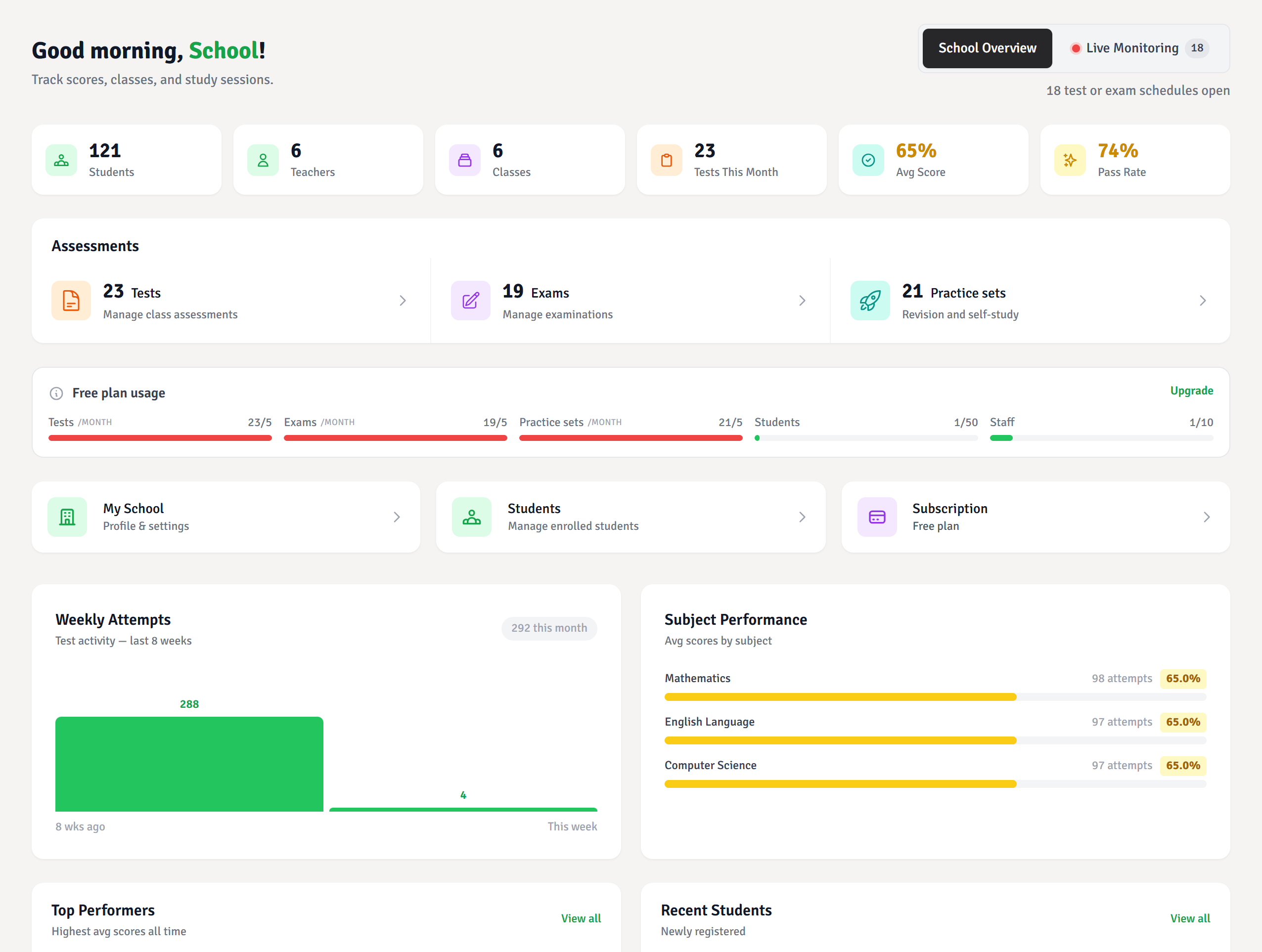
The School Dashboard brings together school activity, assessment work, and the sittings that need attention.
Start with the academic period
Check the period selected in the header before comparing figures or opening reports. Confirm the school’s active term under School Settings → Sessions & Terms when preparing new papers.
Live Monitoring
Use Live for sittings currently running and Upcoming (24h) for those starting soon. Search or filter by paper type, class, subject, and activity.
Open a schedule card to see the expected students, their progress, breaks, submissions, and requests. You can use the available controls for extra time, breaks, timing, or seating.
Check the selected student or group before applying a control. See Watching a sitting live.
Review the school figures
The dashboard summaries help you review students, staff, classes, assessments, and performance. Use the labels and the selected period to understand what each figure covers.
A summary score is a starting point. Open the relevant schedule or Student Results to inspect the work behind it.
Useful follow-up actions
- Students: check class placement or prepare sign-in details.
- School Staff: review instructor accounts and assignments.
- Tests / Exams: prepare or find a paper and its schedules.
- Computer Lab: check the rooms, computers, and login requests.
- Report Center: finish marking and review results.
- School Settings: open the School Profile, Sessions & Terms, and Assessment Types tabs.
If the dashboard looks empty
Clear live-monitor filters and check whether the paper is upcoming, active, or already finished. A finished sitting’s detailed results are reviewed through its analytics and the reporting pages.
Use School troubleshooting if records expected for the selected period are missing.