Watching a sitting live
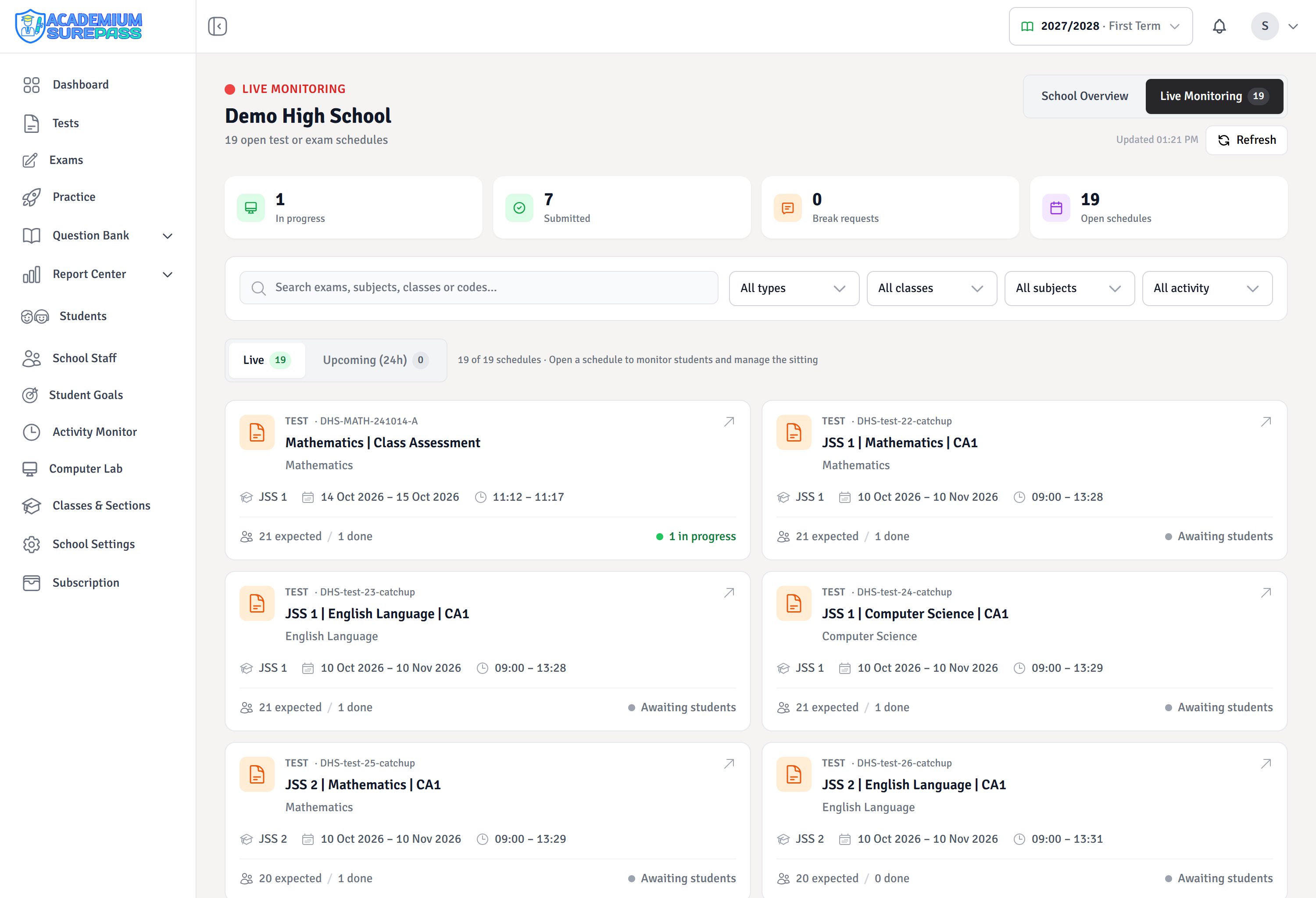
Use Dashboard → Live Monitoring to follow school tests and exams while they run.
The dashboard shows Live sittings and Upcoming (24h). Search or filter by paper type, class, subject, or the activity you want to check.
Open the sitting
Choose the correct schedule card. Confirm the paper, code, subject, classes, and times.
Owners and School Admins have school-level oversight. Instructors see the papers permitted by the school’s content visibility. See School access and permissions.
Follow the students
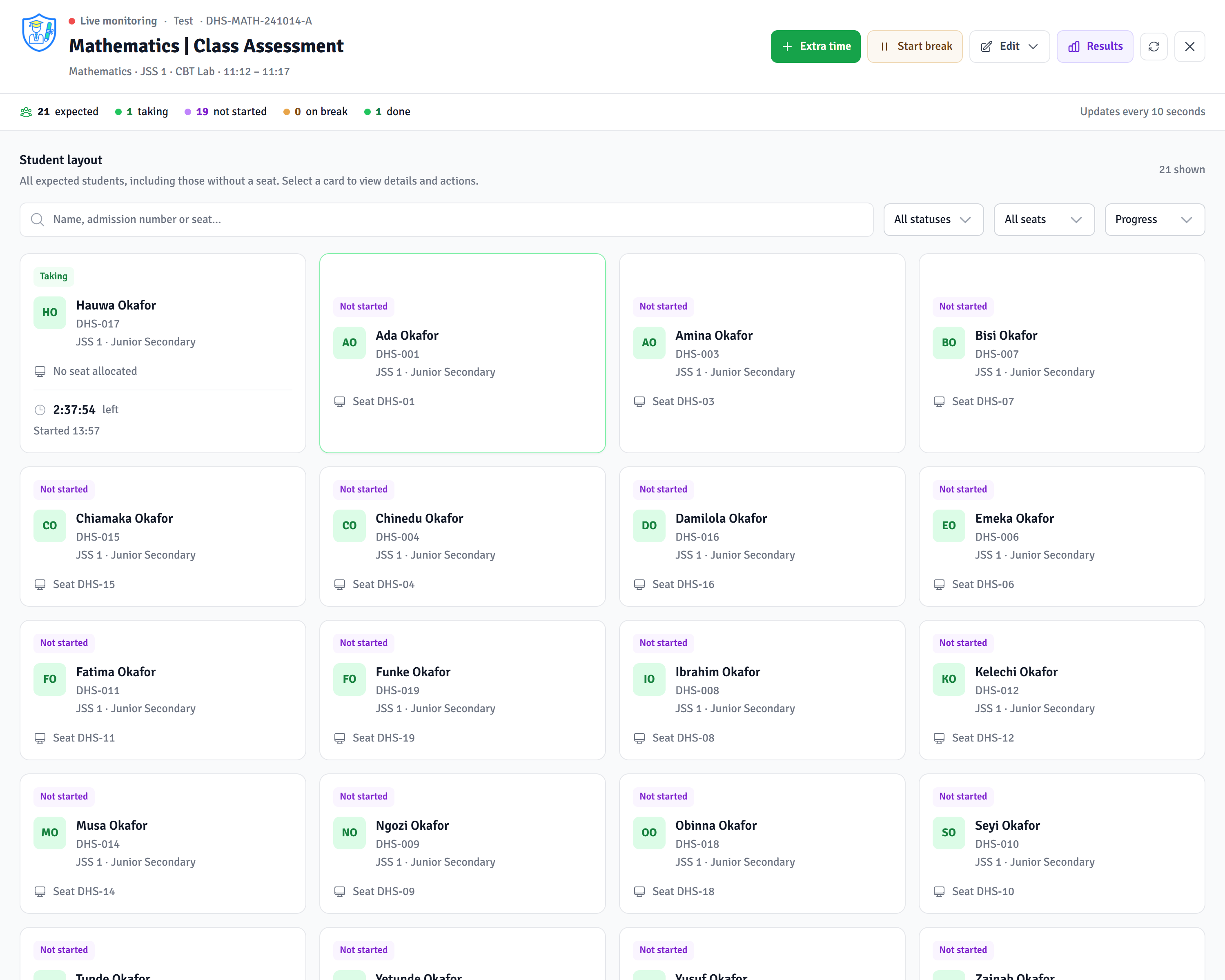
The monitor includes expected students, including students who have not started and those without seats.
Use the status filters to review Not started, Taking, On break, Done, Time elapsed, Suspended, or Requests. Search by name, admission number, or seat where seating is enabled.
Open a student’s card for their attempt details and available actions.
Give extra time
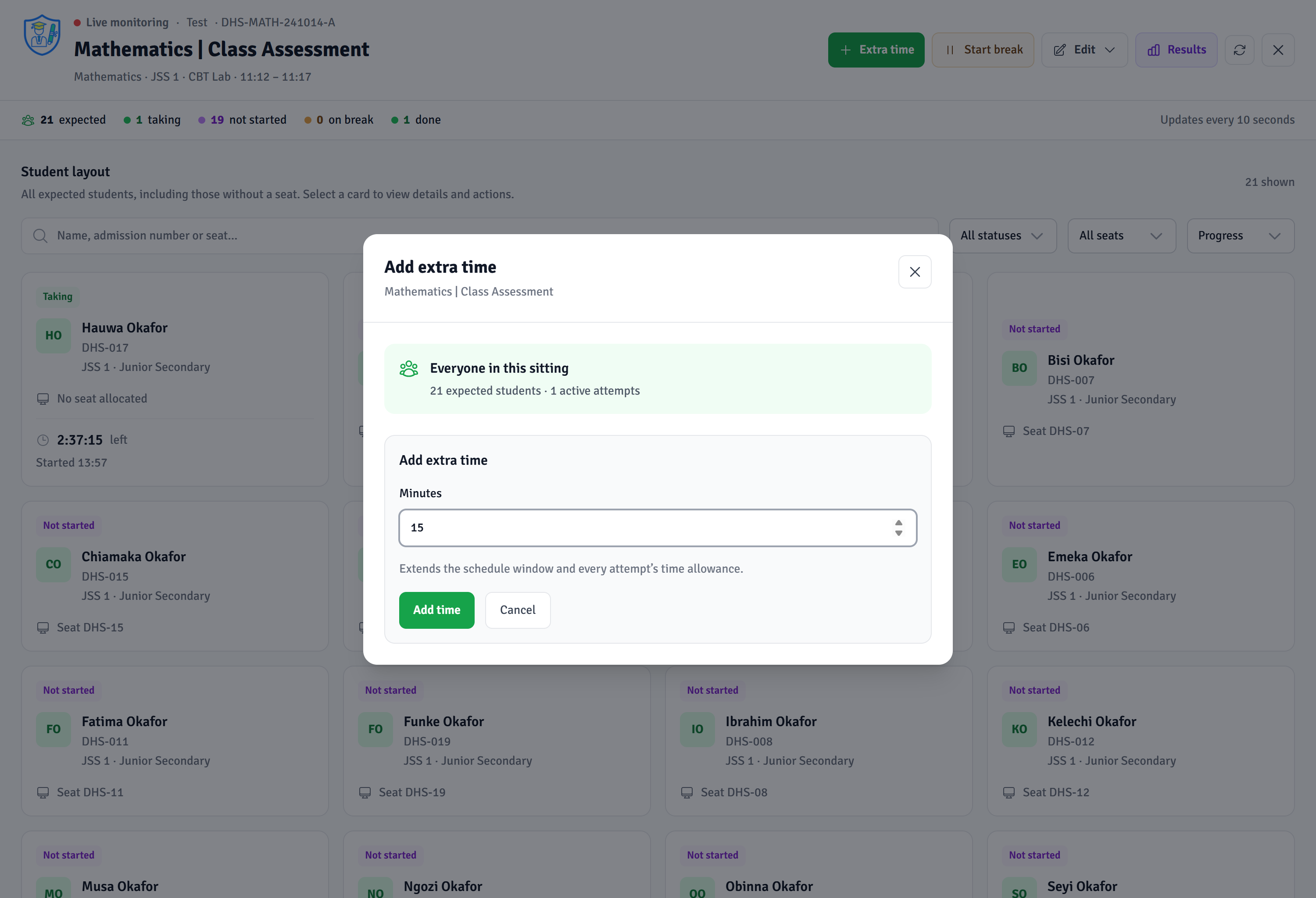
Choose Extra time and enter the minutes to add. Check the scope before confirming:
- a student’s card applies to that student;
- a selected class or section narrows the group action;
- a whole-sitting action can affect the wider sitting.
Extra time is different from editing the schedule’s start or end. Confirm the resulting timing on the student’s details.
Manage breaks
A requested break appears for review. Use Approve break or Decline.
You can also choose Start break for the intended student or active group. Choose a duration or an indefinite break where offered. Use Resume to end a break.
A student’s request does not pause their attempt until approved. Break time is credited when the attempt continues.
Resolve an access or seat problem
With lab seating enabled, review an access request and use Approve access or Decline. Approval lasts until the schedule ends.
To change a student’s seat, select an available seat, enter the Reason for change, and choose Save seat. The change keeps the existing attempt. Release seat removes the allocation.
These controls are shown only where your account and the sitting allow them.
Suspend an attempt
Use Suspend only when the school intends to stop that student’s attempt. Enter the reason and review Suspend and submit before confirming.
This submits the answers so far. It is different from a break used to deal with a short interruption.
Edit the sitting’s timing
Use Edit to open the timing action when available. Review the change summary for the start, end, and grace period before saving.
Review results afterwards
Use the schedule’s analytics for attempts, scores, answer breakdowns, and exports. Student Trends and the Integrity Report help you review learning and recorded events.
See Student Trends and the Integrity Report and Checking results before reporting.