Question Library
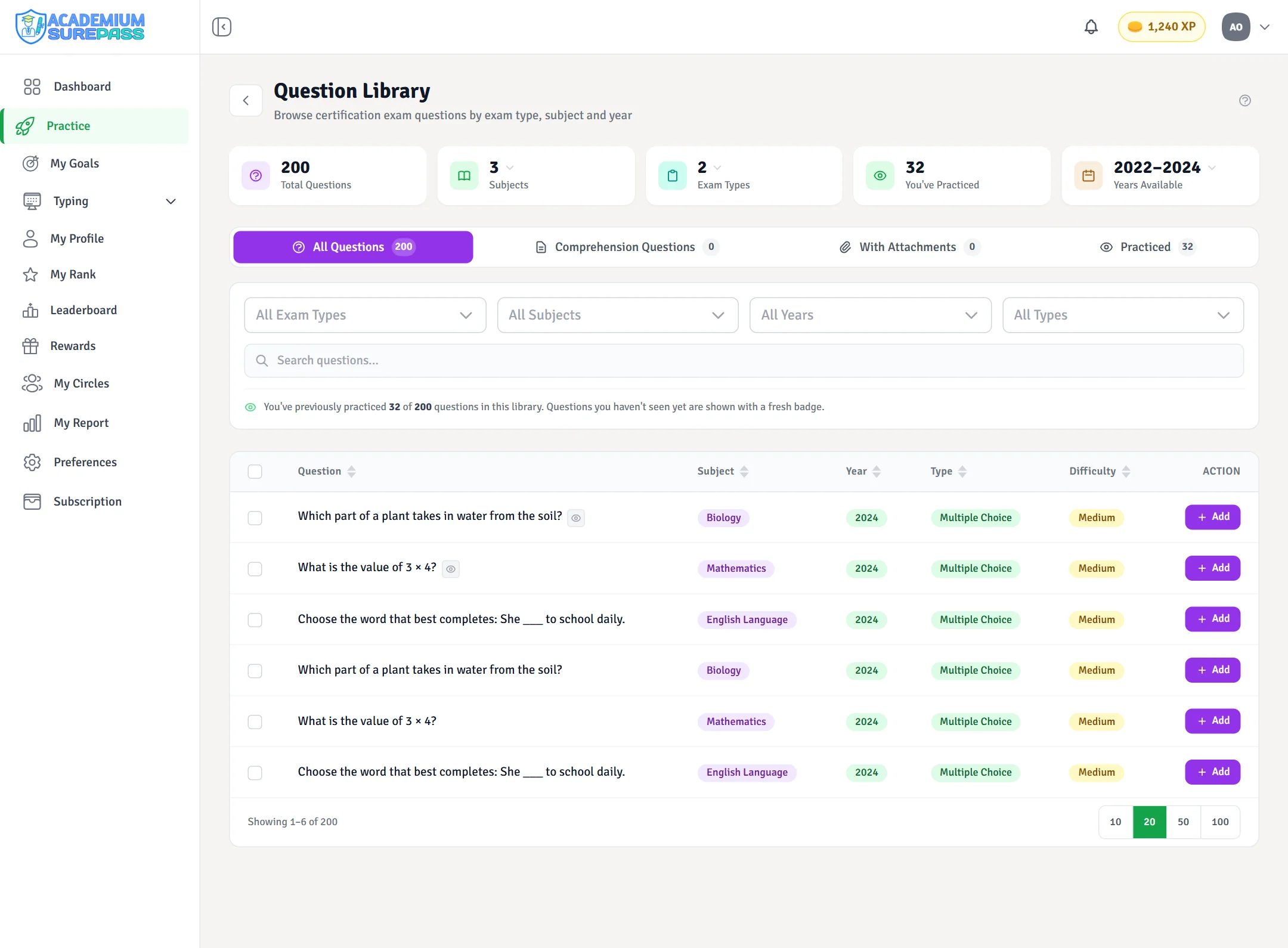
Open Question Library from Practice or the practice chooser to browse the questions your account can use. Student questions follow the active learning profile and access, not another student's choices on the same device.
Browse questions
Use Exam Type, Subject, Year, question type and search where offered. Summary cards show available totals; the Exam Types summary also shows each exam type's question count and lets you filter it.
- Practised questions are marked; unseen questions can have a fresh badge.
- Comprehensions can be grouped under their passage.
- By session groups past-paper questions; All questions gives a wider browsing view.
- Read the relevant passage or inspect a diagram before answering a question that depends on it.
Why counts differ
The learning-profile catalogue can show online questions before they have been prepared for your account. The library shows what you can use under the active focus. A smaller device count for an unselected subject does not mean the portal has no questions for it.
If the list looks empty, clear its filters, check the signed-in account and active preferences, and allow pending preparation to finish. See Your learning profile.
Make a set
- Tick the questions you want. The selection panel shows the count and estimated time.
- Choose Create Practice Set.
- Set the title, duration and available settings.
- Review and create the set.
Parents and teachers also choose who the set is for. Some accounts have an allowance for new questions viewed as well as questions kept ready; read the usage notice to see which has been reached. This is different from the entire library being unavailable.
For teachers
Where offered, question statistics show how students have performed. The school Question Bank used to author and manage questions is separate from a student's read-only Question Library.