Your learning profile
Your learning profile tells Surepass which subjects and certification exams you want to study. It controls your personal question bank and the questions offered for practice and games.
First-time setup
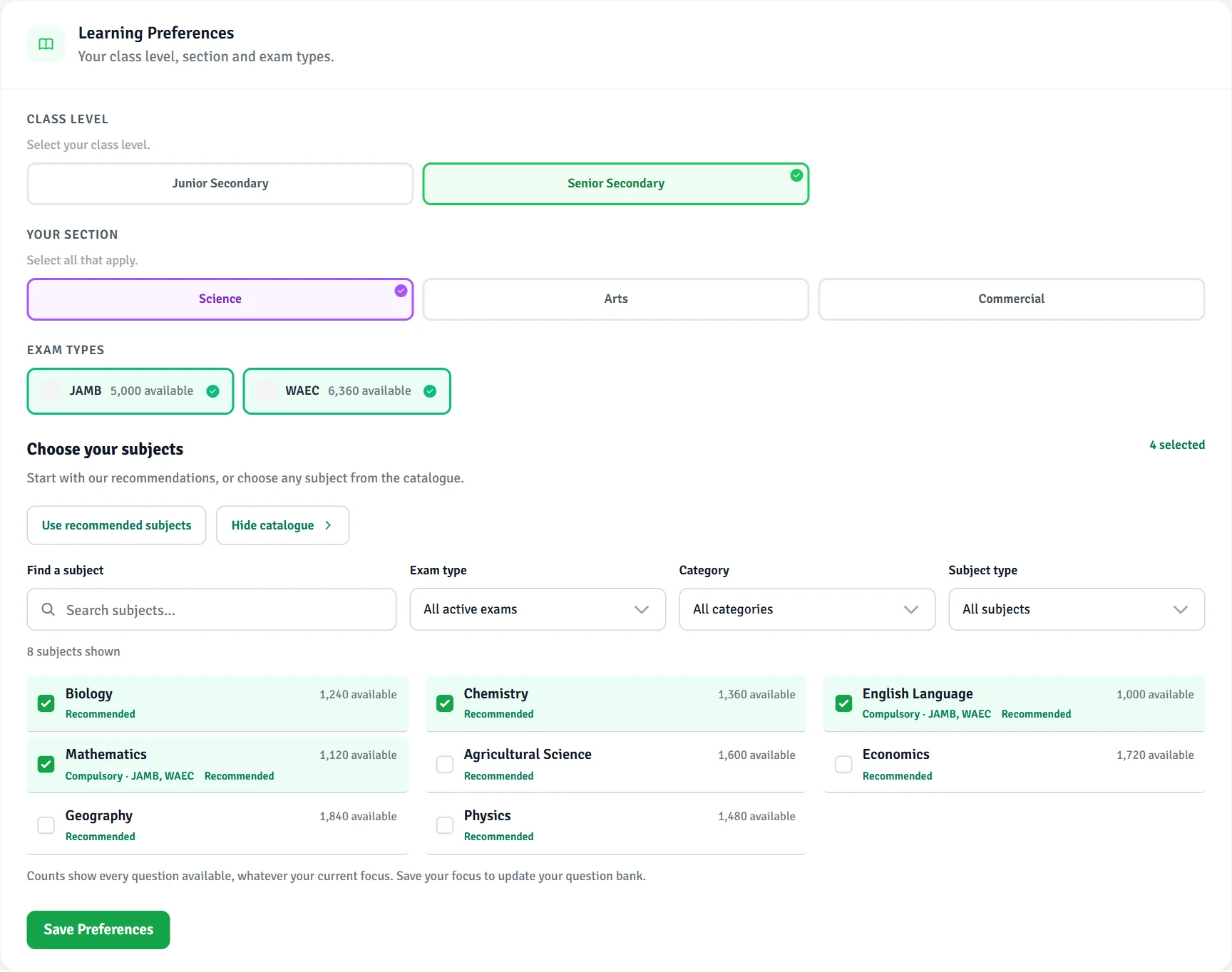
- Choose your class level.
- Choose your section where offered, such as Science, Arts or Commercial.
- Select your exam types. The choices show question counts.
- Keep the recommended subjects or open the catalogue to refine them.
- Continue with the recommended or chosen subjects and let the app prepare your questions.
A section recommends a starting point. It does not stop you selecting another subject from the available catalogue.
Choose your subjects
The catalogue offers subjects with available certification questions. Each shows a question count, and selected subjects appear before the other options.
- Search using Find a subject.
- Narrow the list by exam type, category or subject type where offered.
- Tick a subject to add it; untick it to remove it.
- Use recommended subjects restores the suggested selection.
A subject without available certification questions is not offered as an empty choice. Clear search and filters before treating an empty filtered list as an empty bank.
Understand the counts
The catalogue uses question information from the portal, including subjects not downloaded to this device. These counts help you choose; they do not mean every question is already ready for your account offline.
Your Question Library follows the active preferences and account access. A shared device does not give you another student's question allowance. See Question availability.
Change your focus later
Open Preferences → Learning Preferences, make the changes and choose Save Preferences. Check the remaining-change notice, if shown, before saving. Saving unchanged choices is not a new change.
If your parent or teacher manages your profile, some choices can be read-only. Ask them to change the profile for your account.
Pending changes and offline use
On the Individual Edition, your current preferences remain active until replacement questions finish downloading. Offline changes stay pending. Reconnect and let synchronisation finish; you do not need to keep selecting the same subjects.
After the new focus applies, read any notice listing activities whose questions are no longer available. They may need attention before starting again.
The profile appears again after signing in
Check that you are in the same account. A completed profile is remembered for returning users. If it cannot be restored, reconnect and retry before choosing a different focus.