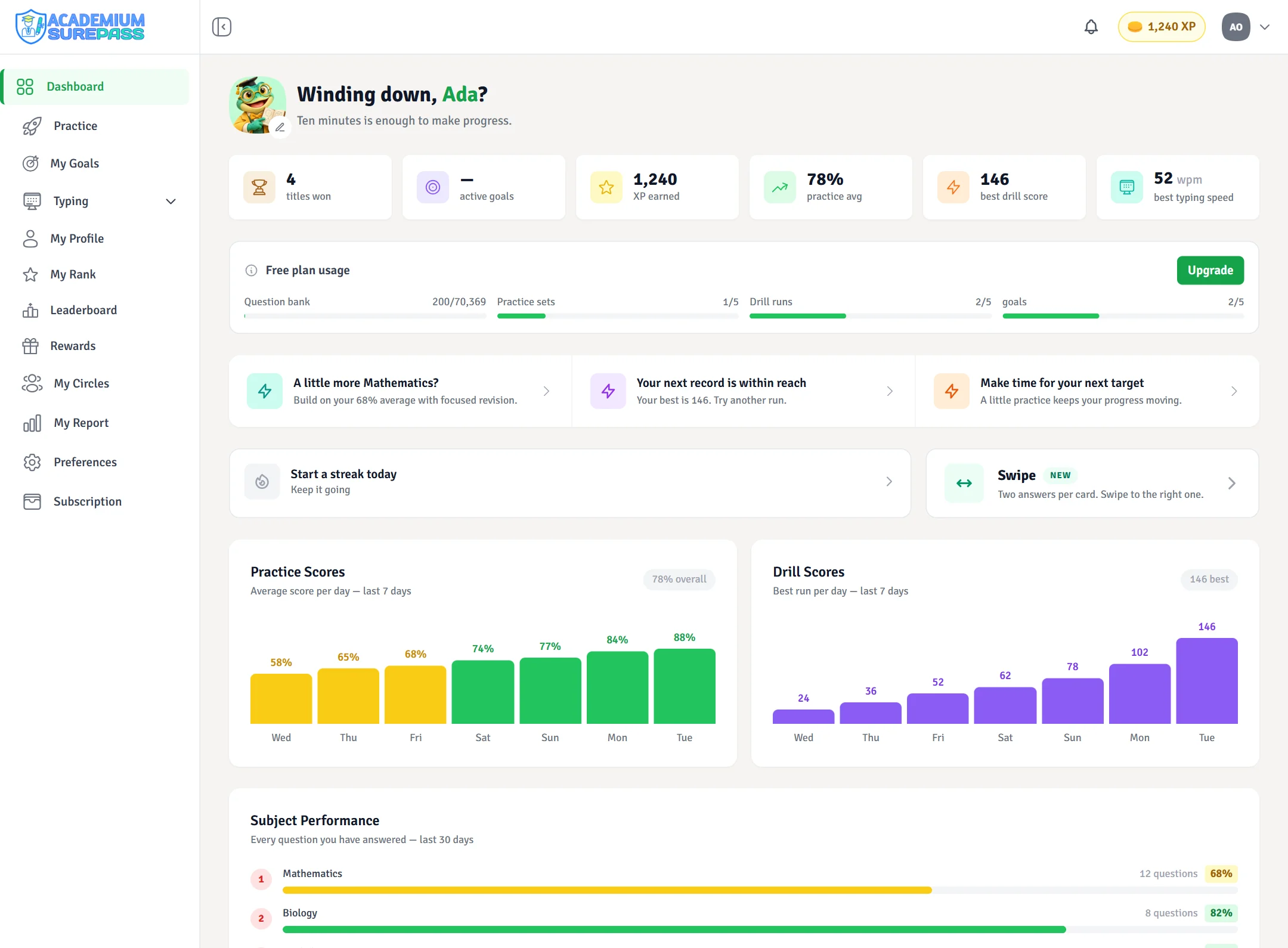
Student learning guide
Start here to revise, build a study habit and understand your progress in Surepass.
Your first study session
- Open the Individual Edition. Choose Log in if you have an account, or Set up a new account to register. Use the school or centre sign-in option if your organisation gave you a code.
- Complete Your learning profile if this is your first setup. Returning students keep the profile already saved to their account.
- Choose exam types and subjects. Keep the recommendations or open the catalogue to refine them.
- Open Practice. Choose Mixed, Core subjects, Build your own, Question Library, Drill Mode or Swipe, depending on what you want to do.
- Finish and review the activity. Read explanations and use the subject breakdown to decide what to work on next.
- Open My Goals to set a target. Explore My Rank, Rewards and My Profile as you progress.
Choose the right activity
| You want to… | Choose… |
|---|---|
| Revise several of your selected subjects quickly | Mixed practice |
| Focus on compulsory subjects at your level | Core subjects |
| Choose subjects, filters, time and tools | Build your own |
| Select individual past questions | Question Library |
| Play a fast revision game | Drill Mode or Swipe |
| Improve keyboard confidence | Typing |
| Track a target or challenge | My Goals |
See Quick practice, Your learning profile and Swipe.
School and centre students
Your account may have assigned tests, exams and practice. Open the assigned work rather than making another personal account. A live school sitting can put the app into Academic mode, temporarily hiding learning and reward features. Learning mode returns when there is no outstanding sitting in that period.
Formal school or centre assessments are taken through the organisation's permitted sign-in or lab, not through every Individual Edition account.
If something is missing
Menus depend on your account, application and the features your school, parent or teacher allows. Question choices follow your learning profile. See Question availability before assuming the bank is empty.