Printables
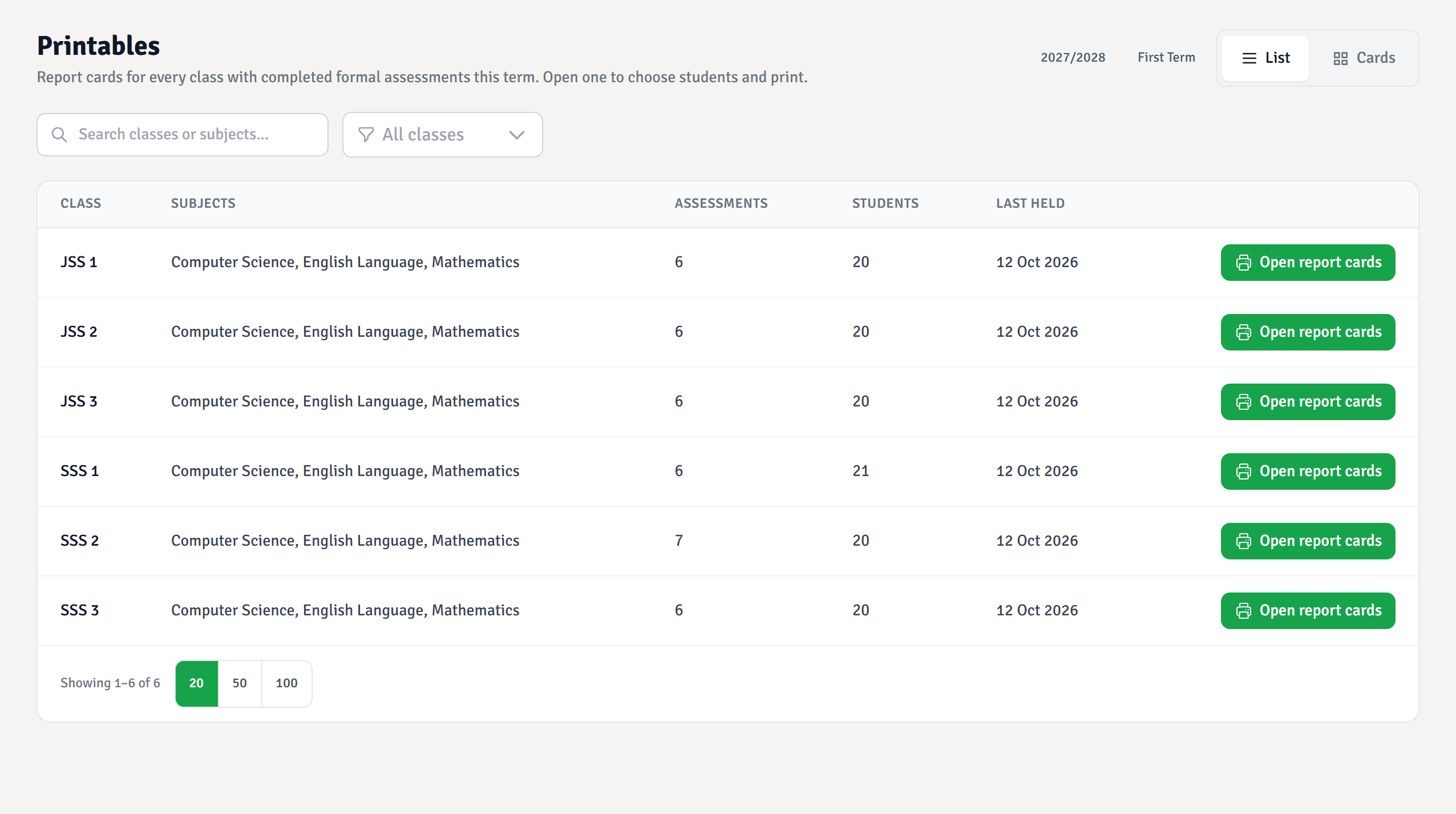
Printables prepares report cards for students in a selected class. Open Report Center → Printables.
Before printing
Finish theory marking and resolve conflicts in Student Results. Students with unresolved mark conflicts are blocked from printing until those conflicts are resolved.
Check the selected academic period before opening the class.
Prepare report cards
- Open the intended class from the list.
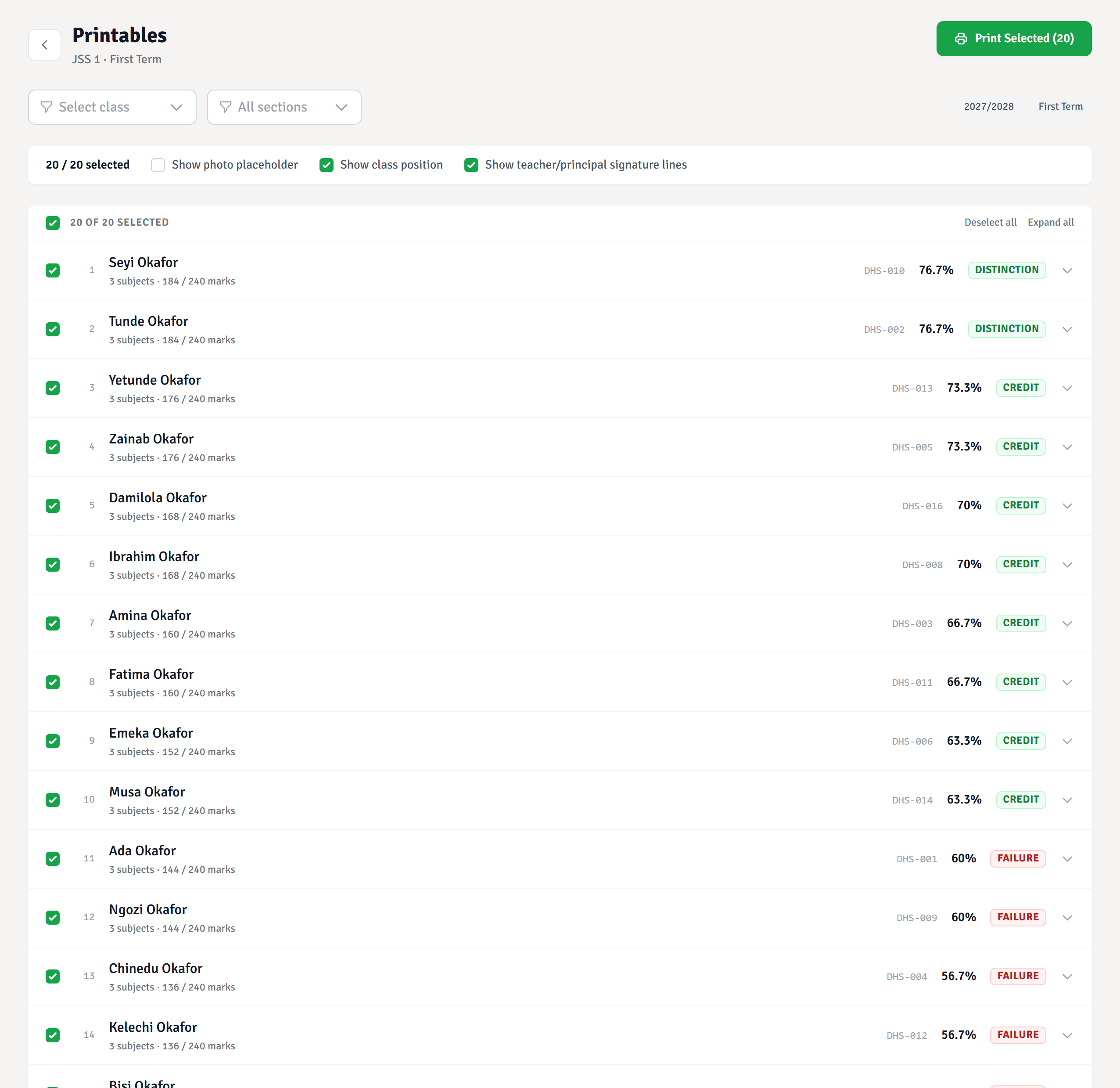
- Narrow the section where available.
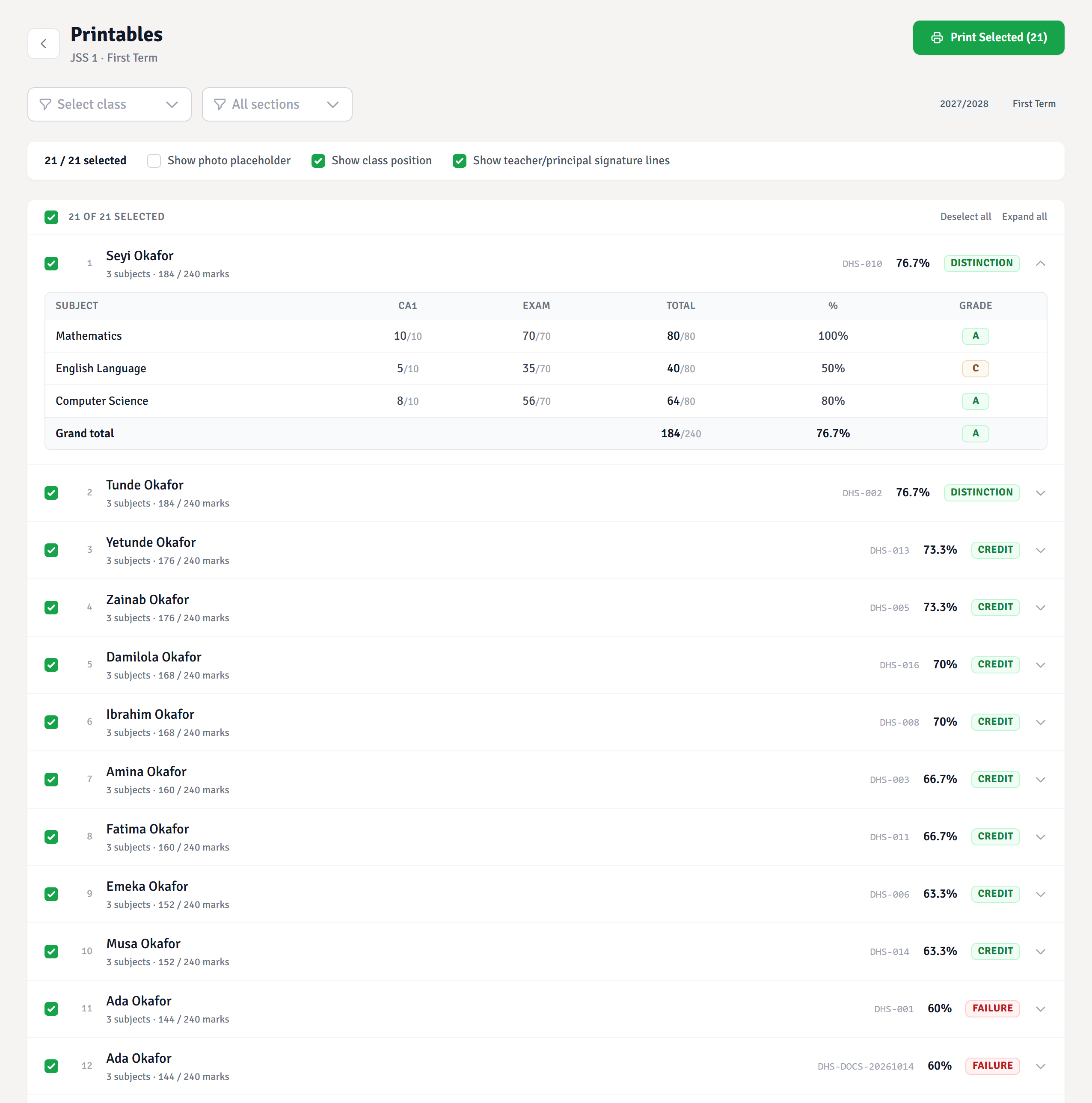
- Review the displayed report cards.
- Select the students you want to print.
- Choose Print Selected, or the individual card’s print action.
- Review the print preview and available paper and display settings.
- Print or save the document using the options available in the preview.
Check student names, class, subject coverage, marks, and any signature fields before distributing the output.
A card is blocked
Use Student Results to resolve the student’s mark conflicts. Recheck pending theory marking before returning to Printables.
A blocked card should not be worked around by re-entering the student or creating another assessment.
With Academium SMS
For a connected school’s official SMS term reports, send checked CBT scores to SMS and complete the reporting process there.
See Sending results to Academium SMS and Printing report cards in SMS.