Broadsheet
The Broadsheet brings together a class’s formal assessment results across subjects for the selected term.
Open Report Center → Broadsheet.
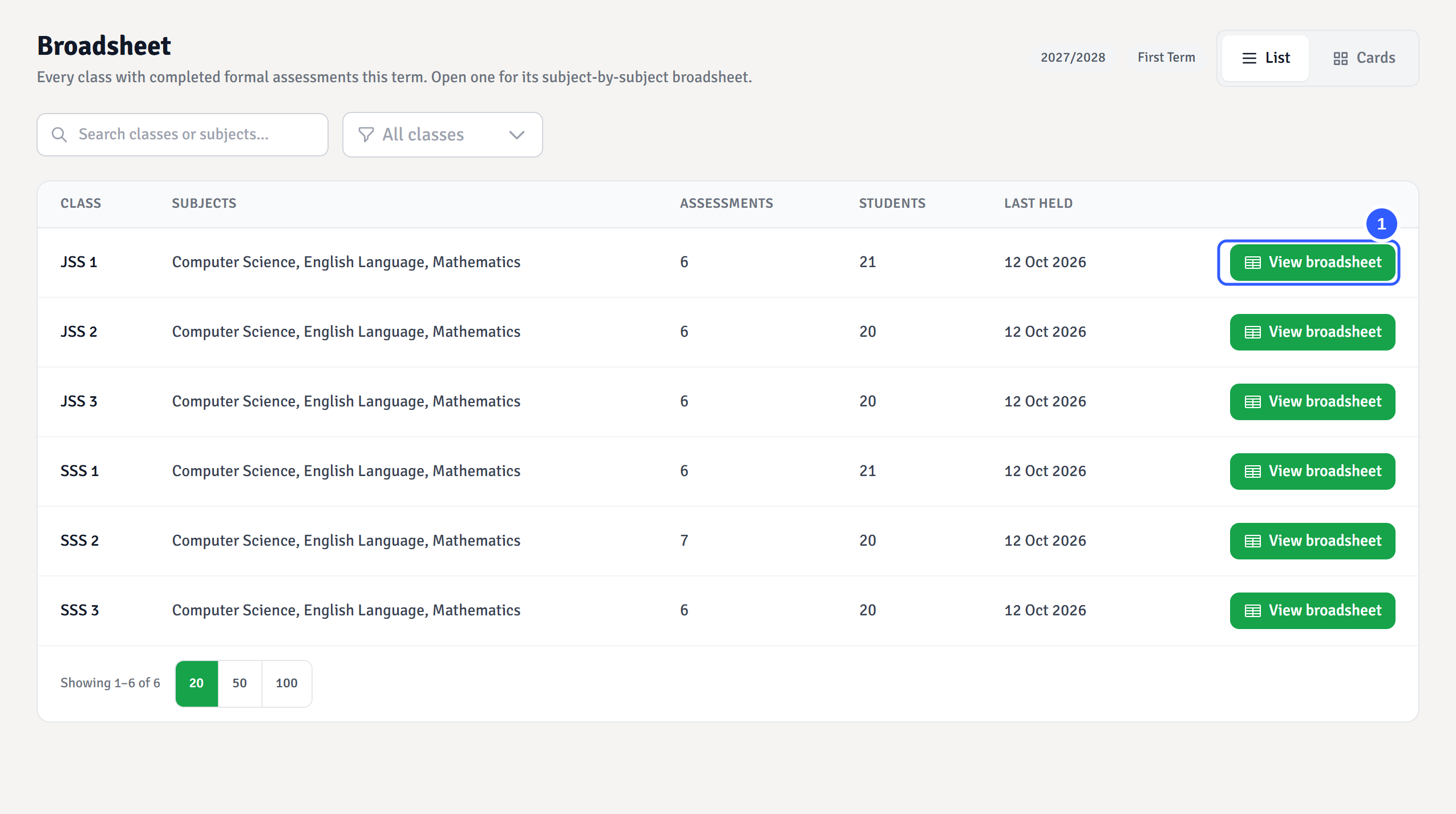
Open a class
Choose the intended class from the overview. Review the selected class and narrow the section where available.
In the overview screenshot, 1 highlights View broadsheet for the class.
Check the academic session and term shown on the page. If no results appear, confirm that the class has completed formal papers with assessment types in that period.
Read the summary
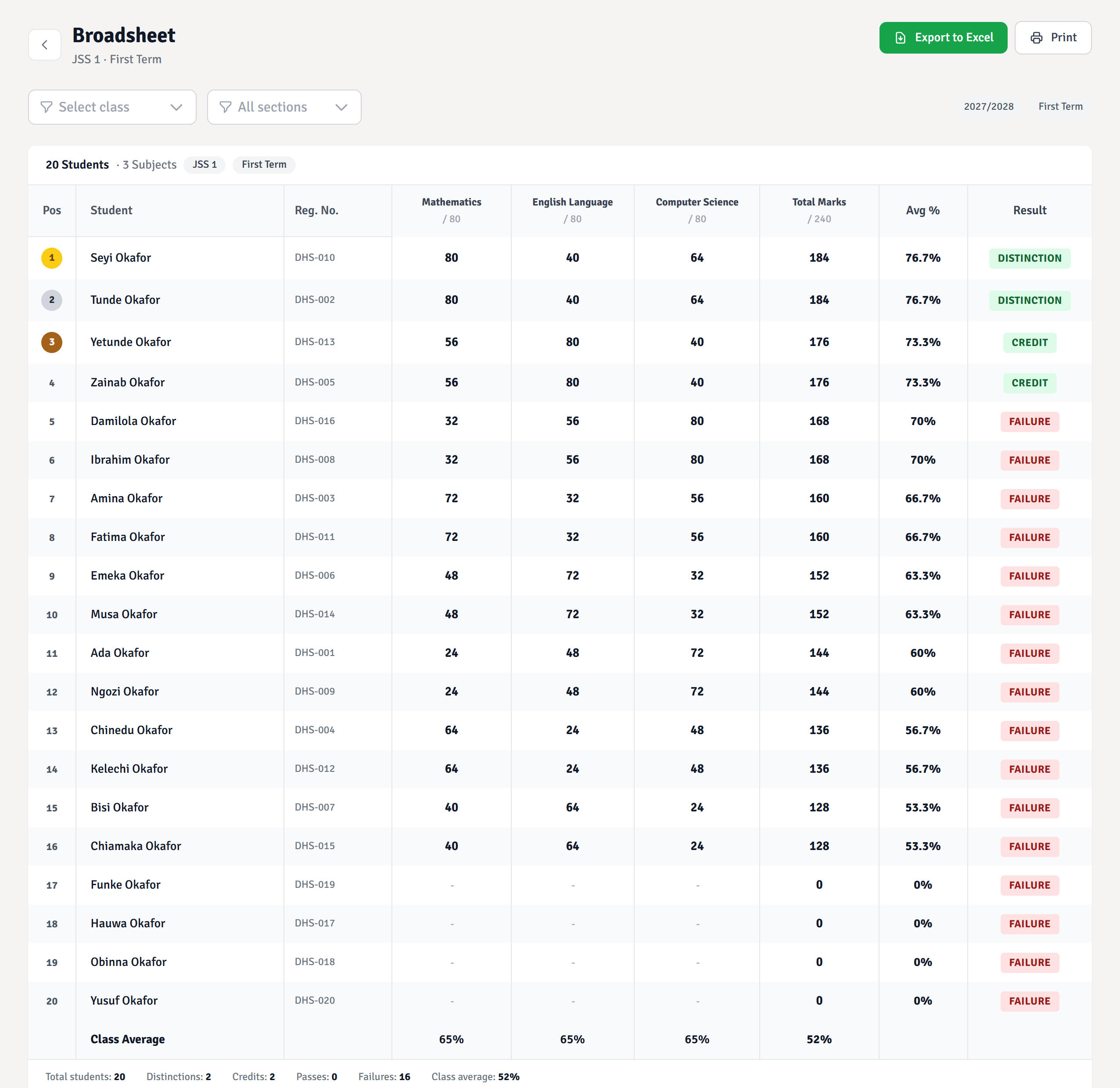
Each row shows the student, registration number, subject scores, total marks, average percentage, and result. Position and class summaries help you review the class as a whole.
Check subject coverage before comparing totals. A class with missing subject scores needs further review rather than an immediate conclusion about performance.
Check the detail behind a score
Use Student Results for the class and subject when a score needs investigation. Complete theory marking and resolve repeated-attempt conflicts before treating a summary as final.
See Checking results before reporting.
Export or print
Use the available Excel export or Print action. Review the print preview, paper settings, names, and subject columns before distributing it.
With Academium SMS
SMS reports can include other assessments alongside the CBT scores sent from Surepass. Complete the checked result push before preparing the corresponding official reports in SMS.