Student Goals
Set a learning target for a class or selected students and follow their progress. School staff open Student Goals.
Choose a useful target
Use a goal for follow-up learning, such as regular practice or completing a learning activity. Choose a target the students can understand and work towards.
Student goals complement assessment results; they do not replace a test’s marks or its schedule.
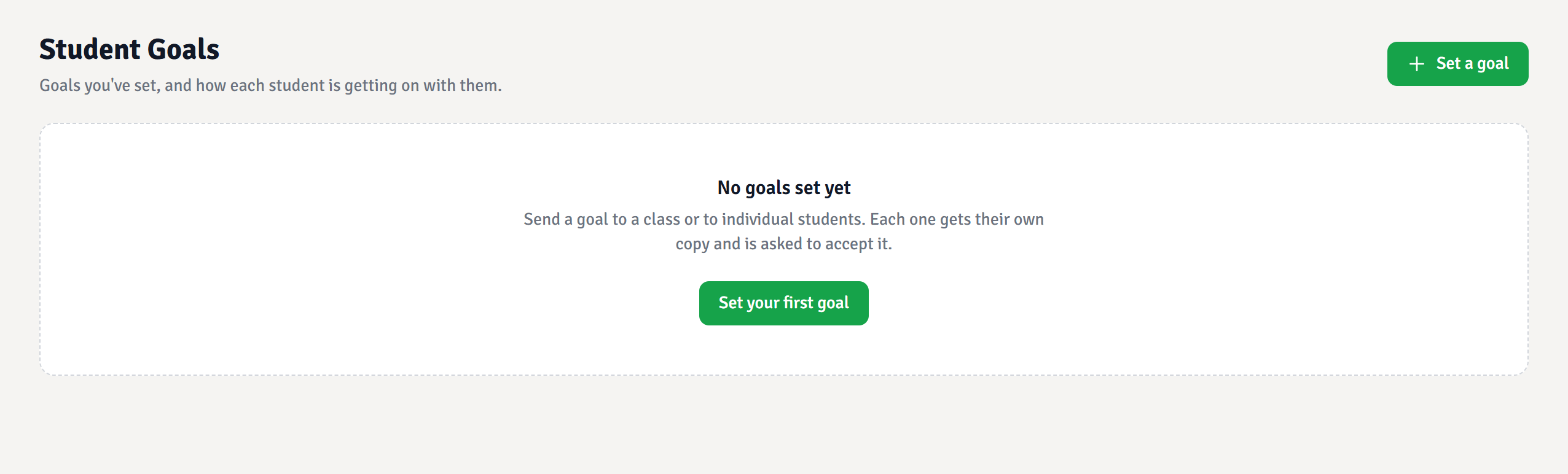
Set a goal
- Click Set a goal.
- Choose A whole class or Pick students, then review the selected students.
- Choose the activity to count and the target.
- Review the time period and any available target-adjustment option.
- Confirm the goal.
Each student receives their own goal and is asked to accept it. See My Goals for the student experience.
Follow the response and progress
Review Running, Awaiting answer, and Declined goals. A goal waiting for a student’s answer is different from one that is running but has no progress.
Read a student’s reason if they decline. Adjust the learning plan rather than repeatedly sending the same unsuitable target.
Withdraw a goal
Use Withdraw when the assigned goal is no longer appropriate. Check the student and target before confirming.
Good school follow-up
After a difficult paper, use Student Trends to identify the topic needing attention. Prepare practice that addresses that topic and set a manageable goal to support it.