Importing attendance
Use Attendance → Import to bring a completed register into Academium. Spreadsheet importing requires a paid plan and the appropriate staff permission.
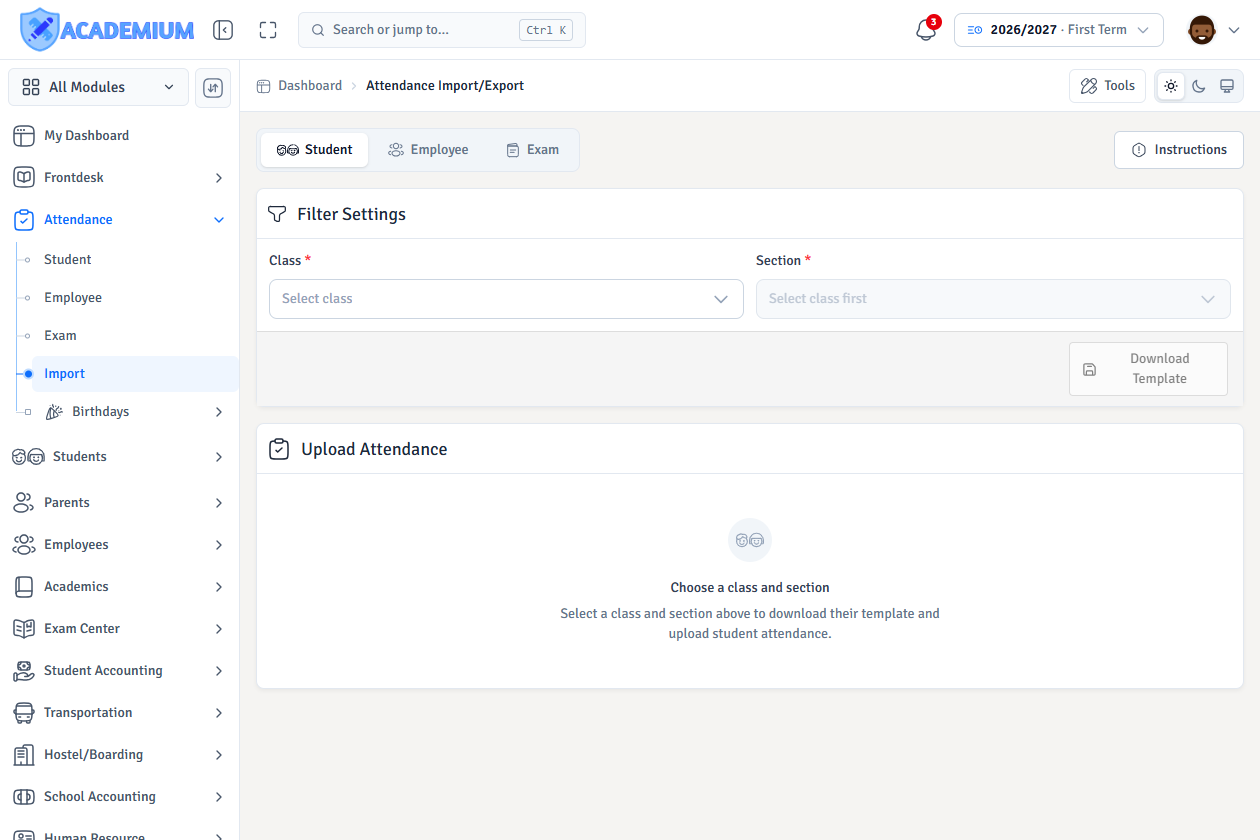
Choose the register
- Choose the Student, Employee or Exam tab.
- Complete that tab's filters. For a student register, choose the class and section.
- Choose Download Template in the filter panel.
- Open the spreadsheet and complete the editable attendance cells.
The section selector shows a loading state while its choices are being fetched. Wait for it to finish before choosing a section.
The upload area becomes available once the required selection is ready. You can upload a compatible template you already have; downloading another copy is not a prerequisite.
Completing the student register
Date headings use day-month-year, for example 28-Sep-2026. Student ID, Student Name, Admission No and Class No identify each student and are locked.
Four locked summary columns appear before the dates: Present, Absent, Late and Present / School-open days. They start with the recorded attendance and update as you complete the spreadsheet. Present counts days attended, including late marks; Late also shows those late days separately. The summaries are for review and are ignored during import.
Enter only these marks in the attendance cells:
| Mark | Meaning |
|---|---|
| P | Present |
| A | Absent |
| L | Late |
The spreadsheet validates these choices. Keep the headings, identifiers and date columns intact. Do not insert students or change their IDs. Use the template for the register you intend to update, rather than repurposing one from a different class or exam.
Uploading
Drag the completed Excel file into the upload area, or click it to browse. Check the selected filename, then choose Upload on the right.
Read the result before leaving. If rows or marks are rejected, correct the reported problems and upload the corrected file. Do not assume an upload succeeded simply because a file was selected.
Instructions and common problems
Choose Instructions, beside the register tabs, for the formatting guide.
The upload area is not ready. Complete the filters and wait for the section choices to load.
A mark is rejected. Use P, A or L in an editable date cell. Summary values are not attendance entries.
The names are wrong. Download a template for the correct register. Do not edit the locked identity columns to turn it into another class's register.
Works with other parts of SMS
- Templates list students from the class roll and staff from your staff records; imported marks count in attendance reports and on report cards.