Leaderboard
Open Leaderboard to compare progress with others. In the Individual Desktop Edition, connect to the internet to load the shared boards.
Choosing a board
- My Circle compares you with people in your circle.
- Global is a wider board you can choose to join or leave.
- By Exam groups eligible activity by exam type. Select the exam you want to view.
- Where offered, the drill board compares best game scores.
A board's score and eligibility rules depend on the board. Your rank total, an exam average and a drill score are different measures.
Reading a learner's card
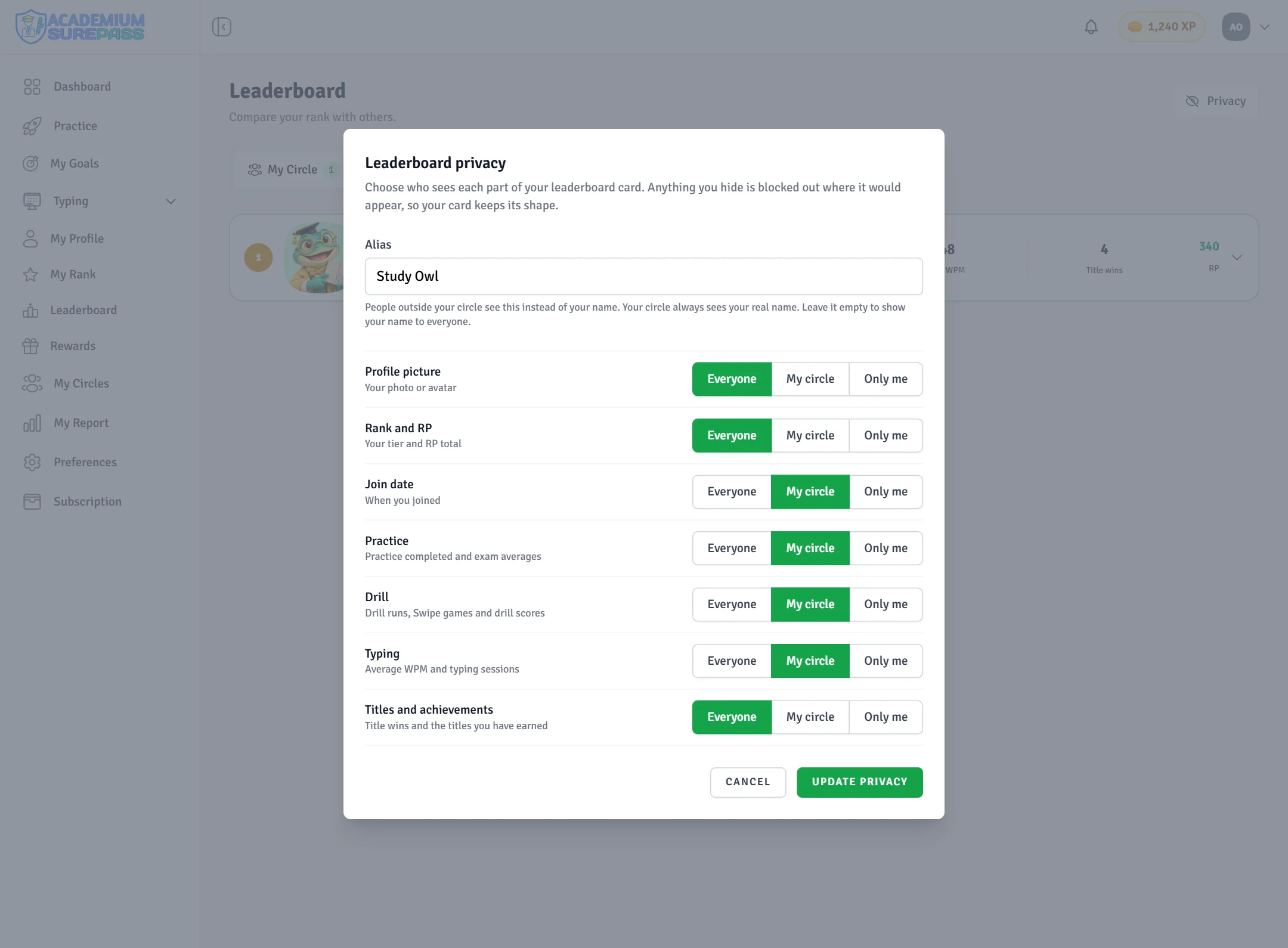
Expand a row to see the details that learner shares. These may include practice completed, drill runs, Swipe games, typing figures and earned titles.
Achievement cards show the title image, wins and award details. If there are more cards than fit, scroll sideways through the row.
A hidden detail does not mean the learner has no activity.
Choosing what others see
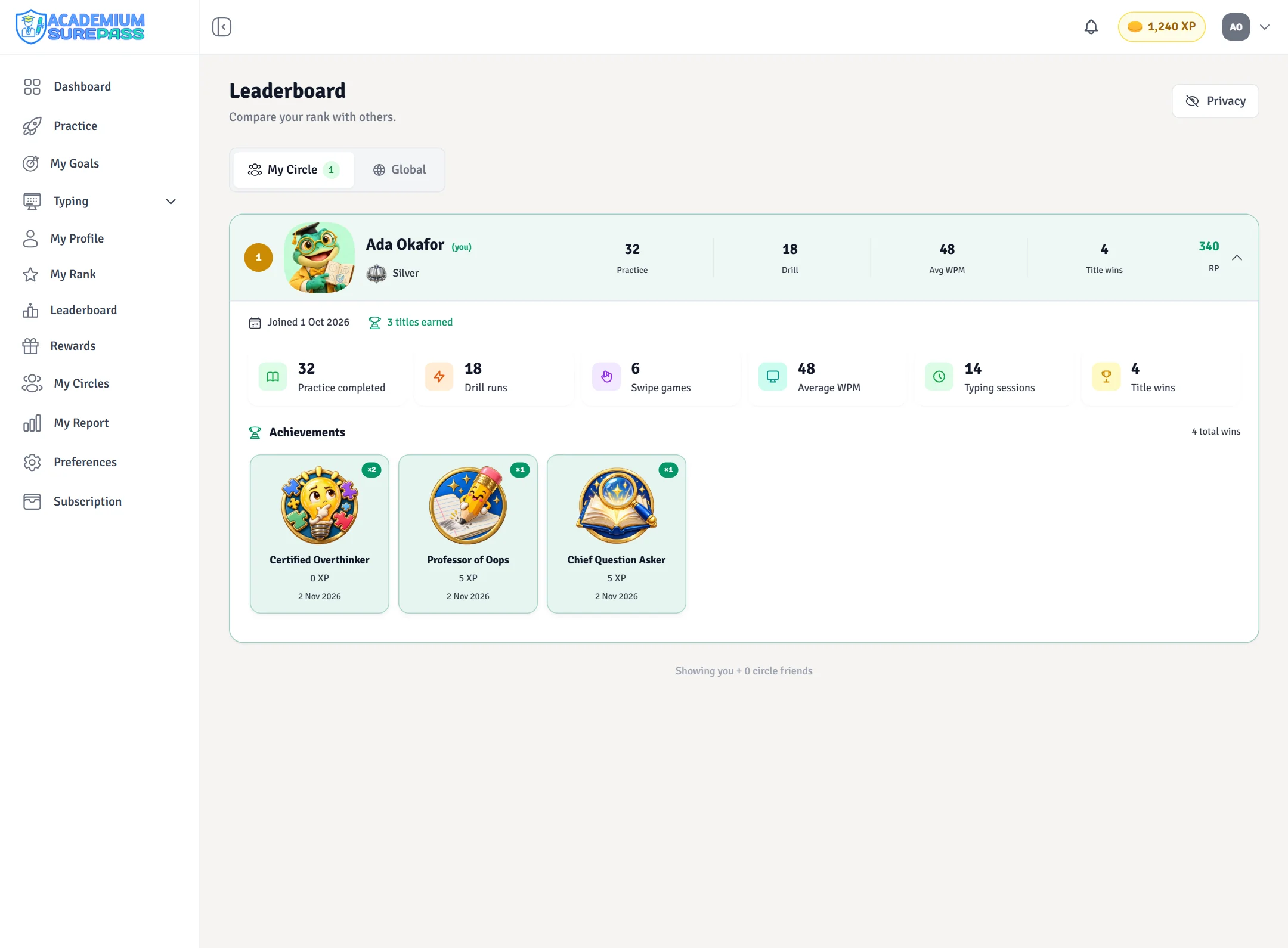
- Click Privacy.
- For each part of your card, choose Everyone, My circle or Only me.
- Click Update privacy.
You can control your picture, rank and RP, join date, practice, drill, typing, and titles and achievements separately.
An optional Alias replaces your name for people outside your circle. Your circle still sees your real name. Leave the alias empty to use your name for everyone. You always see your own full card.
Changing privacy on the desktop app needs an internet connection. Joining the Global board and choosing which card details to share are separate choices.
See My Circles and My Profile.