Devices
Devices lists the computers that use Surepass in your labs. Open Computer Lab → Devices.
How computers are registered
With Device Auto-Registration on, a computer is registered by itself the first time it opens the Surepass sign-in page on your network. With it off, only computers already registered can use the sign-in page.
Auto-Registration Settings (schools):
- Device Code Prefix: new computers are coded PC-001, PC-002 and so on.
- Default Location Label: such as "Computer Lab".
- Allowed IP Ranges: only computers in these network ranges are registered. With none, every computer on the network is registered. Ask your IT staff before changing this.
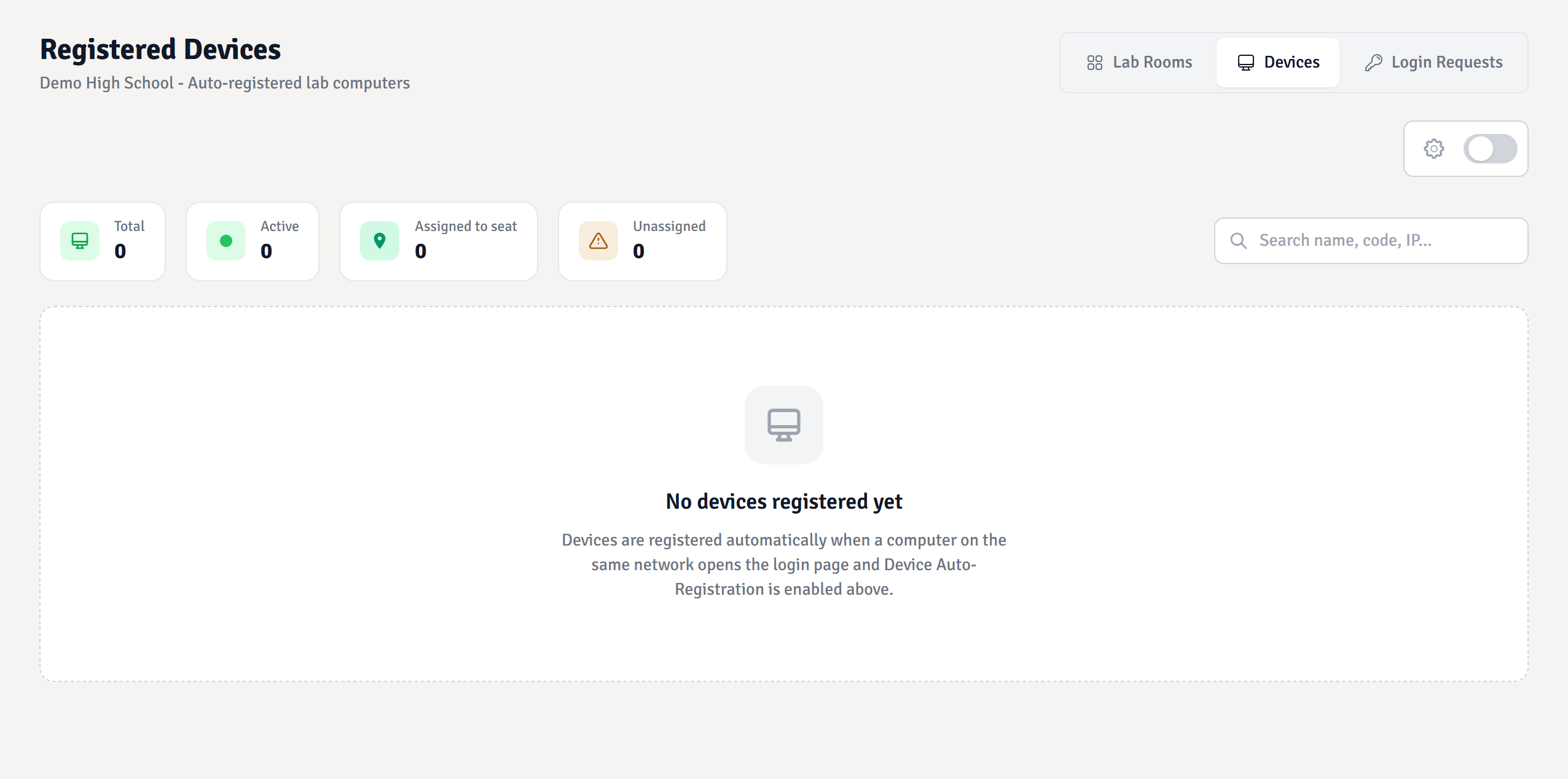
The device list
Shows each device's name, Code, address, Assigned Seat, Last Seen and Status, with totals for active, assigned and unassigned devices.
- Rename a device. The name is for staff; the sign-in page shows only the computer code.
- Edit Computer Code: the ID shown on the sign-in page. It must be unique.
- Bulk Allocate Codes: give every device a new code in order, with a Prefix, Start # and number of Digits. Check the preview first.
- Delete a device. Unassign it from its seat first.
Link devices to seats in the lab layout, or with Auto Arrange. See Laying out a lab room.