Updating the Individual Edition
Use the update notice in the Individual Edition to review a newer release and follow its progress.
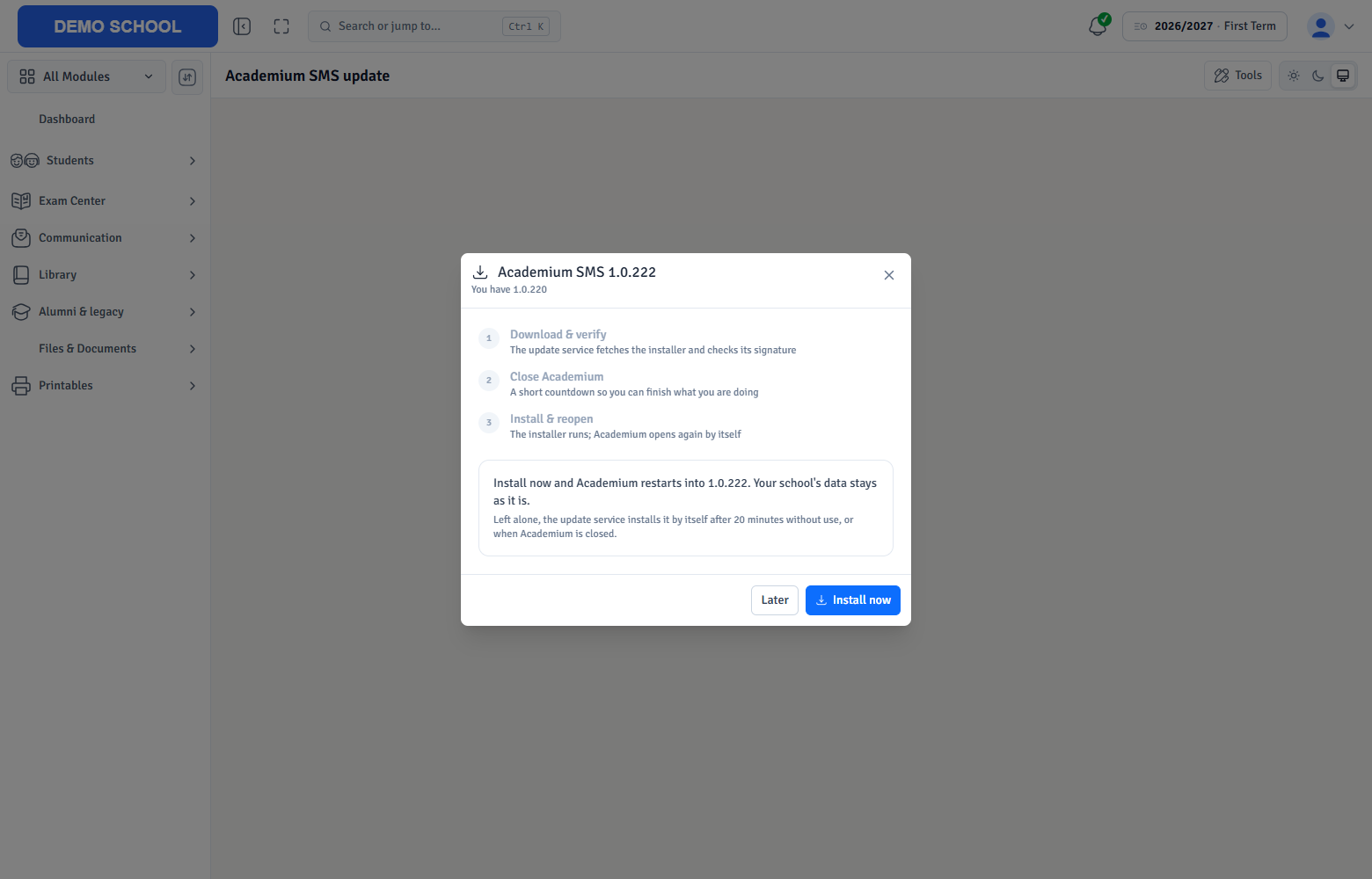
Download and install
- Save the form or work you are editing.
- Open the update notice when a release is offered.
- Start the update when you are ready, then follow Download & verify.
- Watch the short countdown before Academium closes.
- Let the installer finish and the app reopen.
Downloading and installing are separate stages. A completed download does not mean the running app has already changed version. Save your work before starting; use the later option if you are not ready for the app to close.
If an update stops
Read the status and use the offered retry action. Restore the connection if the download is waiting. Avoid starting another installer while the app reports an installation already in progress.
After reopening, check the version before assuming that the update completed.
Your school records
Updating the app is different from restoring a backup, deleting a school or signing out of a school. Do not use those actions to fix a stalled update.
For information about which school records have reached this computer, see Understanding sync.
Works with other parts of SMS
- Each computer’s version is shown in Devices and access.